Beyond the Handheld: The Modern Guide to Running Android Apps on Windows
For years, the divide between mobile and desktop computing felt like an unbridgeable canyon. While Windows 11 briefly flirted with the idea of native Android app support via the Windows Subsystem for Android (WSA), Microsoft ultimately pulled the plug on the initiative in 2024. For many users, this signaled a return to the status quo: a world where your phone’s favorite apps were strictly confined to your phone’s screen.
However, for power users, mobile gamers, and developers, the bridge has not been burned—it has simply evolved. Today, running Android applications on a Windows PC is more efficient, stable, and versatile than ever before. Whether you are looking to squeeze extra graphical fidelity out of a mobile title like Destiny: Rising or you need a dedicated, sandboxed environment for testing applications, the modern emulator ecosystem offers a robust alternative to native support.
Main Facts: The Current Landscape of Android on Windows
In 2026, the landscape for running Android software on Windows is bifurcated into two primary approaches: dedicated emulators and official runtime environments.
- Android Emulators: Tools such as BlueStacks and MuMuPlayer create a virtualized Android hardware environment. These are "full-fat" solutions that simulate an entire smartphone or tablet, granting access to the Google Play Store and virtually every app in the Android ecosystem.
- Google Play Games for PC: This is Google’s official, lightweight solution. Unlike an emulator, it is a curated platform that translates Android games to run natively on Windows. It is optimized for performance and control mapping, but it is restricted to a developer-approved list of titles.
- Phone Link: While not an emulator, Microsoft’s Phone Link remains the most accessible way to stream apps from your physical handset to your PC monitor. It serves as a bridge, though it is limited by the hardware of the connected phone and the stability of your local wireless network.
Chronology: The Rise and Fall of Native Integration
The journey toward Android-on-Windows has been a rollercoaster of corporate strategy:
- 2021: Microsoft announces the Windows Subsystem for Android (WSA), promising a seamless integration where Android apps would appear in the Windows Start menu as native programs.
- 2022: The public preview of WSA launches, generating significant excitement for users wanting to run apps like TikTok, Kindle, or mobile games directly on their desktops.
- 2024: Microsoft officially ends support for WSA. The project, hampered by complex licensing and performance inconsistencies, is sunset, leaving users to rely on third-party solutions once again.
- 2025–2026: The emulator market matures. Developers like NetEase (with MuMuPlayer) and BlueStacks refine their engines to support higher Android API levels (Android 15), improved GPU pass-through, and better multi-instance management.
Supporting Data: Why Emulation Wins for Enthusiasts
The primary catalyst for the continued growth of emulators is the "performance gap." Mobile devices, even high-end tablets like the Samsung Galaxy Tab S10 Ultra, are subject to thermal throttling and hard-coded frame rate caps.
The Graphical Advantage
In testing Destiny: Rising, the difference in fidelity between a mobile device and a PC is stark. A mobile device may be capped at 60 FPS to preserve battery life and manage thermals. Conversely, running the same title through a PC emulator utilizing an Nvidia RTX 4070 Ti Super allows for higher resolution textures, uncapped frame rates, and superior lighting effects.
Multi-Instance Capabilities
Modern emulators have introduced "Multi-Instance" support, allowing a single PC to run four, eight, or even more virtualized Android instances simultaneously. This has massive implications for:
- Content Creators: Managing multiple social media accounts or monitoring live feeds.
- Game Enthusiasts: Farming in-game resources across multiple accounts without needing a fleet of physical phones.
- Privacy Advocates: Creating isolated environments where apps run without access to your primary device’s contacts, photos, or sensitive browser data.
Official Responses and Industry Stance
The industry view on emulation is a complex tapestry of "walled gardens" and "open access."
Google’s official stance, represented by Google Play Games for PC, is one of controlled optimization. By working directly with developers, Google ensures that the experience is bug-free and that control schemes (mouse and keyboard) are native. However, this comes at the cost of "openness"—if a developer does not opt-in, their game cannot be played via this method.
Conversely, third-party emulator developers like NetEase maintain that emulation is an essential bridge for the mobile-to-PC pipeline. A spokesperson for a major emulator project noted: "Our goal is to ensure that no matter the device, the user should be able to access the software they own. When a mobile game hits a technical ceiling on a handheld device, the PC is the logical next step for the enthusiast."
Implications: The Future of Cross-Platform Computing
The shift away from Microsoft’s native WSA does not mean the end of Android-on-Windows; it means the end of a "one size fits all" solution.
1. The Developer Perspective
For software developers, emulators are no longer optional. They are critical tools for quality assurance. Before releasing an app, testing it across various emulated hardware configurations—different screen resolutions, CPU architectures, and Android OS versions—is the industry standard for ensuring a stable release.
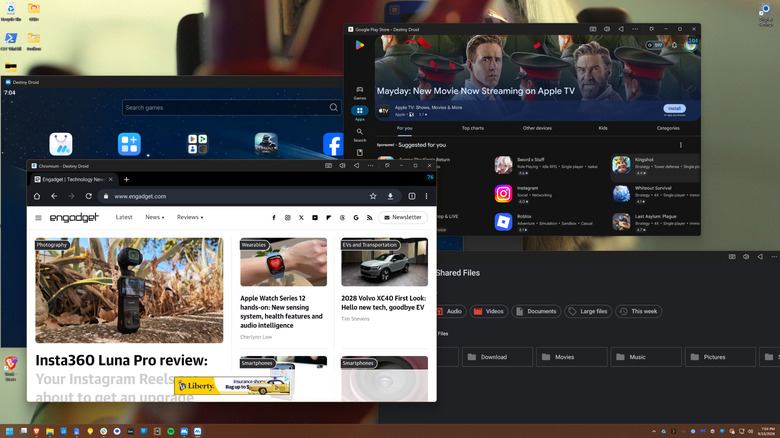
2. The Privacy and Security Trade-off
While emulators offer a "sandbox" for apps, users must be aware of the security implications. Because emulators function as virtual machines, they require administrative access to your system to interact with hardware. Users should only download reputable, well-known emulators to ensure the virtualized Android environment is not pre-packaged with malware or excessive adware.
3. The "Desktop-Mobile" Convergence
As mobile processors continue to grow in power, the lines between an Android "app" and a Windows "program" will continue to blur. We are moving toward a future where the operating system matters less than the environment in which the code executes. Whether you are a professional needing an Android-only logistics app, a gamer chasing high frame rates, or a tinkerer testing custom ROMs, the tools available today provide a level of control that native, "walled-off" support could never offer.
How to Get Started: A Practical Checklist
If you are ready to experiment with Android on your PC, follow these professional guidelines:
- Hardware Check: Ensure your PC has hardware virtualization enabled in the BIOS/UEFI. This is the "secret sauce" that allows emulators to run at near-native speeds.
- Choose Your Tool:
- For Gaming: Use MuMuPlayer (if you prefer a cleaner, ad-light interface) or BlueStacks (if you want the most extensive feature set).
- For Development: Use the official Android Studio emulator, which provides the most accurate reflection of how apps perform on actual Android hardware.
- Optimize Resources: Allocate a specific amount of RAM and CPU cores to the emulator. A good rule of thumb is to dedicate no more than 50% of your PC’s total resources to the emulator to keep your host Windows environment stable.
- Security First: Always use a secondary Google account when signing into an emulator. This keeps your primary personal data, emails, and financial information segmented from the virtualized environment.
Conclusion
The dream of a unified computing experience is not dead; it has simply transitioned from a top-down, OS-integrated mandate to a bottom-up, user-driven movement. While we may miss the convenience of "native" Windows Android support, the current ecosystem of emulators provides more power, more customization, and more utility than Microsoft’s original vision ever allowed. For those willing to navigate the setup, the PC remains the ultimate platform—even for the apps that weren’t originally built for it.