CAMBRIDGE, UK — In a move that bridges a decade of architectural evolution with modern desktop design trends, Raspberry Pi has announced a comprehensive update to its operating system’s desktop environment. The new release introduces a suite of optional features—most notably an icon dock, advanced application launchers, and performance-minded background-rendering optimizations—while maintaining the straightforward, approachable user experience that has defined the platform for millions of users worldwide.
For over ten years, the Raspberry Pi Desktop has anchored its design philosophy in familiarity. Though its underlying code has shifted dramatically from a customized LXDE interface to a modern Wayland- and labwc-based architecture, the visual presentation has consistently honored classic user interface paradigms. Today’s update respects that legacy by making all new features entirely optional, assuring long-term users that their traditional workflows remain intact unless an intentional change is made.
Main Facts: What is New in the Raspberry Pi Desktop?
The latest software update introduces several prominent interface additions and under-the-hood performance enhancements:
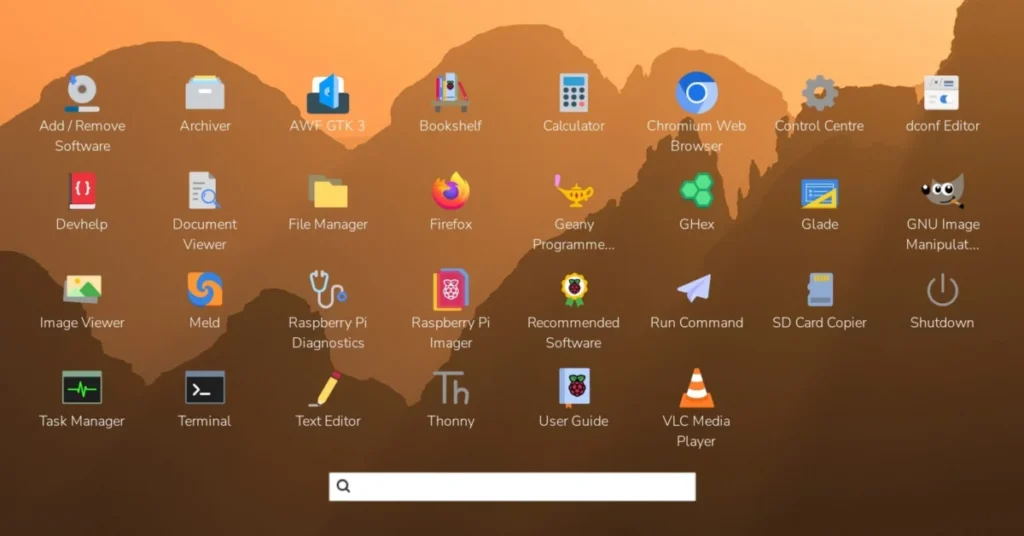
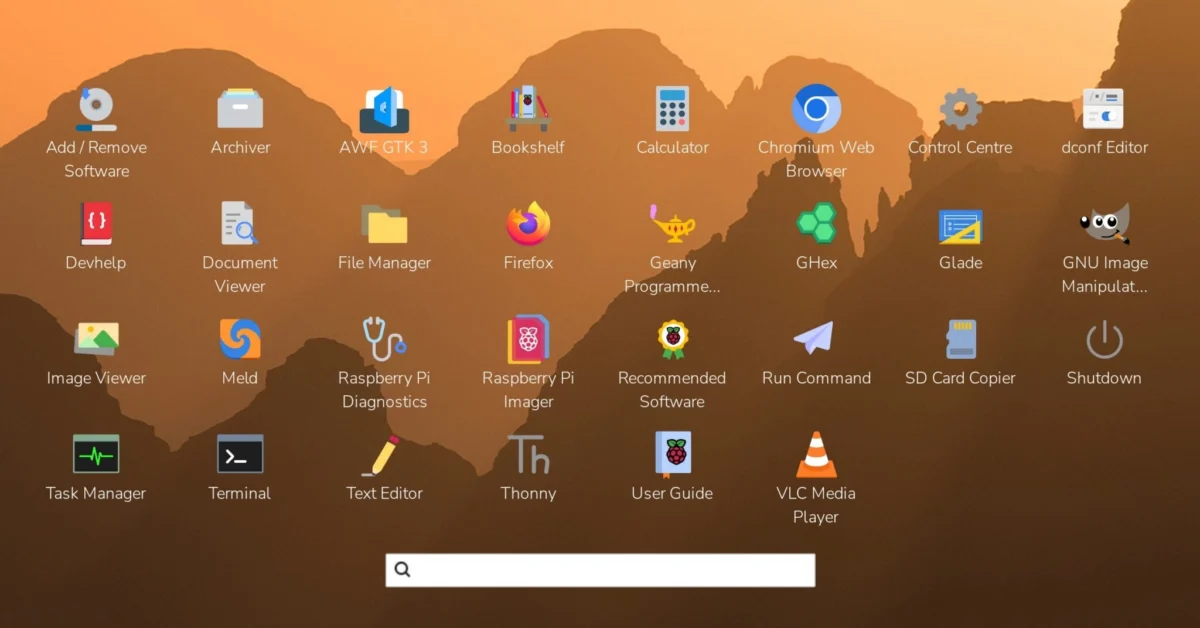
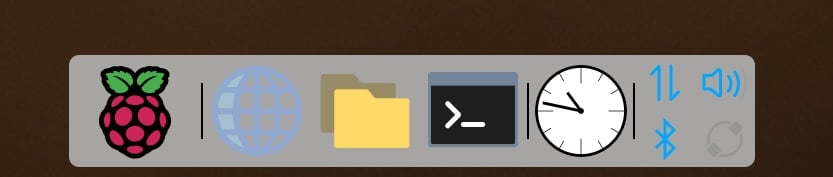
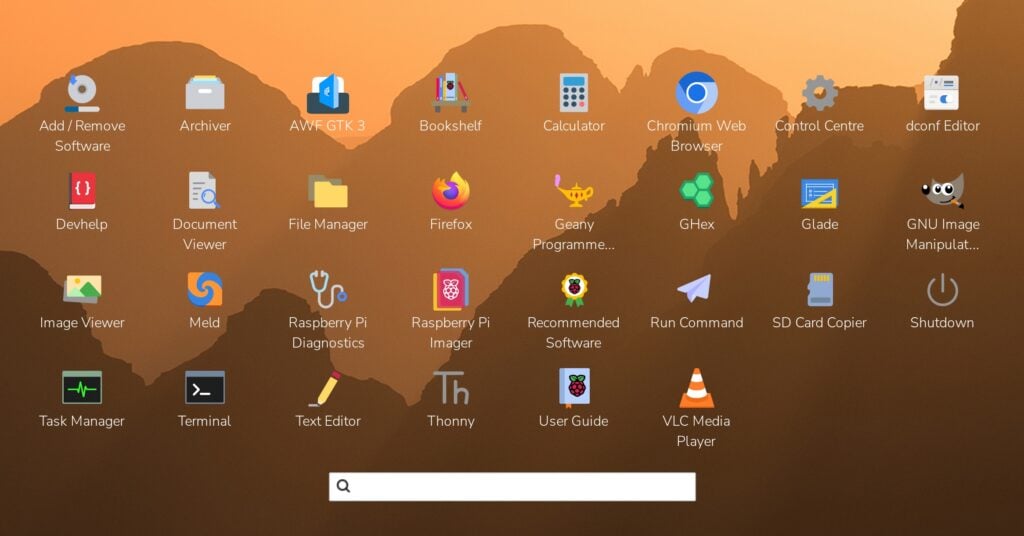
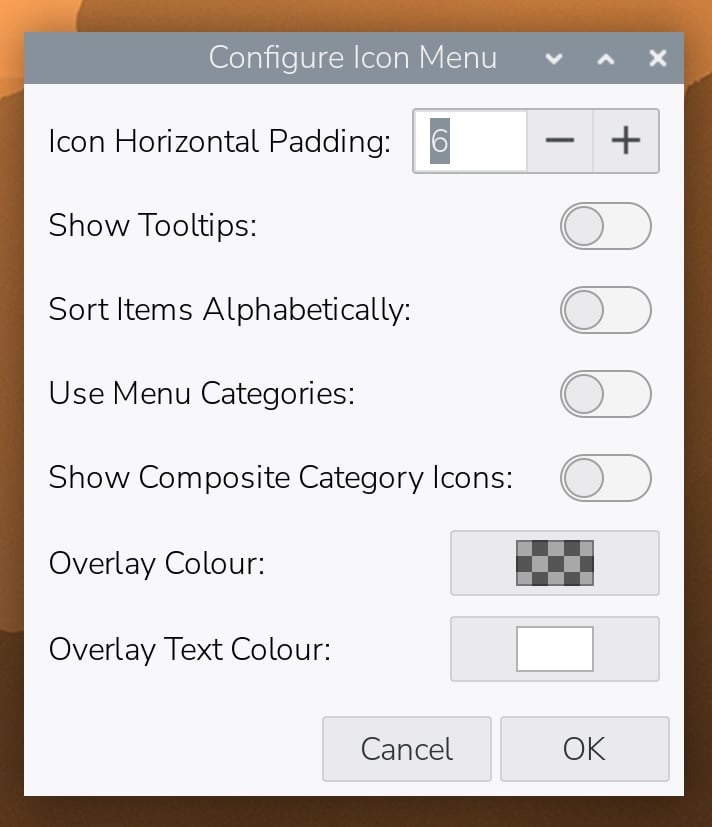
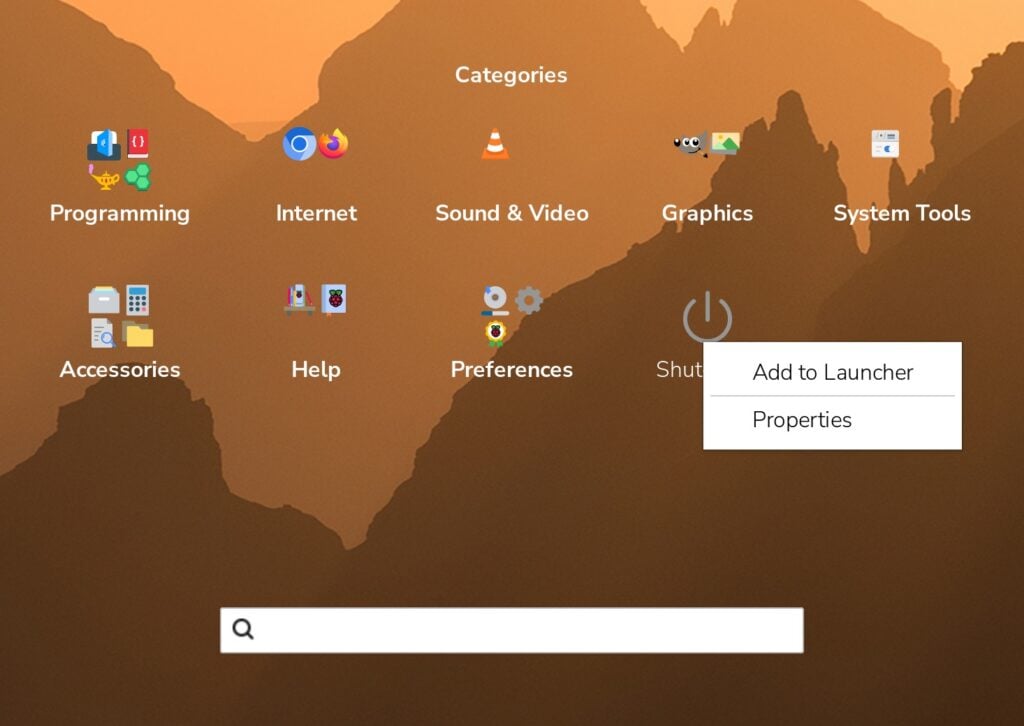
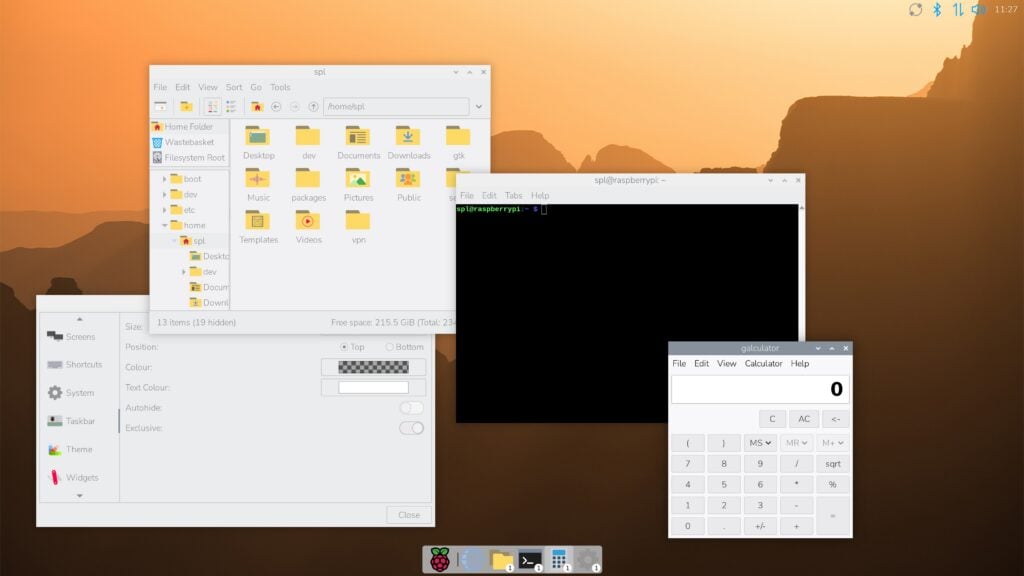
The Icon Dock & Graphical Launcher: Users can now deploy an optional macOS- or modern Linux-style icon dock that can function alongside or replace the traditional taskbar. It hosts a graphical application launcher featuring customizable grids, alphabetical sorting, drag-and-drop rearrangement, and category hierarchies.
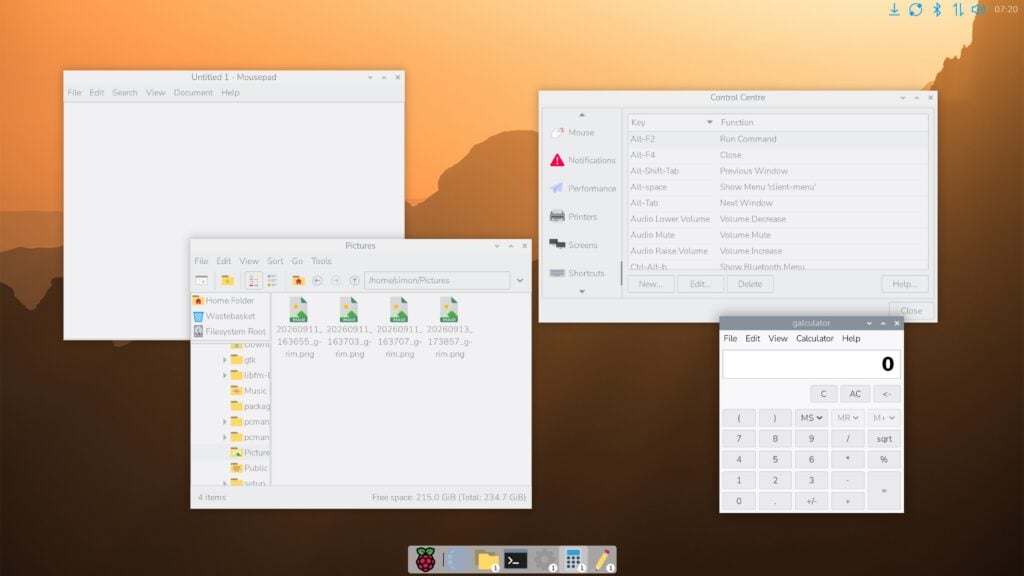
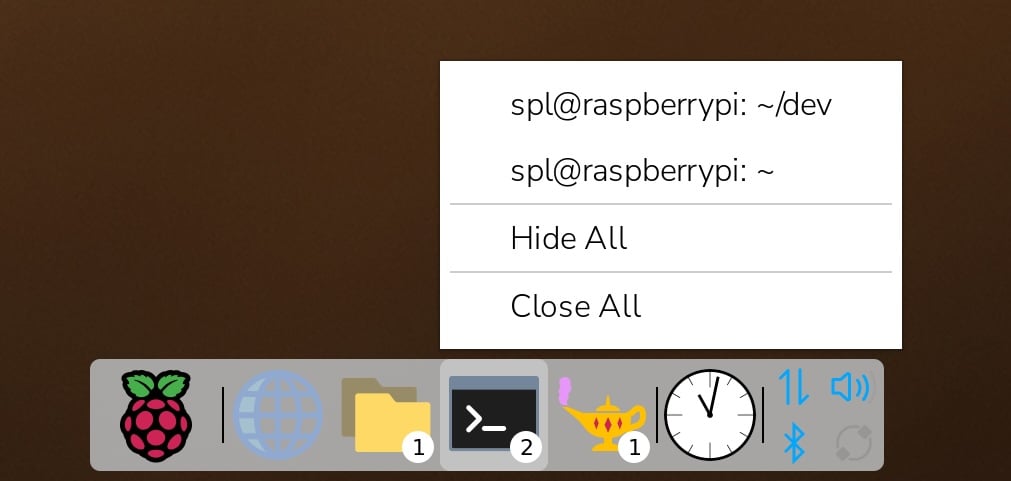
Enhanced Task List & Window Management: A combined quick-launcher and task list indicates open application windows via superimposed counts. Right-clicking icons reveals granular window previews, enabling users to isolate, maximize, hide, or bring specific windows to the foreground.
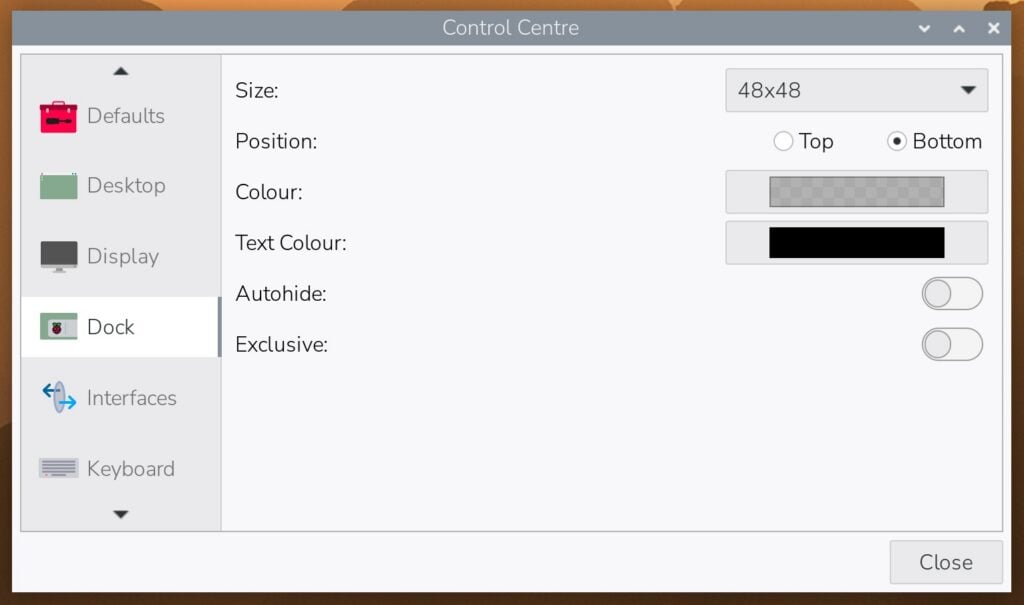
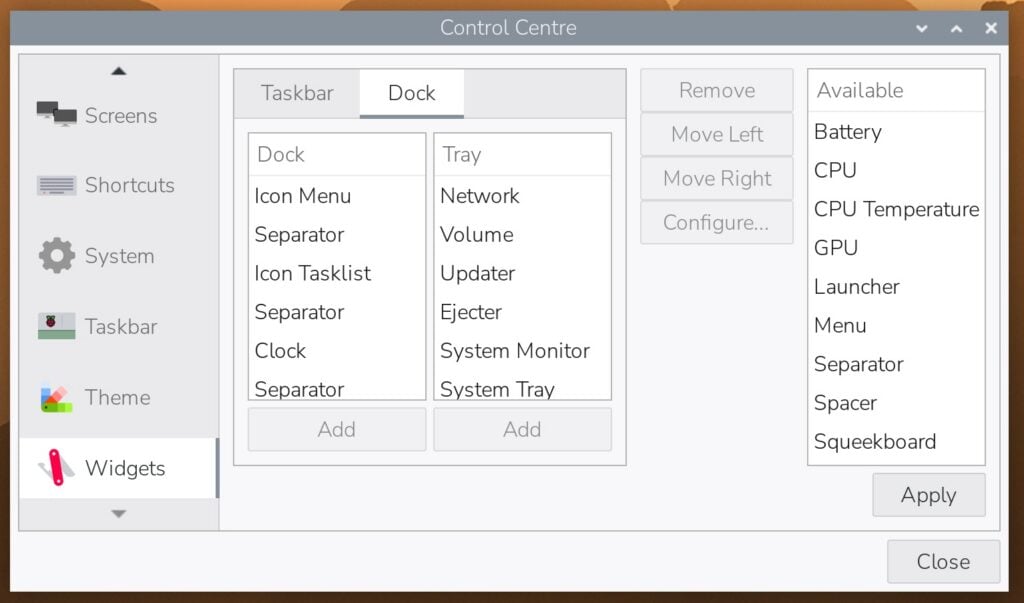
Control Centre Integration: New configuration pages have been added to the Control Centre to manage the dock, widgets, desktop styles, and system keyboard shortcuts.
Performance Optimization via swaybg: On memory-constrained devices, users can now disable the file manager’s active desktop rendering in favor of the lightweight swaybg program, reducing memory consumption. This is recommended by default for devices with less than 2GB of RAM.
Advanced Screenshot Capabilities: Pressing the Print Screen key now triggers a flexible prompt allowing users to instantly copy captures to the clipboard or open them in an image editor, with optional area-selection modifiers using the Alt key.
Chronology: A Decade of Evolution
To understand the weight of today’s update, it is necessary to trace how the Raspberry Pi Desktop arrived at this technological crossroad.
The Early Years: LXDE and the Windows 95 Aesthetic
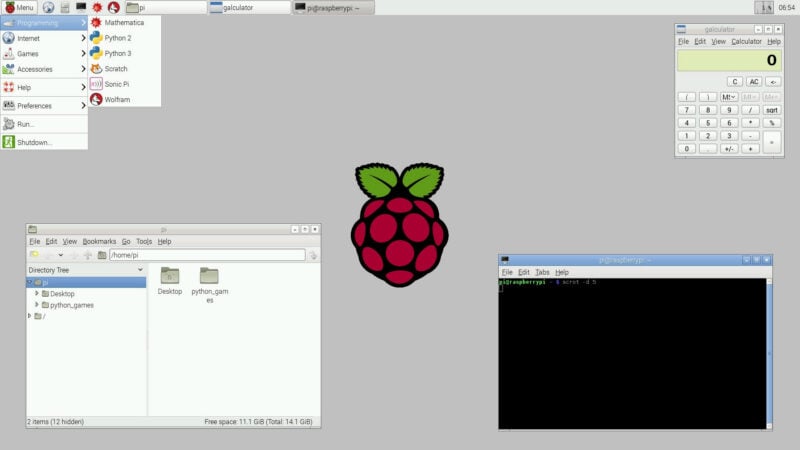
When Raspberry Pi first established a dedicated desktop environment, it relied on a mildly customized version of LXDE (Lightweight X11 Desktop Environment). The layout consciously mirrored design elements from the mid-1990s—specifically Windows 95 and Apple System 7. Featuring a bottom taskbar, status notification icons, and a traditional left-hand start menu, this layout was chosen deliberately. The objective was to eliminate any steep learning curve for newcomers migrating from legacy PC operating systems.
The Shift to Wayland and Modern Compositors
Over the subsequent decade, the underlying technology stack experienced a radical transformation. As the computing industry moved away from the aging X11 window system toward Wayland, Raspberry Pi engineers rebuilt the desktop’s foundations. Today, the interface runs on Wayland compositors like labwc, offering superior performance, smoother graphics rendering, and better resource management. Despite these profound architectural shifts under the hood, the visual layer retained its vintage feel.
The 2025–2026 Turning Point
By late 2025, developers recognized that while simplicity remained paramount, modern desktop paradigms—such as application docks, dynamic widget management, and flexible autohide behaviors—offered distinct usability advantages. Throughout 2026, engineering efforts focused on designing non-intrusive ways to layer these modern features on top of the existing environment. Today’s release represents the culmination of that development cycle, delivering optional modern utilities without imposing unwanted disruption on the user base.
Supporting Data and Technical Architecture
The transition to a dock-centric workflow involves several intricate backend adjustments designed to preserve system stability and responsiveness across Raspberry Pi’s diverse hardware ecosystem.
Widget Architecture and the Dock Tray
The new dock supports two primary modular sections: the application dock proper and the status "tray." The tray displays status icons across two balanced rows at half the scale of the main dock icons. For precise layout control, developers introduced a "tray split" widget that enforces a hard line break between designated plugins.
Furthermore, the system enforces a strict logic rule: both the traditional taskbar and the new dock require at least one active widget to remain visible. If cleared of all widgets, the respective bar automatically conceals itself. Users can also configure auto-hide properties (causing the dock or taskbar to slide out of view until the cursor approaches the screen edge) and "exclusive" window zoning, which prevents maximized windows from overlapping vital elements like the system clock.
Memory Optimization: The swaybg Transition
Historically, pcmanfm (the file manager) managed both desktop file navigation and the rendering of desktop background wallpapers. While this allowed desktop icons and the Wastebasket widget to remain visible, it consumed measurable system resources.
The new update decouples wallpaper rendering by introducing swaybg, an exceptionally lightweight background renderer. By turning off the "Active Desktop" setting in the Control Centre, users can offload background rendering to swaybg.
Memory Thresholds: Raspberry Pi now recommends disabling the active desktop on any hardware configuration possessing less than 2GB of RAM.
Automounting Redirection: Because disabling the active desktop reduces the file manager’s continuous uptime, automounting logic for removable USB drives has been migrated directly into the ejecter plugin, ensuring users still receive automated pop-up notifications when media is inserted.
Official Responses and Philosophy
Anticipating pushback from a community notoriously protective of its traditional workflows, the Raspberry Pi engineering team took proactive measures to emphasize the optional nature of the release.
"I do have to stress here, before the anticipated deluge of complaints, that these new features are entirely optional; unless you choose to enable them, your desktop will continue to look and feel exactly the way it always has," noted the lead interface developer in the official release documentation. "These are purely intended to give users who want a more up-to-date desktop experience the option to have one if they want it."
To streamline the transition for users wishing to experiment, the Control Centre’s Defaults page includes a style switcher. Users can instantly toggle between three distinct presets:
Taskbar: Restores the classic single-bar environment with the traditional main menu and task list.
Taskbar / Dock: A hybrid setup placing the new application launcher and task list inside an icon dock, while retaining status icons on the right side of the traditional taskbar.
Dock: Removes the legacy taskbar entirely, migrating all primary functions, application launching, task management, and system tray icons into a unified modern dock.
Implications for Developers, Educators, and End-Users
The introduction of these modular interface options carries several broad implications for the Raspberry Pi ecosystem:
1. Enhanced Usability for Younger Generations
While legacy users are accustomed to 1990s-style taskbars, younger demographics entering computing through educational initiatives are increasingly familiar with mobile- and tablet-style docks, app grids, and touch-friendly icon layouts. The new graphical launcher—complete with category hierarchies, alphabetical sorting, and search filtering—accommodates these modern interaction patterns seamlessly.
2. Tailored Performance for Low-Memory Boards
By offering a straightforward toggle to disable active desktop rendering in favor of swaybg, Raspberry Pi ensures that entry-level single-board computers (such as 1GB RAM variants of older Pi models or specialized industrial units) can run modern desktop environments without sacrificing valuable system memory.
3. Workflow Customization for Power Users
Power users and developers who utilize multi-monitor setups or specialized kiosk configurations benefit greatly from features like auto-hiding docks, custom keyboard shortcut mapping via the new Shortcuts control panel, and analogue-to-digital clock styling. The ability to mix and match widgets between taskbars and docks provides a high degree of personalization previously unavailable in the default Raspberry Pi OS setup.
How to Access the Update
The new desktop features are rolling out immediately.
New Installations: A refreshed operating system image containing all updated packages is available directly from the official Raspberry Pi website. Upon first boot, the system defaults to the classic taskbar view to preserve familiarity.
Existing Systems: Users running current installations can access the update via the desktop updater widget or by executing the standard terminal commands:
sudo apt update
sudo apt full-upgrade
Once updated, users can explore the new interface by opening the Control Centre, navigating to the Defaults page, and selecting either the Dock or Taskbar / Dock style presets.