Beyond the Watch: Mastering Your iPhone Camera with AirPods
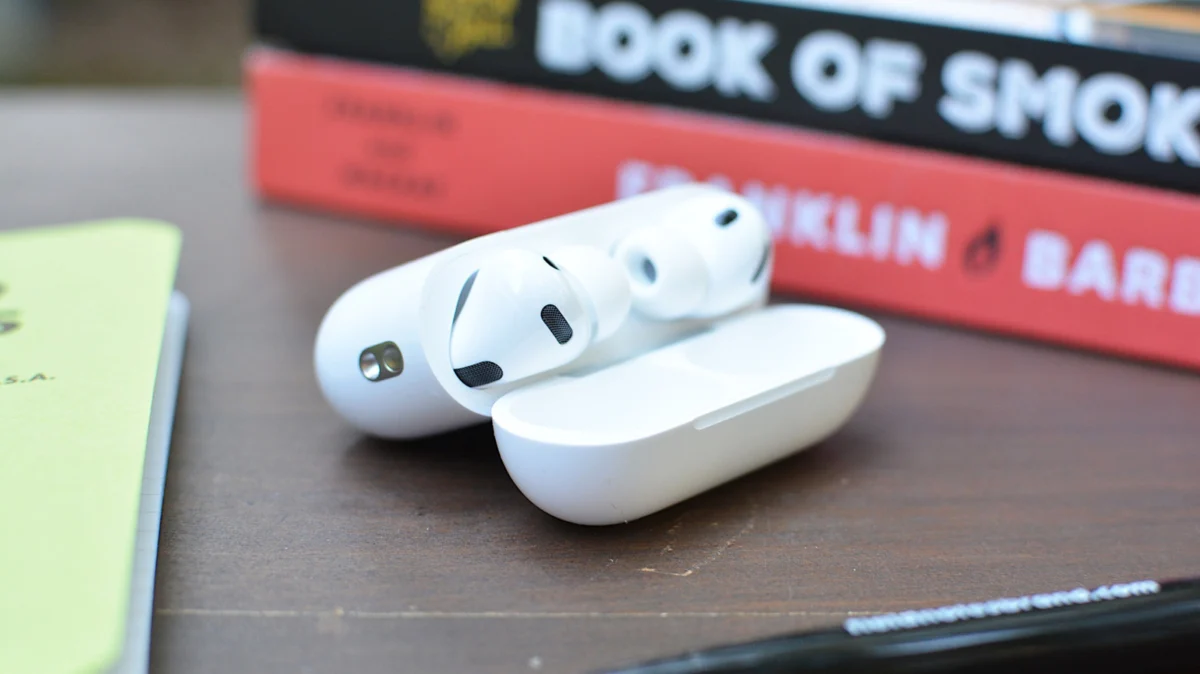
For years, the Apple Watch has served as the definitive "remote control" for the iPhone camera. Whether you are setting up a group shot, attempting a difficult angle, or trying to capture a candid moment without holding the phone, the Watch’s Camera Remote app has been the go-to solution. However, with the release of iOS 26, Apple has quietly democratized this functionality, expanding it to its most popular accessory: the AirPods.
The integration of Camera Remote into the AirPods ecosystem marks a significant shift in how users interact with their mobile hardware. By repurposing the existing touch and physical controls on the AirPods stems and the AirPods Max’s Digital Crown, Apple has effectively turned a pair of headphones into a versatile shutter release button.
The Evolution of Mobile Photography Control
The history of the "self-timer" in photography is one of constant evolution. From the early mechanical delays on film cameras to the frantic ten-second sprints to get into the frame before a smartphone shutter fires, the process has always been cumbersome.
Apple’s introduction of the Camera Remote app for the Apple Watch years ago was a game-changer for solo creators, travelers, and content creators. It provided a live preview and a reliable trigger. Yet, this convenience was locked behind the purchase of a secondary piece of hardware. With the rollout of iOS 26, the barrier to entry has lowered significantly. By enabling AirPods to function as a wireless shutter, Apple is acknowledging that the "camera-remote" workflow is no longer a niche feature—it is a standard expectation for the modern iPhone user.
Technical Requirements and Compatibility
It is important to note that this functionality is not universal across the entire AirPods product line. Because the feature relies on the advanced gesture-control hardware found in newer iterations, legacy devices—such as the original AirPods Pro or the first-generation standard AirPods—lack the necessary firmware and hardware architecture to support Camera Remote.
To utilize this feature, users must ensure their device meets the following criteria:
- iOS 26 or later: The operating system update is the fundamental software requirement.
- Compatible AirPods: The feature is currently supported on the most recent generations of AirPods, including AirPods Pro (2nd Generation), AirPods 4, and AirPods Max.
- Active Connection: The AirPods must be paired and actively connected to the iPhone.
Step-by-Step: Enabling and Configuring Camera Remote
The setup process is designed to be intuitive, though it requires a brief dip into the iOS Settings menu. Because the AirPods perform different functions—such as switching between Transparency and Noise Cancellation modes or summoning Siri—Apple has implemented a toggle system to avoid input conflicts.
1. Pairing and Connectivity
Before navigating the settings, ensure your AirPods are properly connected to your iPhone via Bluetooth. If you are experiencing connectivity issues, navigate to the Bluetooth menu in Settings to confirm that the devices are recognized and "Connected."
2. Navigating to AirPods Settings
Once connected, open the Settings app on your iPhone. Tap on the Bluetooth menu, then locate your AirPods in the device list. Tap the "i" (info) icon next to your AirPods to open the custom configuration dashboard.
3. Configuring Camera Controls
Within the AirPods settings menu, you will see a section dedicated to Camera Remote. You can choose which gesture triggers the shutter:
- Press Once: Assigning the shutter to a single press on the stem or Digital Crown.
- Press and Hold: Assigning the action to a longer, sustained press.
The Practical Implications of Gesture Conflicts
It is critical to understand the trade-offs involved in this configuration. When you assign camera control to a specific gesture, that gesture is "hijacked" while the Camera app is open. For example, if you choose "Press Once" for the shutter, you will lose the ability to pause or play media via that same gesture while the Camera app is active.
Similarly, if you opt for "Press and Hold," you may lose the ability to cycle through listening modes or activate Siri while the camera is in use. This design choice is a necessary functional trade-off, ensuring that the AirPods don’t inadvertently trigger multiple commands simultaneously.
The "In-Ear" Requirement
A common point of confusion for new users is the physical state of the AirPods. For security and sensor accuracy, the AirPods must be in your ears for the remote control feature to function. If the AirPods are resting on a desk, in their charging case, or simply held in your hand, the proximity sensors will signal to the iPhone that they are not in use, and the shutter trigger will not fire. This prevents accidental photos from being taken while the AirPods are tucked away in a pocket or bag.
Implications for Content Creators and Solo Photographers
The implications of this update for solo creators—such as YouTubers, TikTokers, or solo travelers—are profound.
Increased Workflow Efficiency
In the past, if a user wanted to take a high-quality photo using the iPhone’s main rear camera, they had to rely on the ten-second timer. This often resulted in "fumbling," where the user had to rush to get into position, or worse, found themselves out of focus when the shutter finally clicked. With AirPods, the user can maintain their pose, adjust their expression, and trigger the photo at the precise moment they are ready, all while the AirPods remain discreetly in their ears.
Stabilization and Professionalism
Because the user does not have to reach back to touch the screen of the iPhone, there is a significantly reduced risk of camera shake. Even on a tripod, tapping a phone screen can cause minor vibrations. By using the AirPods, the entire interaction becomes wireless, allowing for perfectly still, crisp imagery.
Video Production
The feature is not limited to still photography. It works for video recording as well. A user can start and stop a recording session from several feet away, making it easier to film "talking head" segments without needing an assistant or extensive post-production trimming to remove the parts where they walk back and forth to the camera.
Official Stance and Future Updates
Apple has positioned this feature as part of their broader effort to make the iPhone a "studio in your pocket." By integrating the AirPods into the creative workflow, they are reinforcing the ecosystem lock-in while providing genuine utility.
Industry analysts suggest that this is only the beginning. As H2 processors in the AirPods continue to become more powerful, we may see more "context-aware" controls. For instance, future updates could potentially allow users to adjust zoom levels or switch between wide-angle and telephoto lenses using touch gestures on the AirPods stems.
Conclusion: A Small Change with a Large Impact
While the ability to use AirPods as a camera remote may seem like a minor addition to the vast feature set of iOS 26, it represents a meaningful advancement in user accessibility. It removes the need for extra accessories, streamlines the creative process, and makes high-quality photography more accessible to the solo user.
For those who already own a pair of compatible AirPods, the setup takes less than a minute. The ability to control your composition, timing, and capture with a simple, subtle press of the earphone stem is a level of convenience that, once adopted, becomes difficult to live without. As Apple continues to bridge the gap between its wearable devices and its flagship handset, the ecosystem becomes not just a collection of gadgets, but a unified, responsive toolset for the digital age.