Reclaiming Your Hardware: How to Remap the "Useless" Copilot Key on Linux
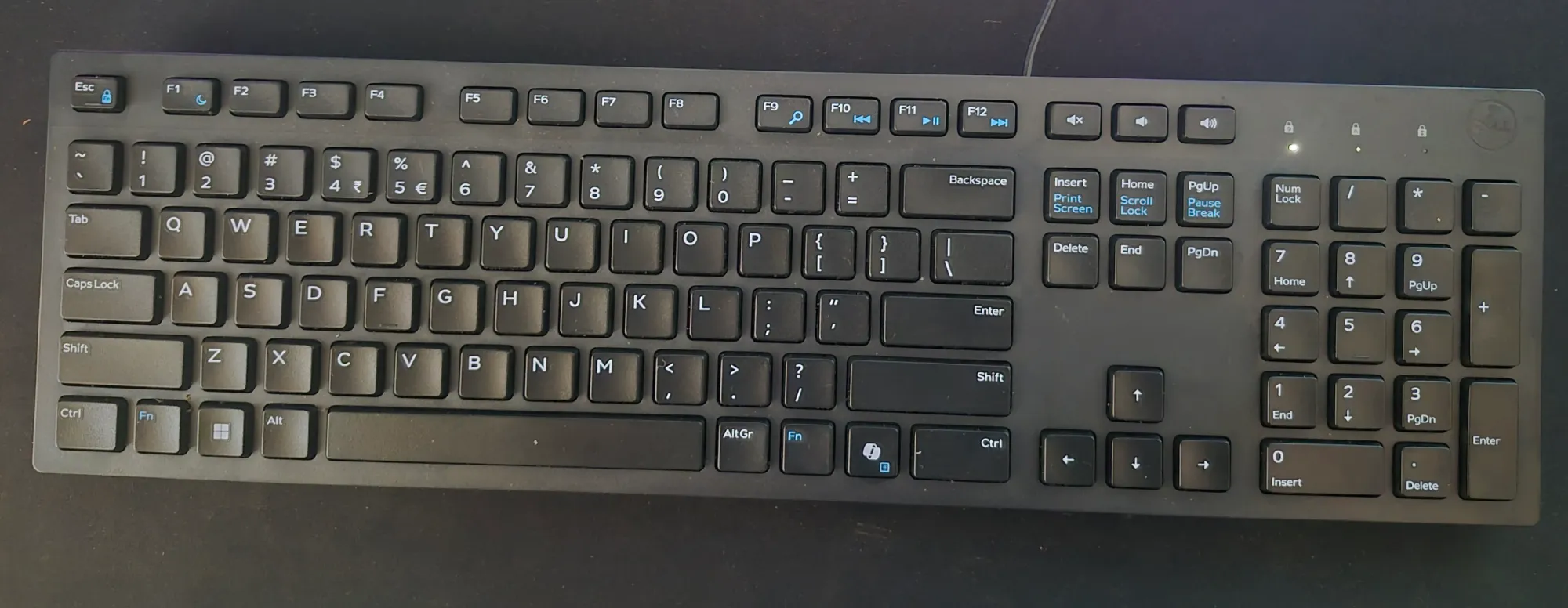
In the rapidly evolving landscape of modern peripherals, hardware manufacturers have increasingly prioritized integration with proprietary artificial intelligence suites. The most visible manifestation of this trend is the dedicated "Copilot key," now a staple on many new Dell, Lenovo, and HP keyboards. For Windows users, this button offers a one-touch gateway to Microsoft’s AI assistant. For Linux enthusiasts, however, this specialized hardware often manifests as a "dead" key—a source of frustration that occupies valuable physical real estate without providing any functional utility.
This article explores the technical bridge between proprietary hardware signals and the open-source environment, providing a comprehensive guide to transforming a redundant Copilot key into a productive shortcut for your favorite Linux applications.
The Problem: When Hardware Outpaces Software
The introduction of the Copilot key represents a shift toward hardware-locked software ecosystems. When a user presses this key, the keyboard controller sends a specific sequence of scancodes to the operating system. In the case of many modern Dell keyboards, this signal is identified by Linux as a complex combination: Meta + Shift + F23.
For the vast majority of Linux desktop environments, including KDE Plasma, the "F23" key is essentially non-existent. When a user attempts to map this key via standard GUI configuration tools, the system often interprets the signal only partially. KDE, for instance, recognizes the Meta and Shift modifiers but fails to register the "F23" component, rendering the shortcut configuration ineffective. This leaves the user with a key that triggers nothing but a ghost signal in the system logs.

Chronology of a Technical Workaround
The journey to remapping this key is a classic example of Linux problem-solving: identifying the signal, intercepting it, and translating it into a language the desktop environment understands.
Phase 1: Signal Identification
Before any configuration can occur, the user must understand exactly what their hardware is broadcasting. By utilizing the keyd utility—a sophisticated, low-level keyboard remapping daemon—users can monitor raw input events. By executing sudo keyd monitor, one can observe the precise sequence of events triggered by the Copilot key. The discovery that the key is not a single function but a macro (Meta+Shift+F23) is the pivotal moment that explains why standard desktop shortcuts fail to capture it.
Phase 2: Interception with Keyd
The solution requires moving "down" the stack, away from the desktop environment and into the kernel-level input stream. Keyd operates by intercepting these events before they reach the window manager. By defining a specific configuration file for the keyboard’s vendor and product ID (VID:PID), the user can create a "translator" that intercepts the obscure Meta+Shift+F23 signal and replaces it with a more standard, recognizable sequence, such as Ctrl+Alt+Shift+F12.
Phase 3: Desktop Integration
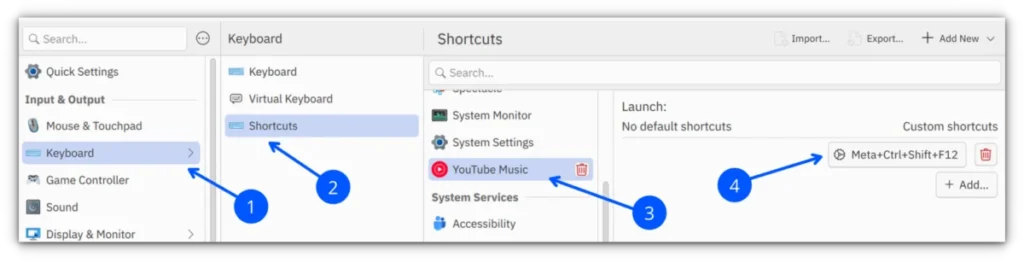
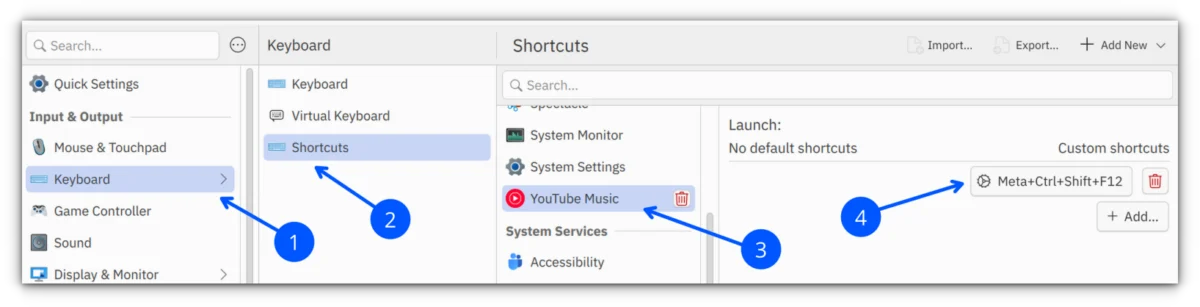
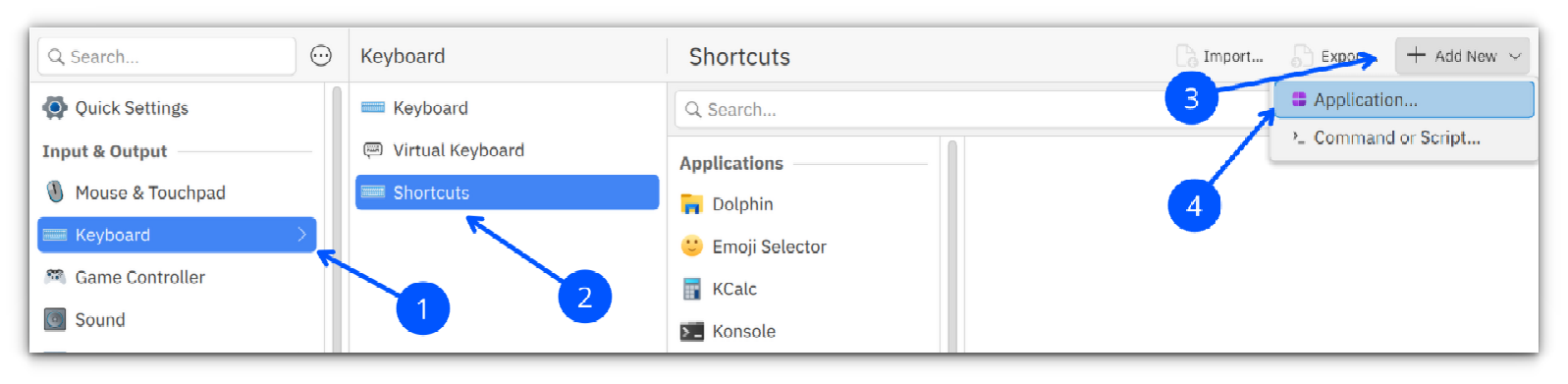
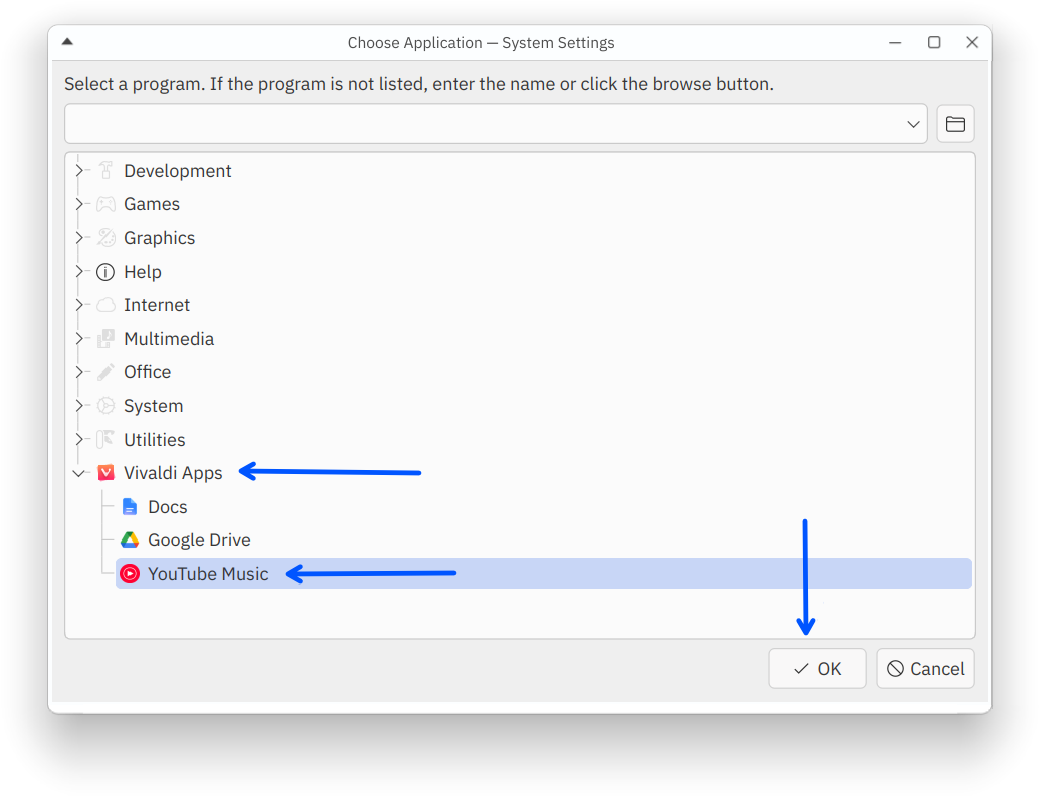
Once keyd is configured to emit a standard shortcut, the final hurdle is simply assigning that shortcut within the desktop environment’s settings. In KDE Plasma, this involves navigating to the Shortcuts menu and linking the new virtual trigger to a specific action—such as launching a Progressive Web App (PWA) like YouTube Music.

Supporting Data: Why Keyd is the Industry Standard
The efficacy of keyd lies in its position within the Linux architecture. Unlike high-level tools that rely on the X11 or Wayland display servers, keyd operates on the /dev/input interface. This provides several distinct advantages:
- Hardware Agnostic: Because it acts at the device level, it functions regardless of whether the user is running a Wayland compositor or an X11 session.
- Low Latency: By avoiding the overhead of the desktop shell, the remapping happens near-instantaneously, ensuring there is no perceptible input lag.
- Independence: It remains unaffected by desktop environment updates. Whether a user migrates from GNOME to KDE or switches to a tiling window manager like Sway, their keyboard mapping remains consistent.
Implications for the Open Source Community
The "Copilot key dilemma" is a microcosm of a larger tension between proprietary hardware design and open-source flexibility. When manufacturers bake specific services into hardware, they implicitly assume a homogeneous computing environment. Linux, by contrast, thrives on the user’s ability to customize their workspace.
The Rise of "Hardware Bloat"
The inclusion of dedicated AI buttons is part of a trend toward "Hardware Bloat," where physical buttons are tied to specific cloud-based services. For privacy-conscious users or those who prefer local-first computing, these keys represent a design choice that is antithetical to their workflows.
Empowering the Power User
By mastering tools like keyd, the Linux community demonstrates that hardware is, ultimately, malleable. The ability to repurpose a button meant for an AI assistant to launch a local music player or a terminal emulator is more than a quality-of-life improvement; it is an act of reclaiming agency over one’s own computer.
Step-by-Step Implementation Guide
For those looking to implement this, the process is straightforward but requires attention to detail.
1. Installation
Depending on your distribution, keyd is widely available. On Arch-based systems:
sudo pacman -S keyd
sudo systemctl enable --now keyd
2. Identifying the Device
Run sudo keyd monitor and press the Copilot key. Note the VID:PID of your keyboard from the output. This is essential to ensure that your remapping only affects your external keyboard and does not accidentally rebind keys on your laptop’s built-in deck.
3. Configuring the Map
Create a configuration file at /etc/keyd/externalKeyboard.conf:
[ids]
aaaa:bbbb  # Replace with your actual ID

[main]
leftshift+leftmeta+f23 = C-A-S-f12
This tells the system: "When you see the Copilot signal, output the standard combination of Ctrl+Alt+Shift+F12."
4. Verification and Application
After running sudo keyd reload, use the monitor command once more. You should now see the system reporting your new shortcut instead of the original one. Finally, open your KDE System Settings, navigate to Shortcuts, and map "Ctrl+Alt+Shift+F12" to your target application.
Troubleshooting and Best Practices
While the process is robust, users should be aware of potential conflicts.
- Shortcut Conflicts: Before assigning a new key combination, always check your system’s existing shortcuts. Tools like
grepcan be used to search yourkglobalshortcutsrcfile to ensure you aren’t overwriting a critical system command, such as window tiling or compositor toggles. - Mouse Remapping: It is important to note that
keydis strictly for keyboard events. Users looking to remap side-buttons on a mouse should investigateinput-remapperorxremap, which offer similar low-level control for pointing devices. - Hot-Plugging: One of the strengths of
keydis its integration withudev. The daemon automatically detects when a keyboard is unplugged or reconnected, meaning you do not need to reboot your machine after physical adjustments to your setup.
Conclusion
The Copilot key, while initially a nuisance for the Linux user, serves as a gateway to understanding the powerful, modular nature of the Linux input system. By bypassing the limitations of the desktop environment and communicating directly with the kernel, users can strip away the manufacturer’s intended purpose and replace it with their own.
This process serves as a reminder that the true value of an operating system lies not in the features that come pre-installed, but in the freedom to modify, optimize, and improve every facet of the user experience. Whether you are remapping a key to launch a music app, a terminal, or a script to automate your workflow, you are not just fixing a minor annoyance—you are participating in the fundamental philosophy of open-source computing: the machine belongs to the user, not the manufacturer.