The Silent Performance Killer: A Comprehensive Guide to Cleaning Your Laptop Fan
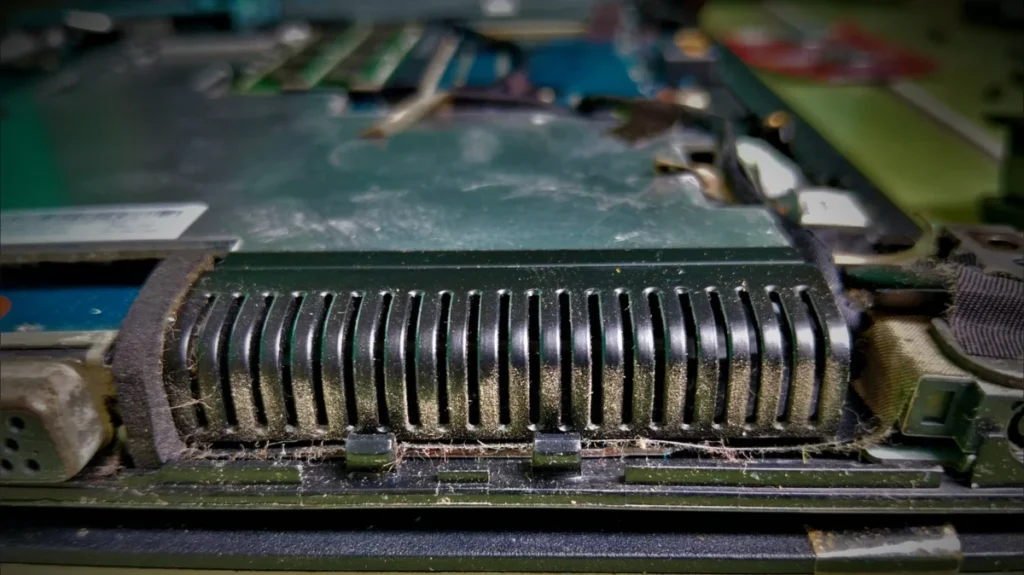
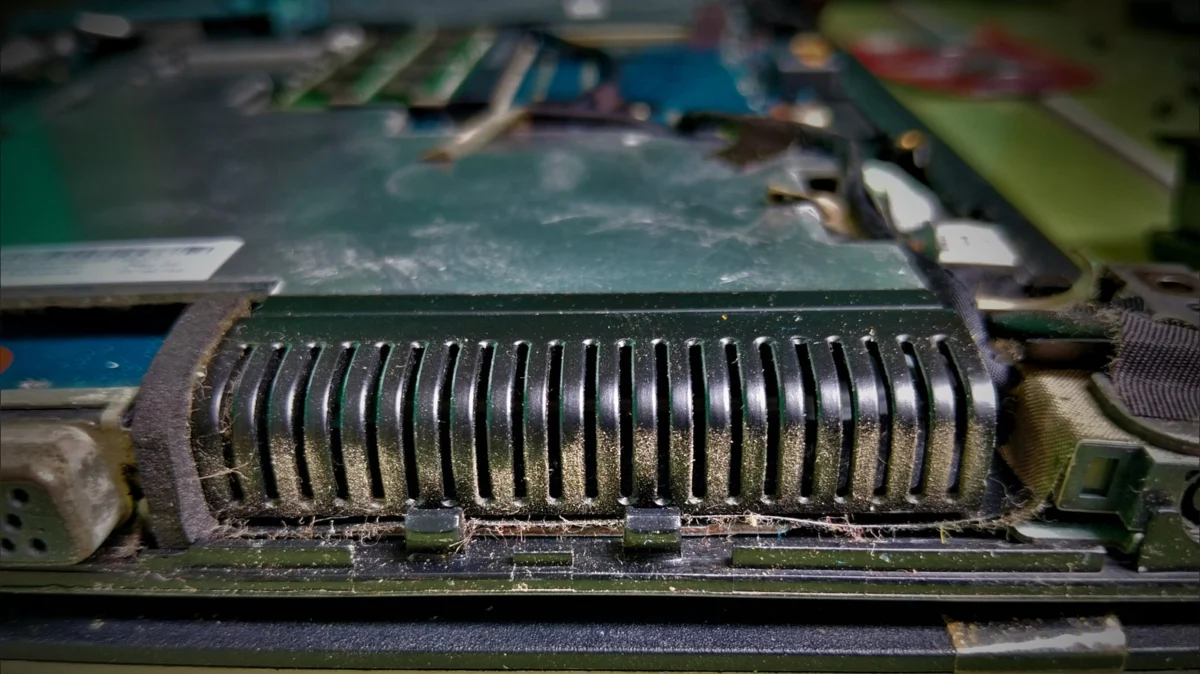
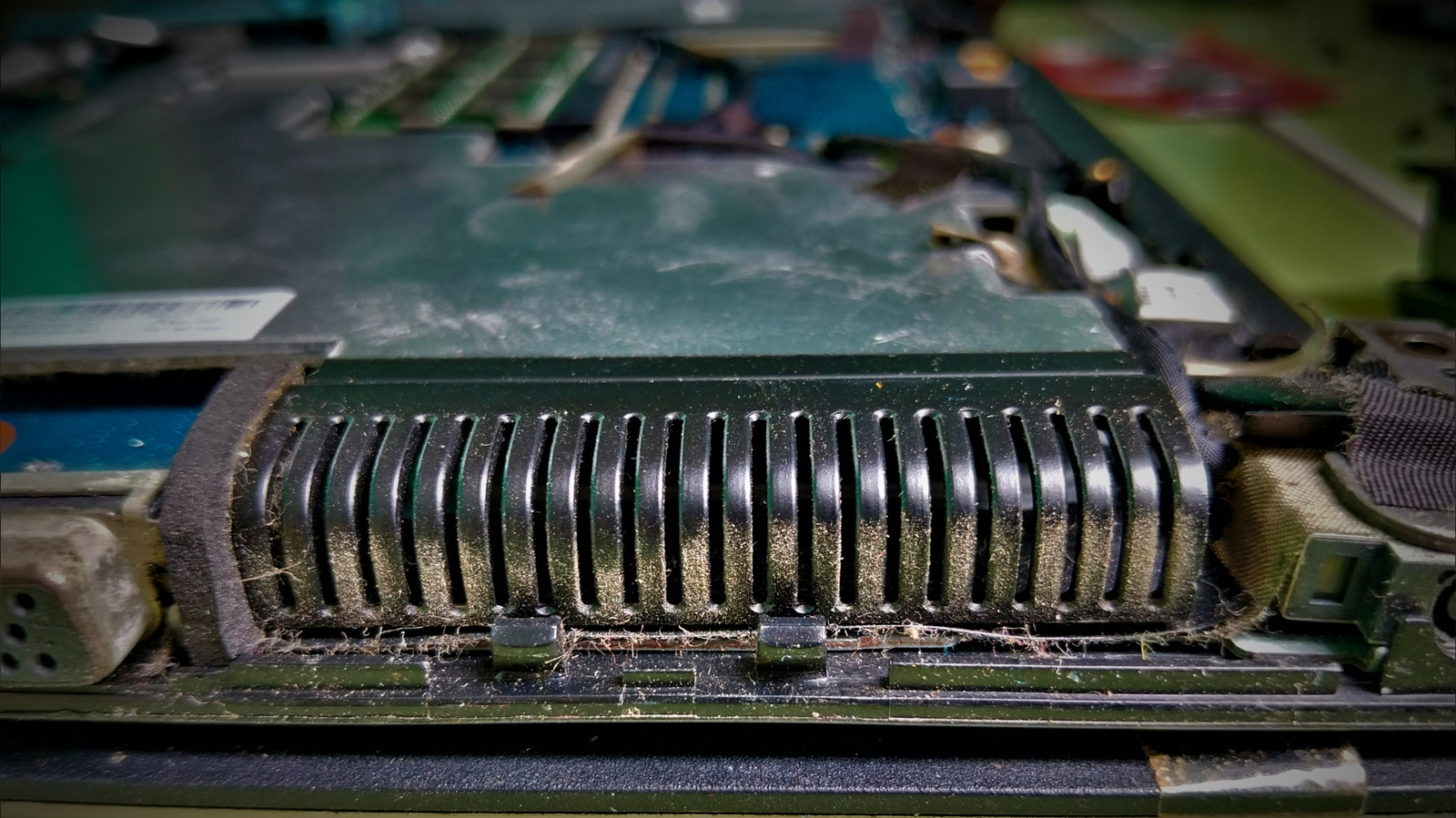
In the modern digital landscape, our laptops are often the primary engines of our professional and personal lives. Yet, we rarely consider the mechanical toll taken on these devices until they begin to falter. One of the most common, yet overlooked, culprits behind sluggish performance is the accumulation of dust within the cooling system. As your laptop’s fan labors to dissipate the heat generated by the CPU and GPU, it inevitably pulls in microscopic debris from the air. Over time, this dust acts as a thermal blanket, forcing your hardware to throttle its own performance to survive the rising temperatures.
Understanding how to properly maintain your laptop’s cooling system is not just a matter of cleanliness; it is a critical practice for hardware longevity and sustained performance.
The Science of Thermal Throttling: Why Dust Matters
To understand the importance of fan maintenance, one must first understand how a laptop manages heat. Modern processors are incredibly dense, packing billions of transistors into a small silicon footprint. These components generate significant heat during operation, which must be moved away from the chip via a heat sink—a metal assembly that conducts heat away from the silicon. The fan then pushes air across the heat-sink fins, exhausting the hot air out of the chassis.
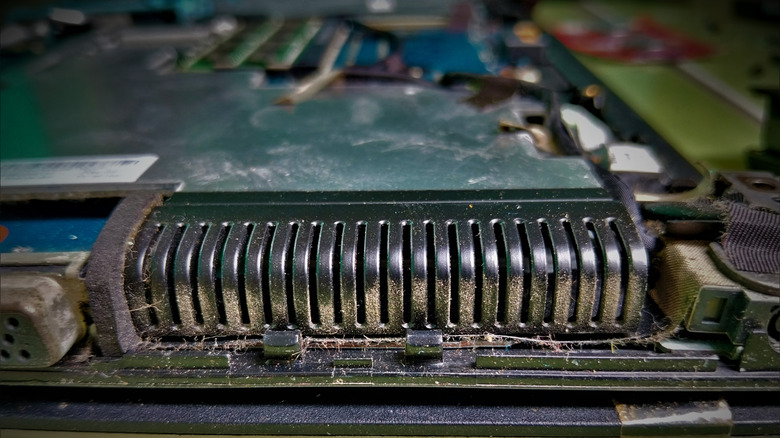
When dust clogs the intake vents or settles between the tightly packed heat-sink fins, it creates a physical barrier. This leads to a phenomenon known as thermal throttling. The internal temperature sensors detect that the processor is approaching a critical heat threshold. To prevent physical damage, the system’s firmware automatically reduces the clock speed of the processor. The result? Your snappy computer suddenly feels slow, stuttering during simple multitasking or lagging during intensive workloads.
The Professional Protocol: Routine Maintenance
Maintenance should be proactive rather than reactive. Depending on your environment—such as pet owners, frequent travelers, or those living in dusty climates—Lenovo and other major manufacturers recommend a cleaning interval of three to six months.
The Non-Invasive Approach
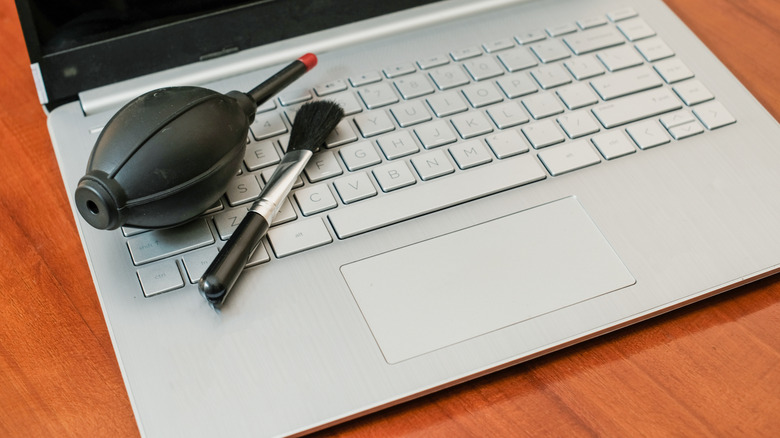
Before you ever consider reaching for a screwdriver, attempt a non-invasive cleaning. This method is the safest for your warranty and your hardware.
- Preparation: Power down your device completely. Unplug it from the power source and, if possible, remove the battery (though most modern laptops feature sealed internal batteries).
- Compressed Air: Use a can of electronics-safe compressed air. Do not use a high-powered air compressor found in workshops; the pressure can damage delicate fan blades or cause them to spin at excessive speeds, which can generate a back-current that damages the motherboard.
- Short Bursts: Apply short, controlled bursts of air into the intake and exhaust vents. If the fans are visible, you may gently push air into them to dislodge debris.
- Avoid Lubricants: Never, under any circumstances, use WD-40 or other household lubricants on your fans. These substances are designed to displace moisture and lubricate mechanical parts, but they are conductive and chemically aggressive toward the plastics and electronics found inside a laptop.
The Anatomy of an Overhaul: When to Open the Chassis
If standard air-burst cleaning fails to restore your laptop’s thermal performance, the dust has likely become "caked" onto the heat-sink fins. At this point, opening the chassis becomes necessary, but it is a step that requires extreme caution and preparation.
Assessing the Complexity
Not all laptops are built the same. On some models, the bottom panel provides immediate access to the cooling assembly. On others, the fan may be buried beneath the motherboard, the battery, and a complex array of ribbon cables.
Before removing a single screw, consult your specific model’s Service Manual. These documents are usually available on the manufacturer’s support portal. They provide a step-by-step disassembly guide that identifies screw types, cable locations, and safety warnings.
The Risks of Deep Disassembly
Opening your laptop is not merely a mechanical task; it is an exercise in risk management. Modern, high-end laptops, such as the Alienware series, represent thousands of dollars of investment. Removing the cooling assembly on such machines often involves:
- Captive Screws: These are screws that stay attached to the heat sink. Failing to loosen them in the correct, numbered order can warp the heat-sink plate, causing poor contact with the processor later.
- Thermal Interface Materials (TIM): This is the most dangerous area for novices. Thermal paste and pads transfer heat from the silicon to the cooling pipes. If you accidentally disturb this material or wipe it away with alcohol, you must reapply high-quality thermal compound.
- Chemical Hazards: As noted by Dell, certain specialized thermal materials (like their "Element 31") can be damaged by improper cleaning agents. Using an alcohol wipe on conductive liquid-metal or specialized phase-change pads can turn them into conductive particles, potentially causing a short-circuit on the motherboard the moment you power the device on.
Implications of Improper Maintenance
Neglecting the cooling system has long-term implications that go beyond temporary slowness.
- Component Fatigue: Constant high temperatures place undue stress on capacitors and solder joints. Thermal cycling—the expansion and contraction of components due to heat—eventually leads to hairline fractures in the solder, causing the "random crashes" that often signal a dying motherboard.
- Fan Bearing Failure: Dust is abrasive. When it gets into the fan’s bearing, it acts as a grinding compound. If you hear a grinding, rattling, or high-pitched whining noise from your laptop, it is a sign that the fan bearing is failing. Once this happens, the fan must be replaced entirely, which is a significantly more expensive and difficult repair than simple cleaning.
- Battery Degradation: Batteries are notoriously sensitive to heat. If your laptop runs consistently hot, your battery’s internal chemistry will degrade much faster than it would under normal conditions, leading to significantly reduced battery life over the machine’s lifespan.
Official Responses and Industry Standards
Major manufacturers have become increasingly transparent about repairability, partly due to the global Right-to-Repair movement. However, the official stance remains cautious.
Dell, HP, and Apple frequently advise that any component-level work—especially involving the removal of the heat-sink assembly—should be performed by authorized service technicians. Their concern is twofold: liability for user-caused damage and the risk of improper reassembly. A heat sink that is even a millimeter out of alignment will cause the CPU to overheat instantly, potentially destroying the processor.
However, for the capable hobbyist, the industry now provides better documentation than ever. If you choose to proceed, ensure you have an anti-static mat, the correct precision screwdriver set (typically PH0 or PH00), and a spudger tool to safely disconnect fragile ribbon cables.
Conclusion: A Balanced Maintenance Strategy
The longevity of your laptop is directly proportional to your willingness to care for its cooling system. A balanced strategy involves:
- Environment: Keeping your laptop on hard, flat surfaces (like desks) rather than soft fabrics (like blankets or beds) that block airflow and attract dust.
- Routine: A quarterly cleaning schedule using compressed air.
- Awareness: Monitoring your system temperatures using software tools like HWMonitor or Core Temp. If you notice idle temperatures creeping above 50°C, or load temperatures hitting 95°C+, it is time to act.
Cleaning your laptop fan is the "oil change" of the digital age. While it may seem intimidating to peek under the hood, a careful, methodical approach will ensure that your machine remains a powerful, reliable tool for years to come. If you find yourself staring at a complex motherboard assembly and feeling uncertain, there is no shame in seeking professional help. The cost of a professional cleaning is far lower than the cost of a replacement motherboard.