Reclaiming Your Digital Life: A Comprehensive Guide to Mastering iPhone Screen Time
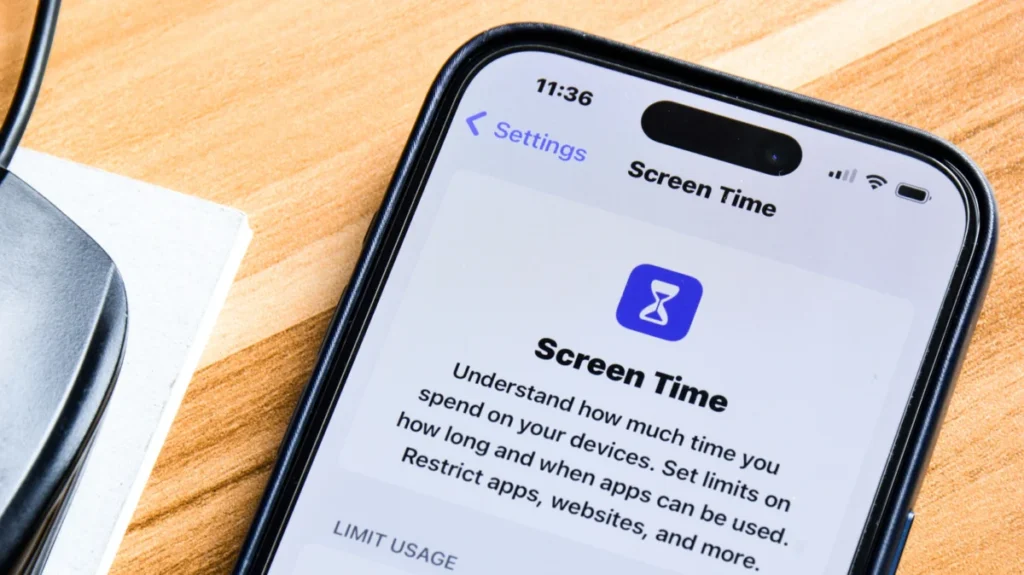
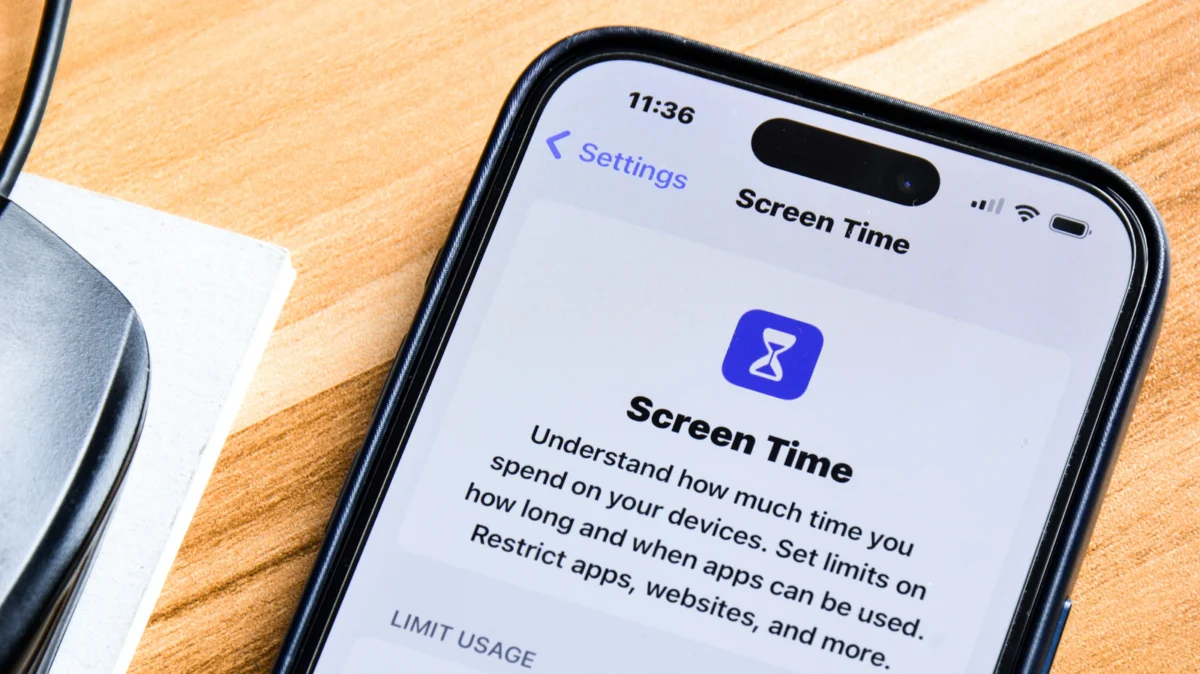
In an era defined by constant connectivity, the smartphone has evolved from a tool of convenience into an extension of the self. While these devices offer unprecedented access to information and global communication, they also act as sophisticated engines of distraction. Many users find themselves trapped in a cycle of mindless scrolling, social media fatigue, and notification-induced anxiety. For those looking to pivot toward a healthier relationship with technology, Apple’s built-in "Screen Time" feature offers a robust, multi-layered solution for digital wellness.
Main Facts: What is Screen Time?
At its core, Screen Time is an integrated diagnostic and management tool designed to give users granular insight into their digital habits. Introduced as part of Apple’s "Digital Health" initiative, the feature does more than just track how many minutes you spend on your device; it provides a comprehensive breakdown of your behavior, including which apps dominate your attention, how often you pick up your phone, and which notifications are the most persistent offenders.
The utility is divided into three primary functions: monitoring, limiting, and restricting. By utilizing the settings found under Settings > Screen Time, users can move from passive awareness of their habits to active intervention. Whether the goal is to reduce doom-scrolling, set firm boundaries for work-life balance, or provide a safer environment for children, Screen Time serves as the primary administrative dashboard for your digital boundaries.
Chronology: The Evolution of Digital Hygiene
The trajectory of Screen Time reflects a broader shift in the tech industry. When Apple first unveiled Screen Time in 2018 with iOS 12, the focus was primarily on awareness. Users were startled to discover they were spending four to six hours a day on their phones—a revelation that catalyzed a global conversation about "phone addiction."
Over the subsequent years, Apple expanded the feature set significantly:
- 2018 (iOS 12): Initial release featuring basic usage charts, App Limits, and Downtime.
- 2019 (iOS 13): Enhanced communication limits were introduced, allowing parents to control who their children could talk to.
- 2020 (iOS 14): Further integration with Family Sharing allowed for streamlined management of multiple devices.
- 2023-2024 (iOS 17+): The introduction of "Screen Distance," which uses the TrueDepth camera to detect if a device is being held too close to the eyes for extended periods, marked a shift from purely behavioral management to physical health awareness.
Analyzing Your Digital Footprint
Before you can change your habits, you must understand them. The Screen Time dashboard is a data-rich environment that should be the first stop in your journey toward digital minimalism.
Interpreting the Data
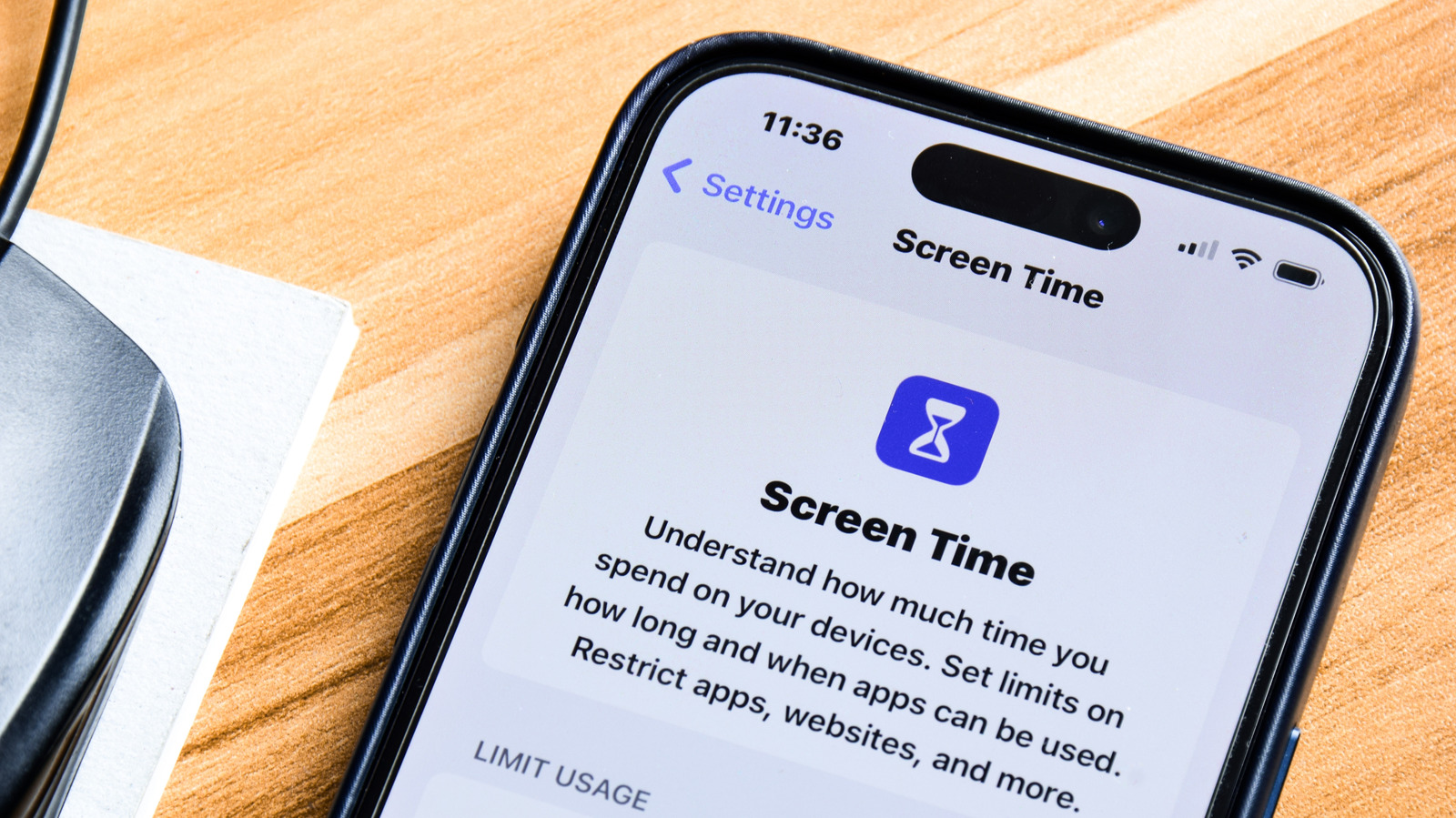
When you navigate to Settings > Screen Time, the top-level chart provides a weekly overview. However, tapping "See All App & Website Activity" unlocks the true diagnostic power of the tool. Here, you can view:
- Hourly and Daily Trends: Identifying if your usage peaks during specific times (e.g., late at night or during work hours).
- App Categorization: Distinguishing between productivity, social media, entertainment, and reading.
- Pickups and Notifications: A sobering metric that reveals how many times you unlock your device daily and which apps generate the "urge" to check your phone.
By toggling between the "Day" and "Week" views, you can identify patterns. For instance, if your notification count is highest on Tuesday mornings, it may be time to audit your app-specific notification settings to reduce unnecessary interruptions.
Implementing Structural Boundaries
Once you have identified the primary culprits of your screen time, the next step is applying technological "fences."
Downtime and App Limits
Downtime is your most effective tool for "hard" resets. By scheduling Downtime, you effectively tell your phone to go into a restricted mode during specific hours—such as 10:00 PM to 7:00 AM. During this period, only apps you have explicitly "Allowed" (like Phone, Messages, or Maps) will remain accessible.
App Limits offer a more surgical approach. Instead of blocking the whole phone, you can set a daily budget for specific categories. If you realize you are losing an hour a day to social media, you can set a 30-minute hard limit. When that time expires, the app icon greys out, and the system prompts you to stop.
The "Always Allowed" Exception
It is crucial to configure the "Always Allowed" list before enabling restrictive modes. Ensure that essential tools—such as your calendar, notes, or communication apps—are white-listed. This prevents the frustration of being locked out of vital tools during an emergency or while trying to be productive.
Implications for Child Safety and Family Management
Screen Time is perhaps most powerful when used as a parental control suite. In an age where children are increasingly exposed to unmonitored digital content, Apple’s Family Sharing integration provides a necessary layer of oversight.
Key Features for Families:
- Communication Limits: Parents can restrict who their children can contact, ensuring they only interact with known individuals.
- Content & Privacy Restrictions: This module allows parents to disable in-app purchases, prevent the installation of new apps, and restrict explicit content in music or movies.
- Communication Safety: A sophisticated feature that blurs sensitive images and provides age-appropriate guidance if a child is sent or receives potentially harmful content.
- Screen Distance: A vital feature for younger users, encouraging healthy habits by reminding them to hold the device at a proper distance to reduce eye strain.
These features do not just block content; they provide a pedagogical framework for discussing technology use within the family. By setting a Screen Time PIN, parents can ensure that these limits are not bypassed, creating a secure sandbox for children to explore the digital world.
Advanced Strategies: Overcoming the "Ignore" Loop
One common criticism of Screen Time is the "Ignore Limit" button. When an app limit is reached, the system allows the user to extend the time by one minute, 15 minutes, or for the rest of the day. For users with low impulse control, this creates a "leaky" boundary.
The "Accountability" Strategy
To enforce strict discipline, users can employ a "trusted partner" method. If you are serious about reducing usage, have a friend or family member set a Screen Time PIN on your device. By removing your own ability to override the limits, you transform the software from a gentle suggestion into a firm barrier.
Alternatively, you can use a "PIN-in-a-vault" method. Use an online random password generator to create a 4-digit PIN, then store that PIN in a physical location that is difficult to access (like a locked box or a folder in your office). You technically retain access to your device in an emergency, but the friction required to retrieve the code serves as a powerful deterrent against impulsive, mindless usage.
The Intersection with Focus Modes
While Screen Time handles the "how long" of your usage, Apple’s Focus Modes handle the "what" and "when." When used in tandem, these features are transformative.

By creating a "Work Focus" or "Personal Focus," you can further curate your notification landscape. A Focus mode can suppress all notifications except for those from key colleagues or family members. When combined with Screen Time’s App Limits, you essentially create a "productivity bubble" that makes it physically and mentally difficult to stray into non-essential apps during your peak hours.
Conclusion: A Tool for Intentionality
Ultimately, the goal of Screen Time is not to eliminate your smartphone usage, but to move from reactive usage to intentional usage. The device should serve you, not the other way around. By auditing your data, setting firm boundaries, and leveraging the power of Family Sharing or accountability partners, you can regain control over your attention.
As digital interfaces continue to evolve, the ability to consciously unplug will remain one of the most important life skills of the 21st century. Screen Time is not a panacea for the complexities of the modern attention economy, but it is an essential starting point for anyone looking to reclaim their time and focus. Start by checking your usage report today—you might be surprised by what you find, and more importantly, by how much more you can accomplish once you take the wheel.