Bridging the Legacy: How the "My Computer" Extension Reinvents GNOME Navigation
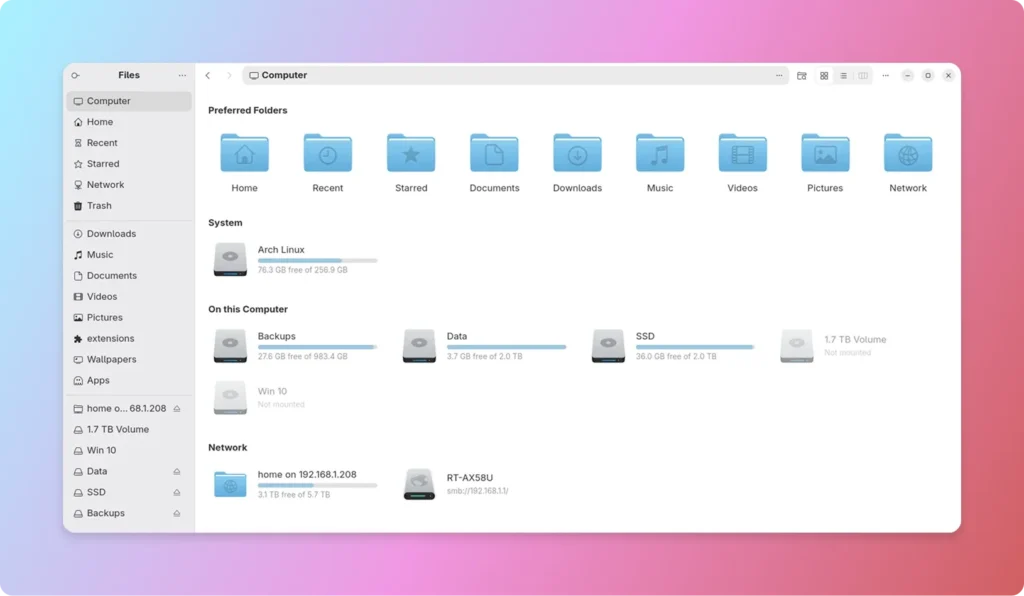
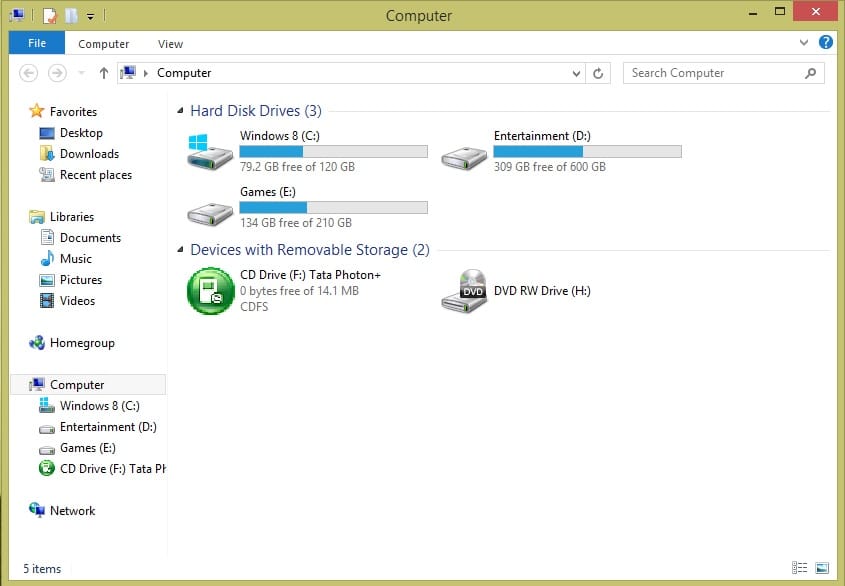
For decades, the "My Computer" icon served as the fundamental gateway to the digital world for millions of Windows users. From the Windows 95 era through the refinement of Windows 7, that singular icon acted as a centralized dashboard—a place where storage drives, network shares, and peripheral devices lived in harmonious proximity. It was intuitive, functional, and deeply ingrained in the mental model of the desktop computing experience.
However, as operating systems have evolved toward cleaner, more streamlined interfaces, the "all-in-one" hub has often been sidelined in favor of minimalist sidebars and cloud-first designs. GNOME, the flagship desktop environment for many Linux distributions, followed this trajectory by phasing out the "Other Locations" page in its default file manager, Nautilus (GNOME Files). While this shift was intended to modernize the user experience, it left a gap for power users and those who prefer a centralized overview.
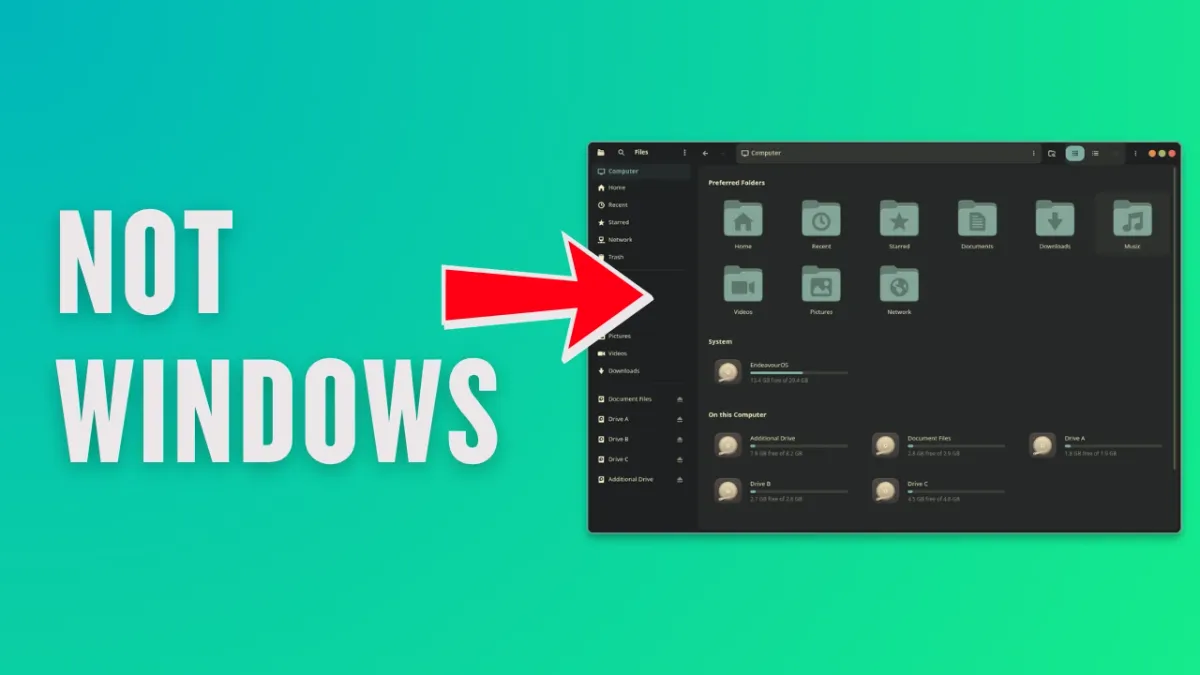
Enter My Computer for Nautilus, a powerful new extension that seeks to restore this lost functionality while introducing modern enhancements that go far beyond a simple nostalgia trip.
The Evolution of the GNOME File Manager
A Shift in Philosophy
To understand why the "My Computer" extension is making waves, one must first understand the design evolution of Nautilus. In earlier versions of GNOME, the "Other Locations" tab functioned as a catch-all repository. It was a one-stop-shop for managing local partitions, mounted external media, and remote network storage.

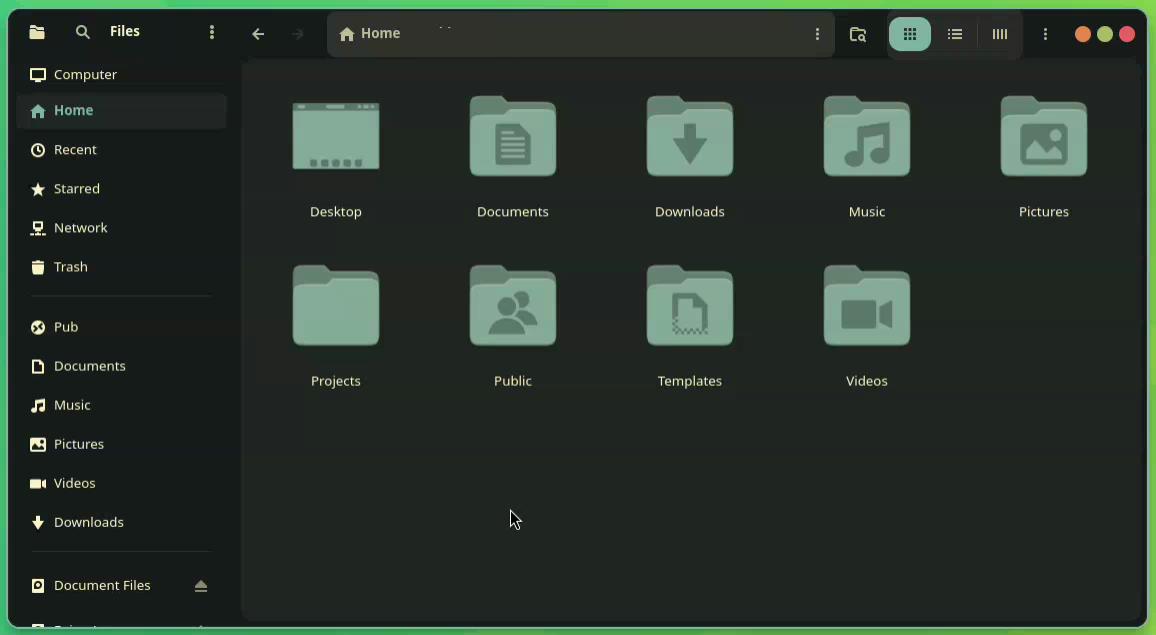
Starting with GNOME 47, the developers made a decisive move: the "Other Locations" page was officially deprecated. In its place, the Nautilus team opted for a sidebar-centric navigation model. Local drives and partitions were integrated directly into the primary sidebar, while network-related tasks were offloaded to a dedicated "Network" folder.
For the average user, this reduction in clicks is a boon for efficiency. However, for users who manage multiple drives, complex home-lab network shares, or external hardware, the scattering of these assets across a sidebar can feel disjointed. The "My Computer" extension addresses this by re-centralizing the user’s digital assets into a single, cohesive interface.
Meet "My Computer": A Reimagined Dashboard
Reclaiming Centralized Control
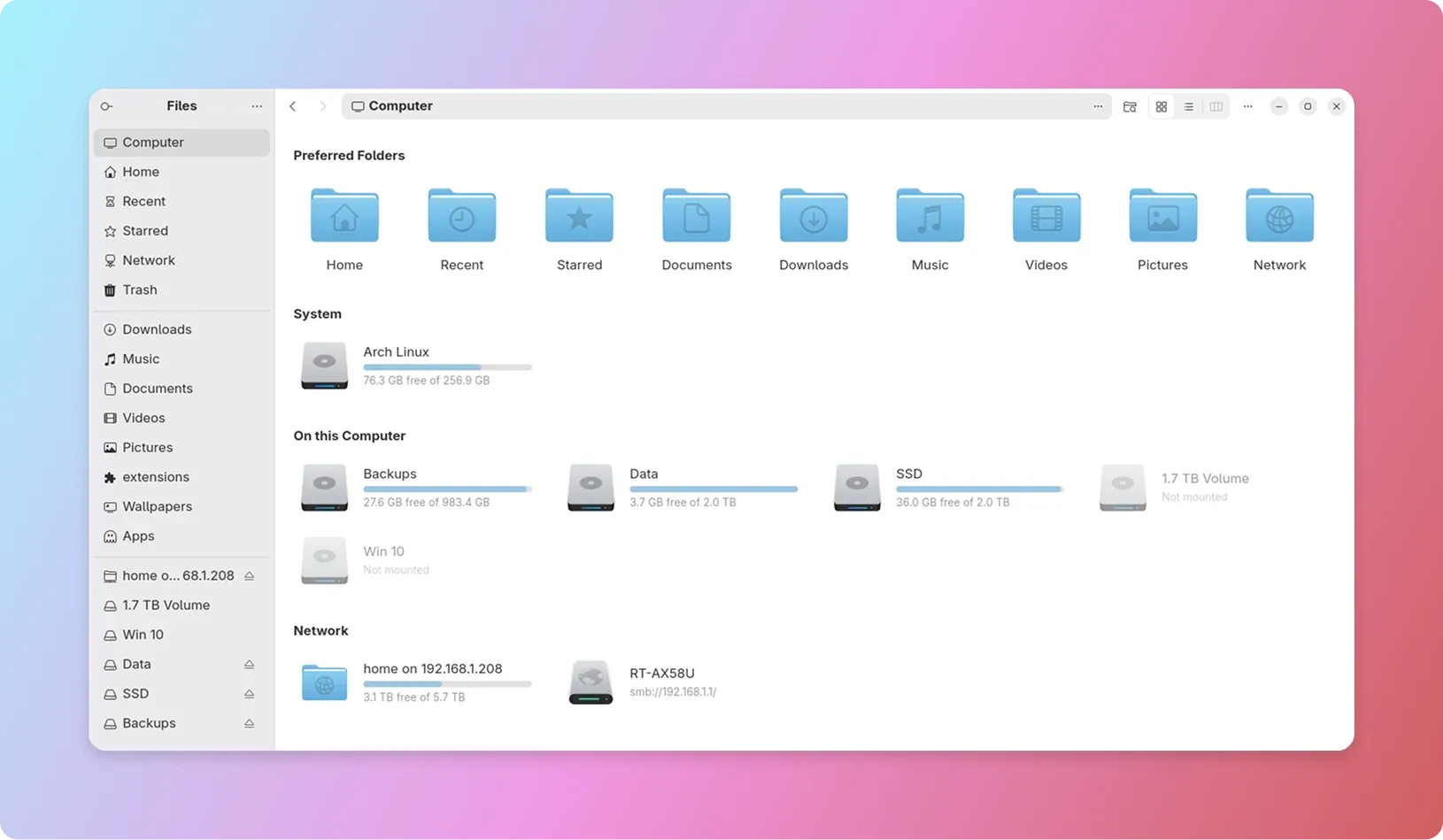
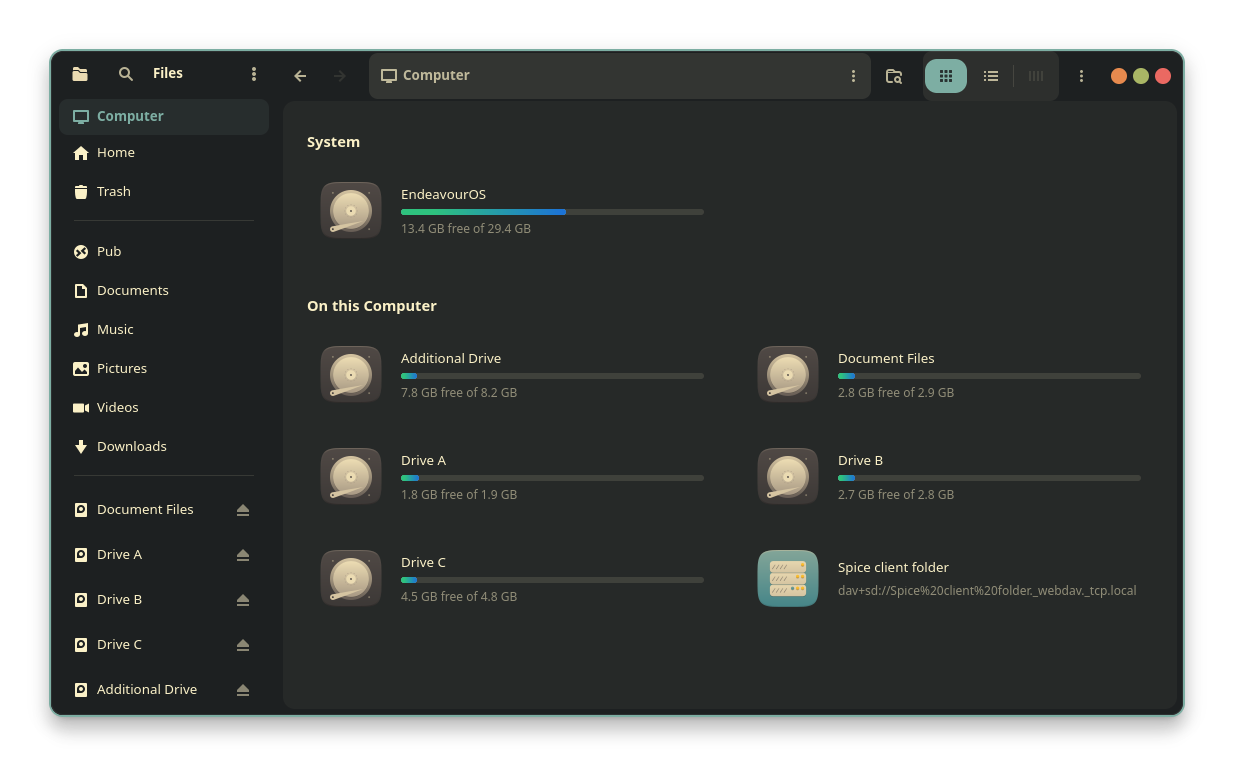
Developed by Yann Masoch, the "My Computer" extension is more than a restoration project; it is a feature-rich overhaul of how users interact with their file system. By installing this extension, users gain a dedicated "Computer" entry at the top of their Nautilus sidebar.
Unlike the static lists of the past, this "Computer" page is dynamic. It intelligently aggregates:
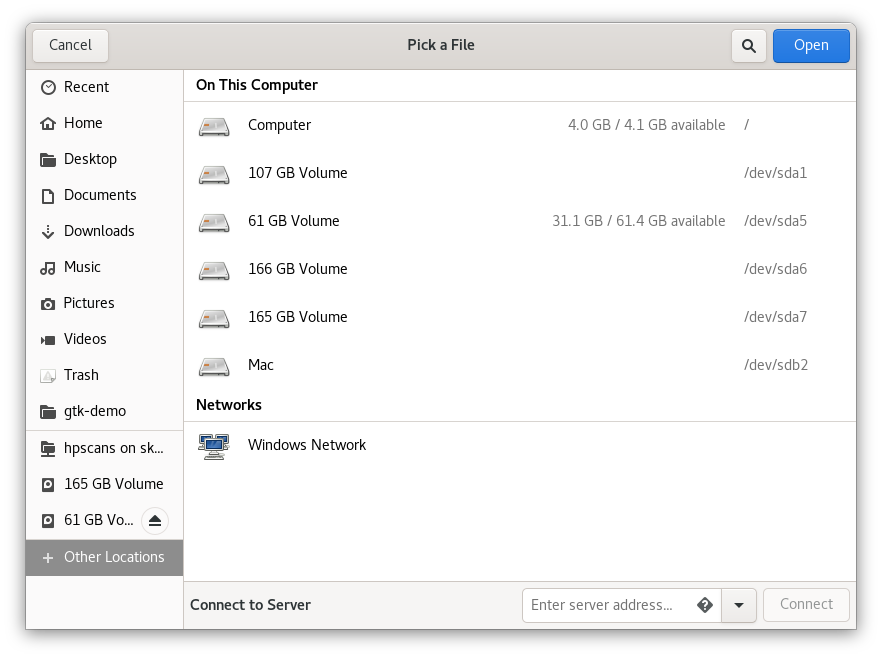
- Local Storage: All internal partitions and hard drives.
- Removable Media: USB drives, SD cards, and optical media.
- Network Mounts: SMB/CIFS shares, cloud-mounted drives, and remote file systems.
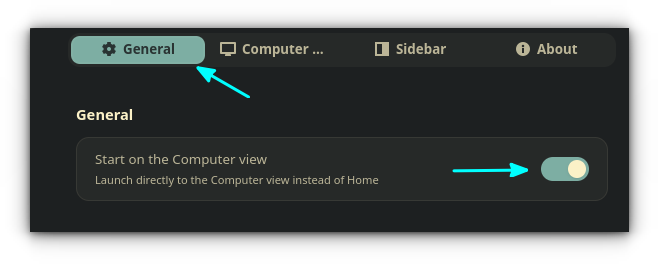
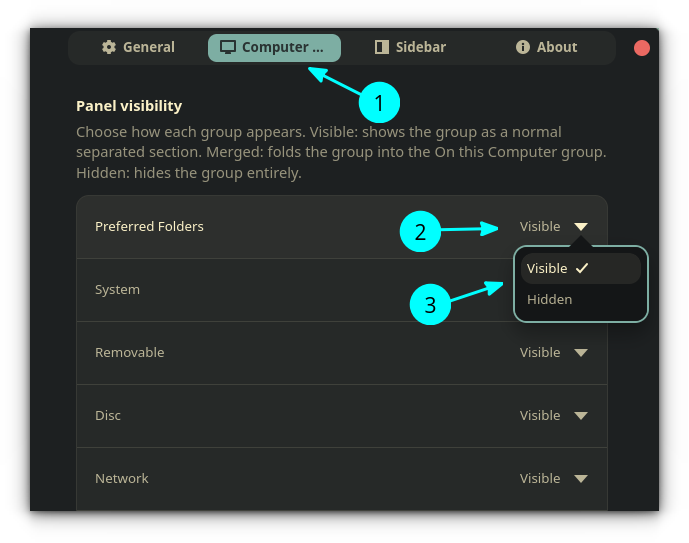
The brilliance of this extension lies in its malleability. Users are not forced into a one-size-fits-all layout. Through a dedicated settings panel, one can toggle the visibility of specific sections. If you find the "Preferred Folders" (Documents, Downloads, etc.) redundant, they can be hidden, transforming the view into a high-density, professional-grade drive management dashboard.
Technical Innovations: Beyond the "My Computer" View
While the primary objective of the extension is to restore a centralized hub, it introduces three major quality-of-life improvements that elevate the standard Nautilus experience.
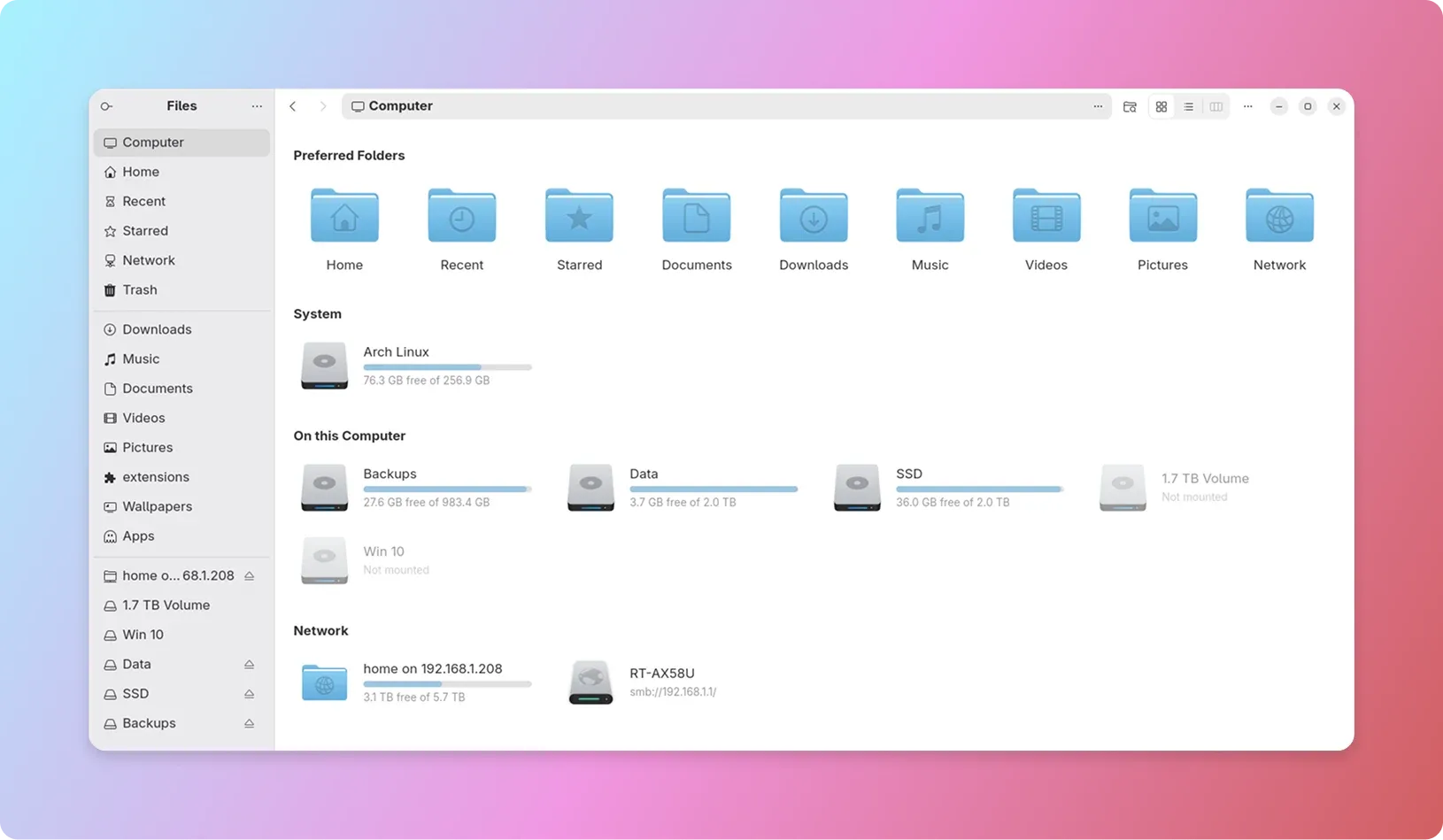
1. The Power of Miller Columns
Perhaps the most ambitious feature of the extension is the integration of "Miller Columns." Often associated with the macOS Finder, this navigation paradigm allows users to drill down into subdirectories without spawning new windows or losing context. Instead, each level of the directory hierarchy appears in a new, adjacent column.
This is a significant departure from the standard tree-view or icon-view modes in Linux file managers. For developers or power users navigating deep folder structures, Miller Columns significantly reduce the cognitive load associated with file management, offering a fluid, horizontal flow that feels remarkably responsive.
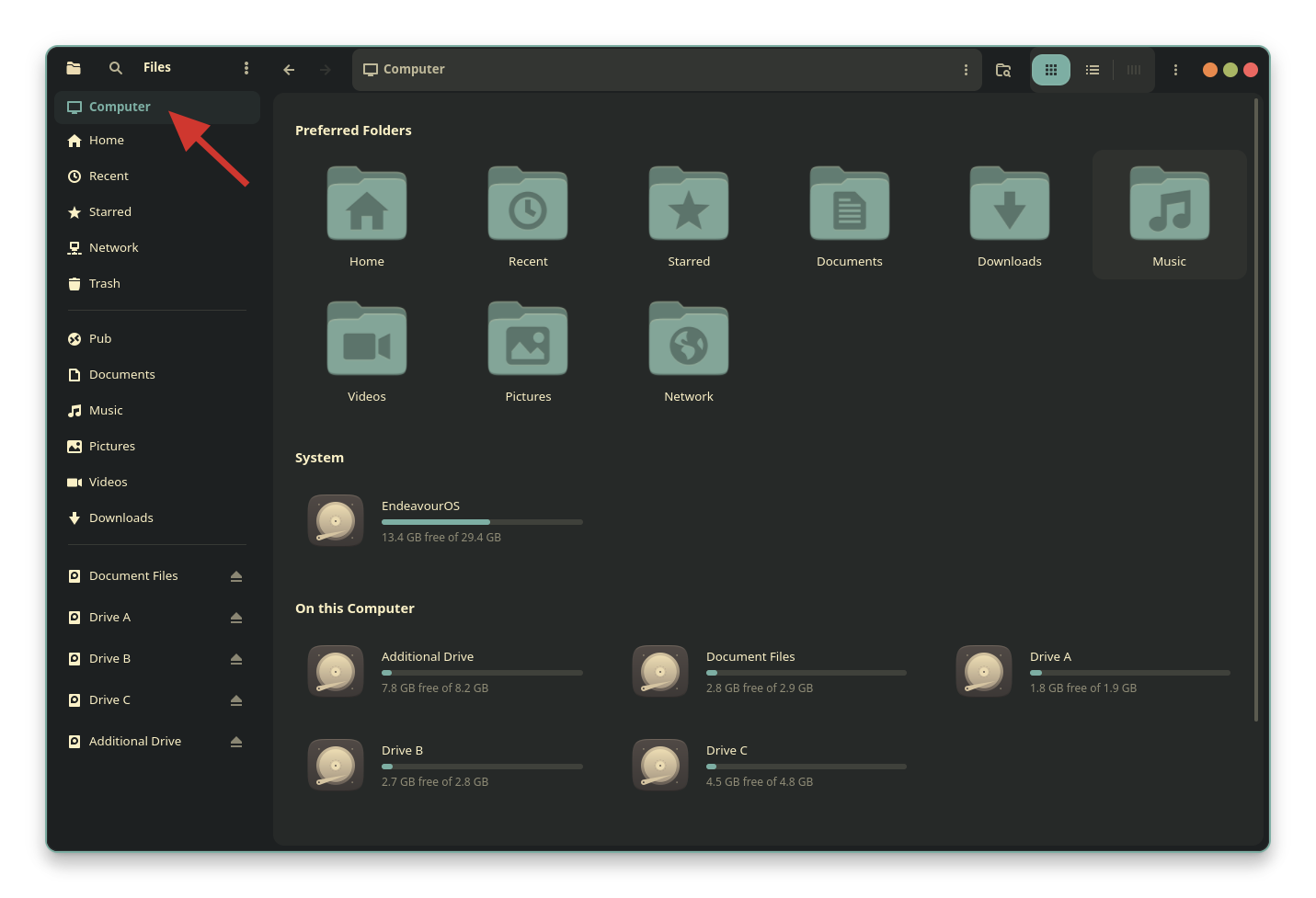
2. Deep Sidebar Customization
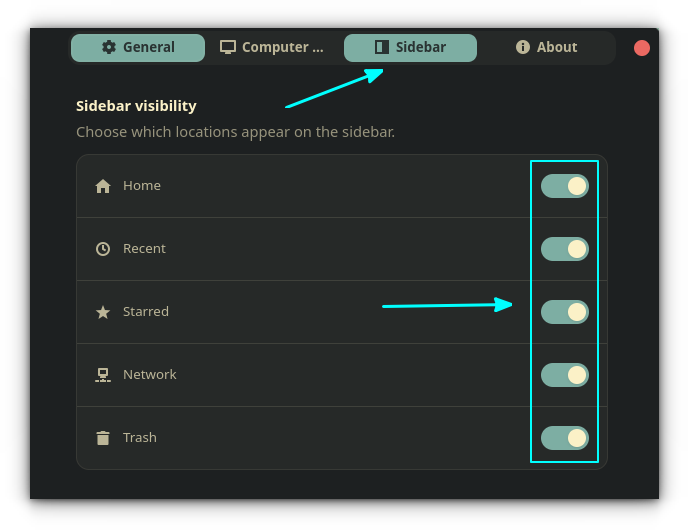
One of the most persistent complaints among GNOME power users is the lack of control over the sidebar. Features like "Recents" or "Starred" are often forced upon the user, cluttering the interface with files they may not need to access frequently.
The "My Computer" extension provides a surgical approach to this problem. It allows users to toggle the visibility of almost any element in the sidebar. This granular control empowers users to prune the interface down to the essentials, creating a "Zen" file management experience that is clean, focused, and tailored to their specific workflow.
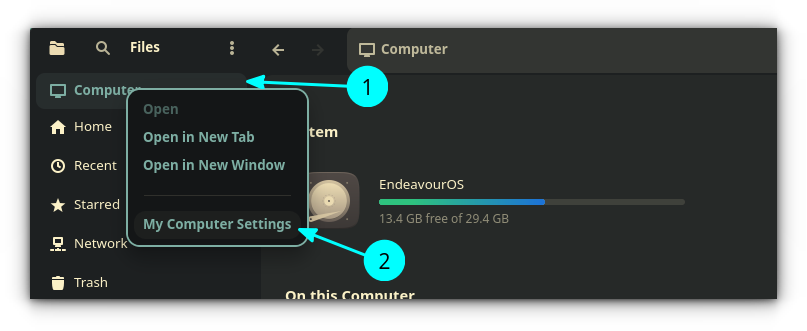
3. Visual Customization and Storage Monitoring
Aesthetics play a role in user retention, and "My Computer" does not disappoint. It introduces a sophisticated storage monitoring system for drives. In the standard file manager, storage bars are often static and utilitarian. With this extension, users can apply custom gradients to their storage usage indicators. By navigating to the "Computer" tab in the settings, users can select custom color modes, allowing them to visualize their storage health in a way that matches their system theme—a small but appreciated touch for those who value desktop personalization.
Implementation: How to Deploy the Extension
Because "My Computer" operates as a deep-level Nautilus extension rather than a standard GNOME Shell script, the installation process varies slightly by distribution.
For Ubuntu 26.04 and Newer
The developer has provided an official PPA (Personal Package Archive) for seamless integration:
sudo add-apt-repository ppa:yannmasoch/nautilus-my-computer
sudo apt update
sudo apt install nautilus-my-computer
For Fedora Users
Fedora enthusiasts can utilize the COPR repository, ensuring the extension is kept up to date alongside the OS:
sudo dnf copr enable yannmasoch/nautilus-my-computer
sudo dnf install nautilus-my-computer
Universal Deployment
For users of Arch Linux, openSUSE, or other distributions, the developer has provided a robust universal installation script:
curl -fsSL https://raw.githubusercontent.com/yannmasoch/nautilus-my-computer/main/install.sh | shNote: Users are advised to restart Nautilus (or log out and back in) after installation to ensure the extension hooks correctly into the file manager process.
Implications: A New Standard for Linux File Management?
The emergence of "My Computer" raises an interesting question regarding the future of GNOME. Does the popularity of this extension indicate a disconnect between the design goals of the GNOME project and the actual needs of the user base?
GNOME has long prioritized simplicity and a "distraction-free" environment. However, the success of extensions like "My Computer" proves that for a significant portion of the Linux community, "simple" should not mean "restricted."
By allowing users to customize their sidebar, choose their navigation layout (Miller Columns), and centralize their drives, this extension acts as a bridge. It maintains the stability and modern aesthetic of the base GNOME desktop while providing the power-user functionality that was lost in the transition to more minimalist designs.
Final Thoughts: Should You Install It?
If you are a user who finds themselves frequently clicking between different drives, managing cloud storage, or navigating deep directory structures, "My Computer" is not just a "nice-to-have"—it is a transformative tool. It brings the best of modern interface design (the clean, flat look of GNOME) and pairs it with the robust, centralized functionality of a classic file manager.
While the "default" GNOME experience is sufficient for many, the beauty of the Linux ecosystem lies in the ability to adapt the system to the user, not the other way around. If you value a tailored, efficient, and visually cohesive file management experience, "My Computer for Nautilus" is undoubtedly worth the few minutes it takes to install.
As the project continues to evolve under active development, it will be fascinating to see if these features eventually influence the upstream development of Nautilus itself. For now, it remains the gold standard for those looking to reclaim the "Computer" view in a modern Linux environment.