Beyond the Default: A Comprehensive Guide to Mastering Ubuntu 26.10
Ubuntu 26.10 has arrived, bringing with it a refined GNOME experience and a suite of quality-of-life improvements that solidify its position as the premier distribution for both Linux newcomers and seasoned professionals. While Ubuntu is renowned for its “it just works” philosophy, a fresh installation is merely the canvas. To truly unlock the potential of your machine—enhancing productivity, ergonomics, and system responsiveness—a few strategic configurations are essential.
This guide outlines the critical post-installation steps to transform a stock Ubuntu 26.10 environment into a highly personalized, efficient, and powerful workstation.
1. Establishing a Secure Foundation: Updates and Codecs
Before diving into aesthetic modifications, the priority must be system integrity.
The Importance of System Updates
Ubuntu installation media provides a static snapshot of the OS. Consequently, security patches, kernel refinements, and critical bug fixes are often released shortly after the image is finalized. Performing an immediate update ensures your system is shielded against known vulnerabilities and operates at peak stability.

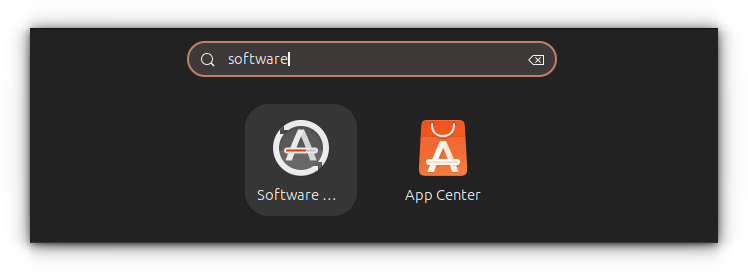
You can initiate this via the Software Updater in the Activities Overview. For those who prefer the precision of the command line, the following sequence is the industry standard:
sudo apt update && sudo apt upgrade -yExpanding Multimedia Horizons
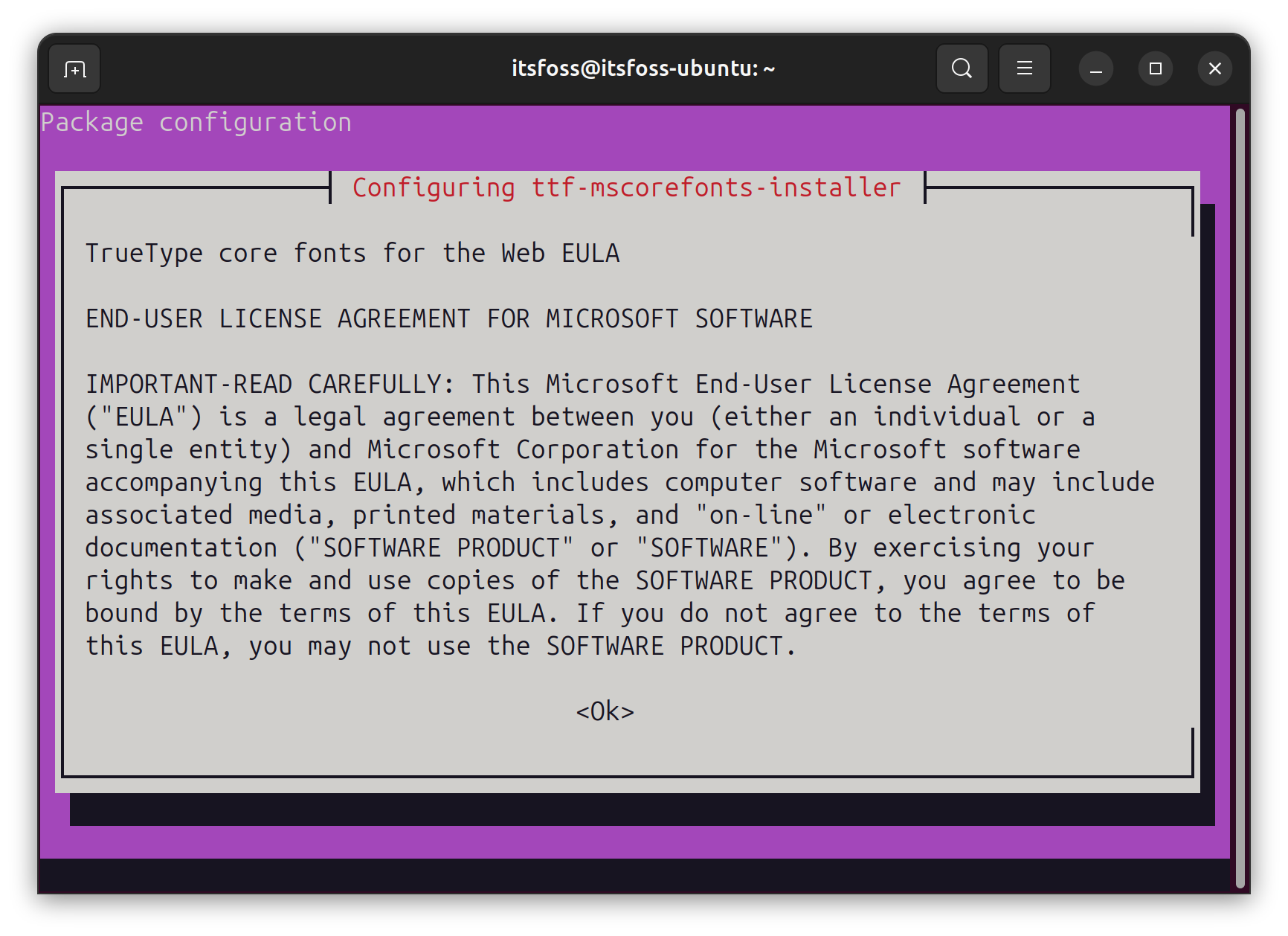
Due to strict licensing regulations in various jurisdictions, Ubuntu ships without proprietary media codecs. This results in an inability to play common formats like MP3, MPEG-4, or AVI out of the box. Installing the ubuntu-restricted-extras package rectifies this by bundling necessary codecs, Microsoft TrueType fonts, and various compatibility components.
sudo apt install ubuntu-restricted-extrasNote: If you are utilizing a flavor such as Kubuntu or Xubuntu, ensure you install the corresponding package (e.g., kubuntu-restricted-extras) to maintain desktop environment harmony.
2. Exploring Myna: The AI-Powered Voice Frontier
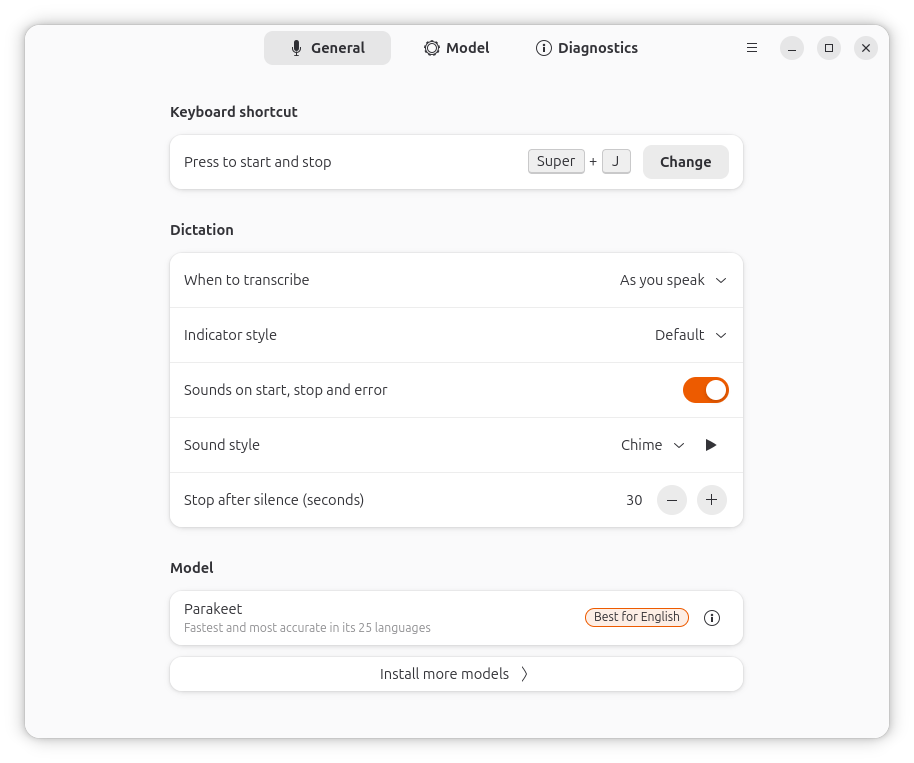
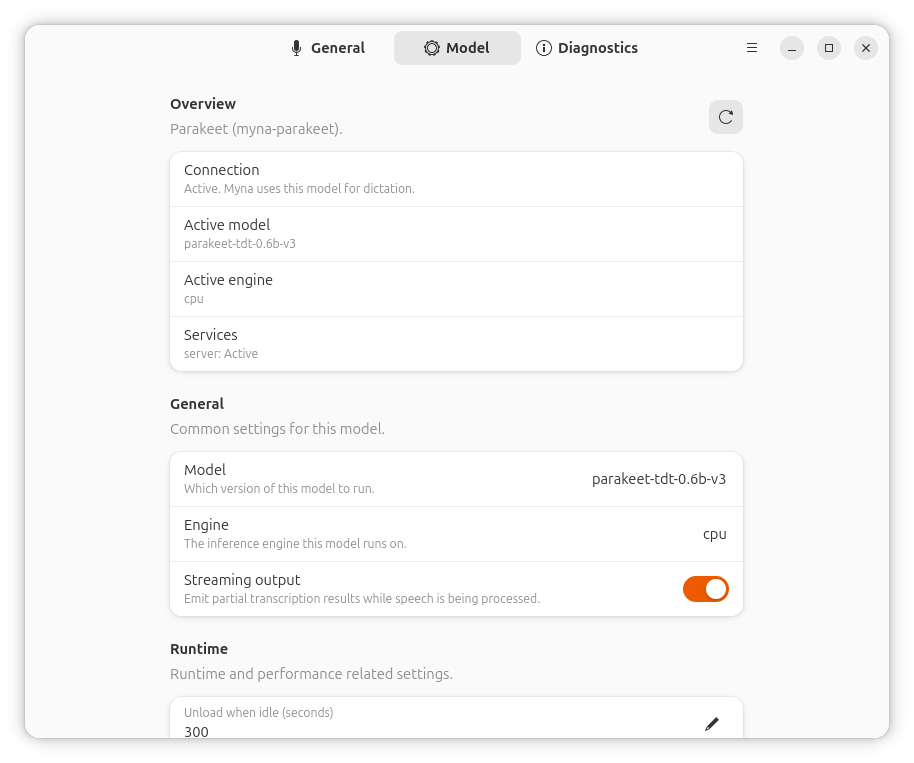
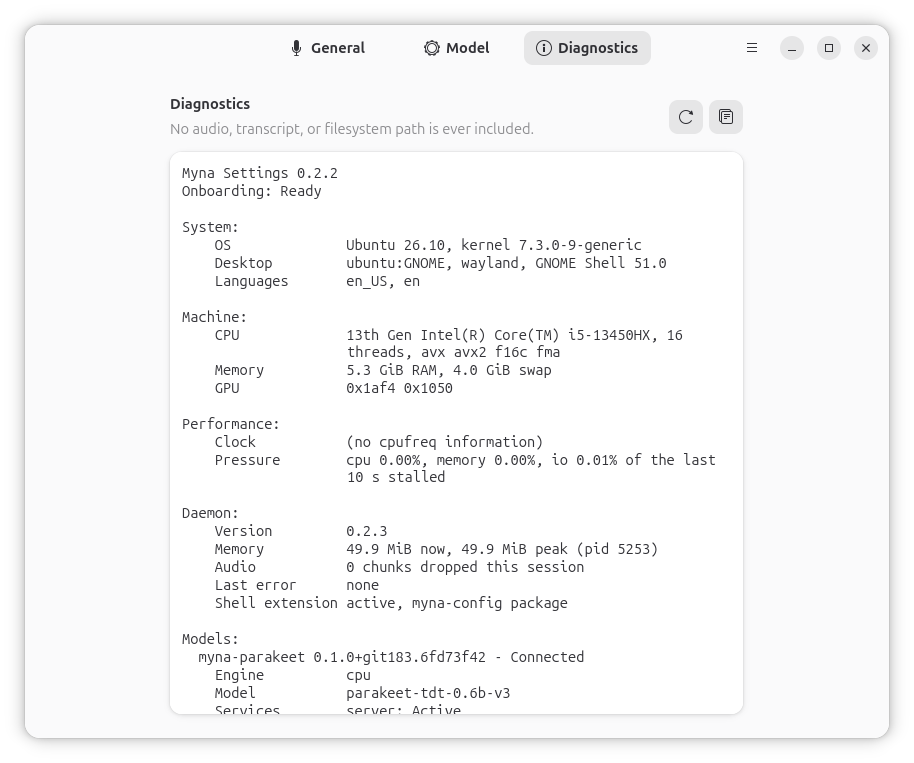
Ubuntu 26.10 marks a significant leap in accessibility with the introduction of Myna, a native, privacy-first speech-to-text engine. Unlike cloud-reliant dictation tools that harvest user data, Myna operates entirely locally on your hardware.
Implications of Local Inference
By processing voice input locally, Myna eliminates latency issues and concerns regarding data privacy. Once the initial language model is downloaded, the feature functions without an active internet connection. This is a game-changer for professionals who require secure, offline transcription for notes, emails, or documentation. While currently in a technology preview phase, Myna represents a pivotal shift toward integrating AI workflows directly into the desktop operating system.
3. Customizing the Visual Workspace
A desktop environment should be an extension of the user’s personality and workflow requirements.
Accent Colors and Personalization
Ubuntu 26.10 offers granular control over accent colors. By right-clicking the desktop and selecting Change Background, users can synchronize their accent color with their chosen wallpaper. This cohesion significantly elevates the perceived quality of the UI.
Dock Management and Tiling
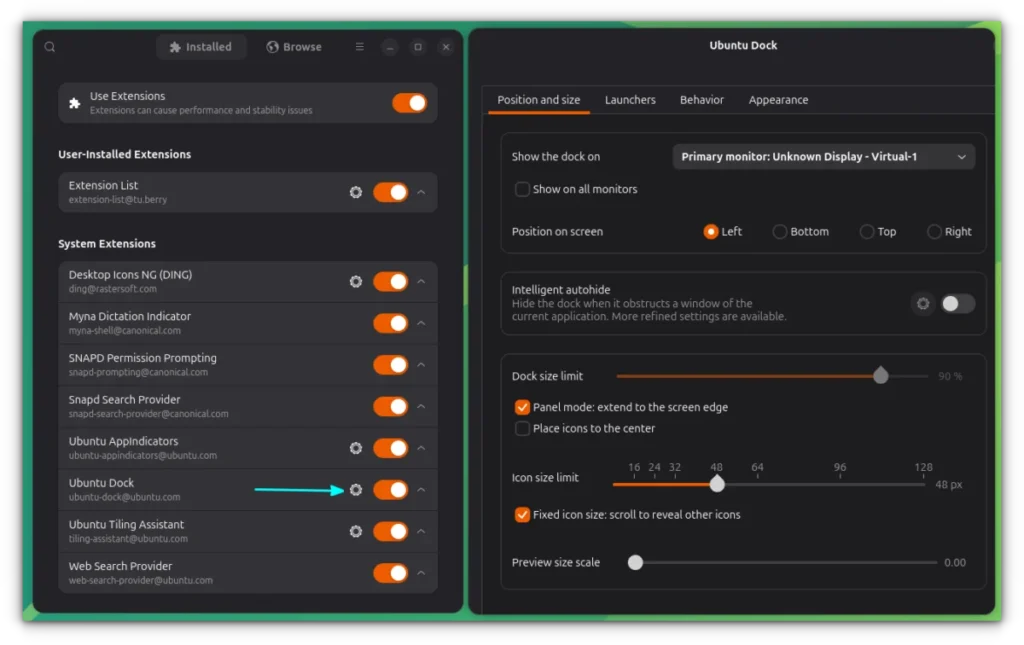
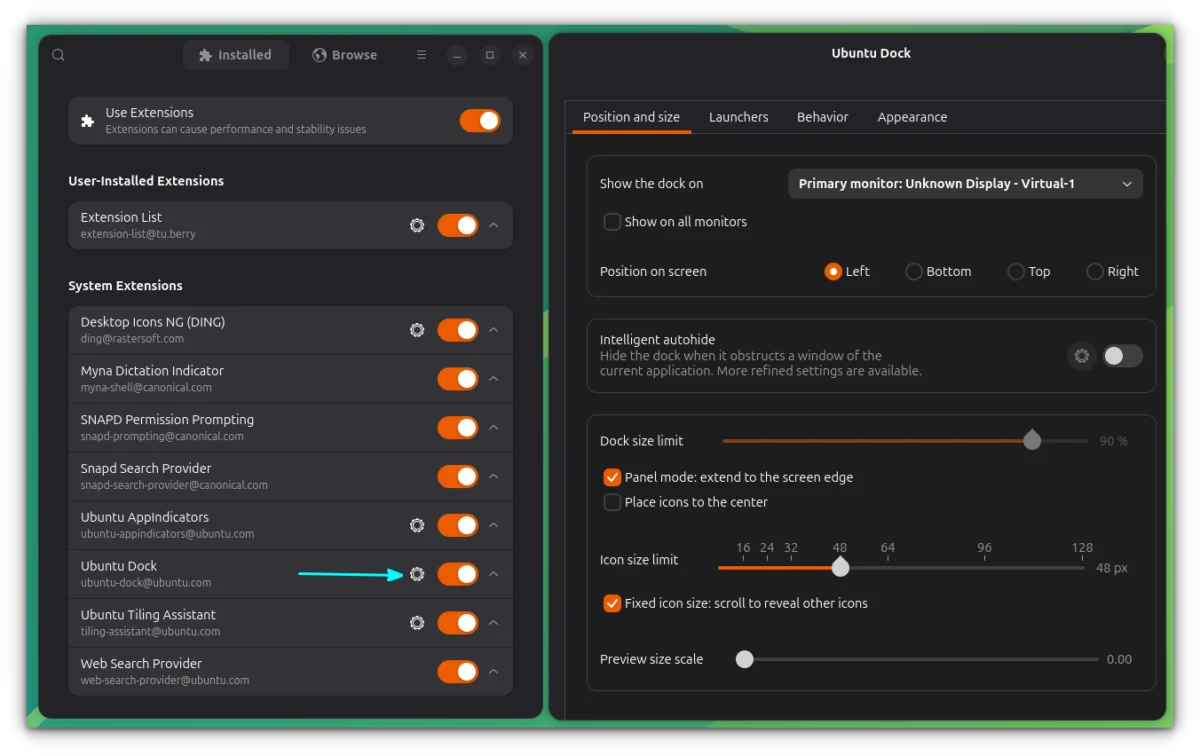
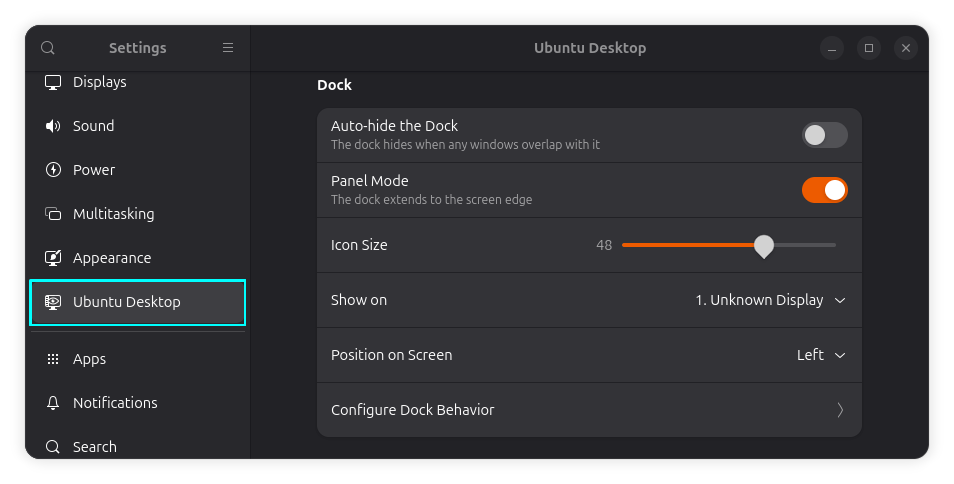
The GNOME-based Dock is the heart of your multitasking workflow. Beyond basic pinning, users can optimize their screen real estate through the Ubuntu Tiling Assistant. By dragging windows to the edges of the screen, you can create complex, snapped layouts. Enabling "Click to Minimize" in the Extension Manager—a feature often requested by users migrating from Windows—further streamlines the window-switching experience.
4. Expanding the Software Ecosystem
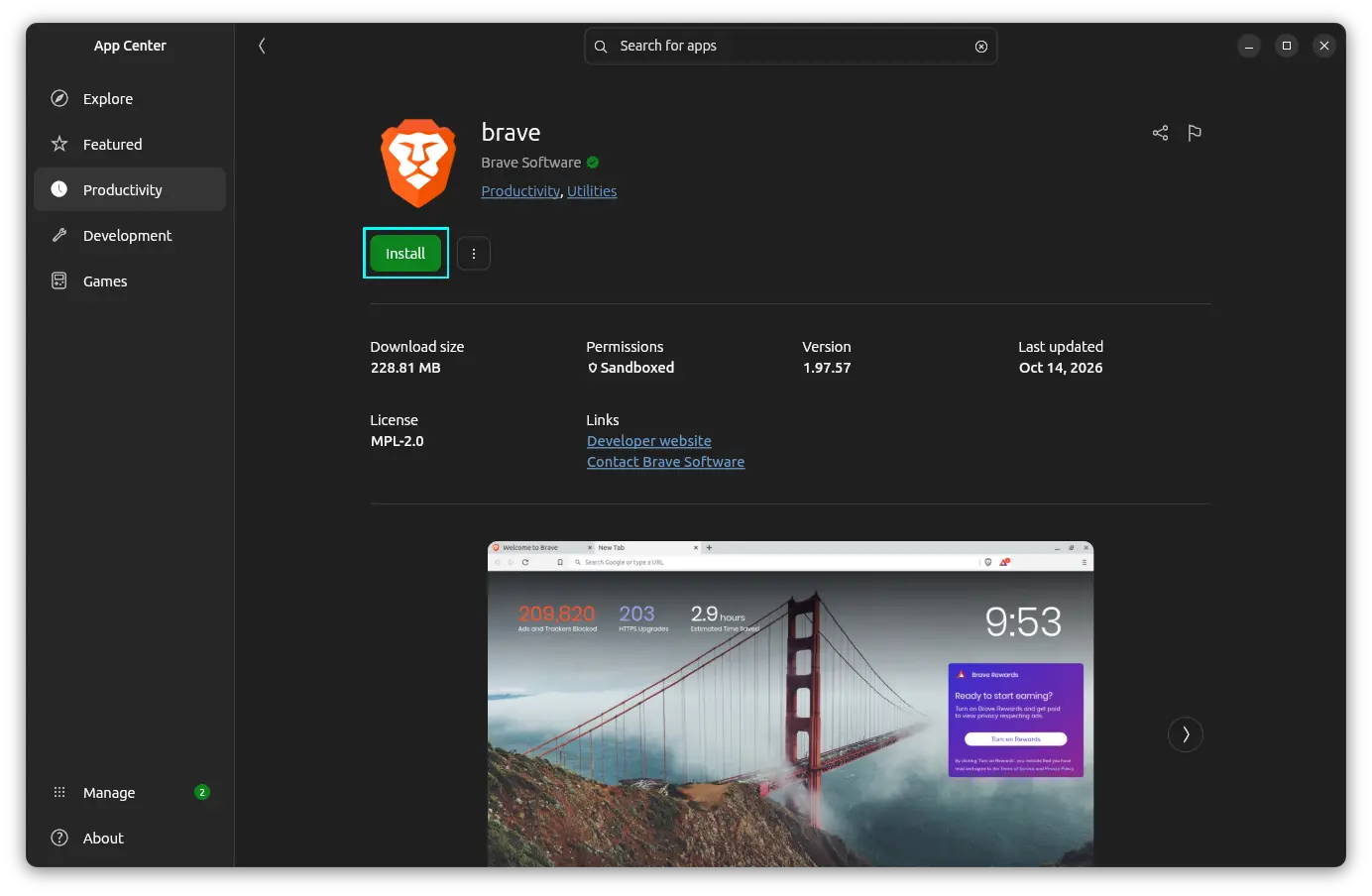
While Snap remains the default packaging format for Ubuntu, the Linux ecosystem is diverse. To ensure compatibility with the widest range of applications, enabling Flatpak support is a recommended best practice.
The Power of Choice
By installing the flatpak package and integrating the Flathub repository, you gain access to a vast catalog of open-source and proprietary software that may not be available as a Snap.
sudo apt install flatpak
flatpak remote-add --if-not-exists flathub https://dl.flathub.org/repo/flathub.flatpakrepo
After adding the repository, a system restart is advised to ensure full integration into your application launcher.
5. Productivity and Technical Tooling
For power users, developers, and system administrators, a clean install is incomplete without foundational CLI tools.
Curl and Git: The Developer Essentials
curl and git are indispensable. Whether you are cloning a repository from GitHub, testing an API endpoint, or running automated installation scripts, these utilities are the bedrock of modern technical workflows. Despite their ubiquity, they are not installed by default in a minimal Ubuntu setup.
sudo apt install curl gitLeveraging the Extension Manager
GNOME Extensions allow you to fundamentally alter the behavior of your desktop. Rather than relying on web-based installers, the Extension Manager application provides a centralized, robust interface for browsing, installing, and updating extensions safely.
6. Advanced System Configuration and Wellbeing
Ubuntu 26.10 introduces features that prioritize user health and hardware utilization.
The Wellbeing Module
In an era of increasing screen time, the new Wellbeing settings serve as a digital health monitor. Users can configure:
- Screen Time Limits: Establishing boundaries for daily usage.
- Eyesight Reminders: Periodic prompts to prevent digital eye strain.
- Grayscale Transitions: A visual cue to step away from the computer once a threshold is met.
Harnessing HDR Capabilities
For users with high-end displays, Ubuntu 26.10 now features formal support for BT.2100 HDR standards. By toggling HDR in the Displays settings, users can unlock deeper contrast ratios and a broader color gamut, providing a significantly more immersive visual experience for media consumption and creative work.
Power Management and Accessibility
Small adjustments can have outsized impacts on usability:
- Battery Percentage: For mobile users, enabling the percentage display in the top panel is a critical quality-of-life improvement.
- Overamplification: Found under accessibility settings, this allows users to boost audio volume beyond the standard 100%—a vital feature for those working with low-volume media or hardware.
- Locate Pointer: A simple yet effective feature that highlights your cursor with a ripple effect when the
Ctrlkey is pressed, preventing the frustration of losing the mouse on multi-monitor setups.
7. Implications: Building Your Own Experience
The philosophy behind Ubuntu 26.10 is one of empowerment. By providing a stable, secure, and performant base, Canonical allows the user to layer on the tools and configurations that best suit their specific needs.
Summary of Workflow Optimization
- Security: Always run
sudo apt updatefirst. - Compatibility: Use
ubuntu-restricted-extrasto bridge media gaps. - Versatility: Install Flatpak support to diversify your software sources.
- Ergonomics: Utilize Tiling Assistant and Wellbeing features to maintain a healthy and efficient workflow.
- Efficiency: Master keyboard shortcuts (using
Ctrl + ?) and CLI essentials likecurlandgit.
By taking the time to configure these elements, you transition from merely "running" Ubuntu to "mastering" it. Whether you are a student, a creative professional, or a software engineer, these tweaks ensure that your Ubuntu 26.10 experience is as productive and pleasant as possible. As with all desktop environments, the best setup is one that stays out of your way, allowing you to focus on the work that matters most.