The iPad Charging Dilemma: A Comprehensive Guide to Troubleshooting and Recovery
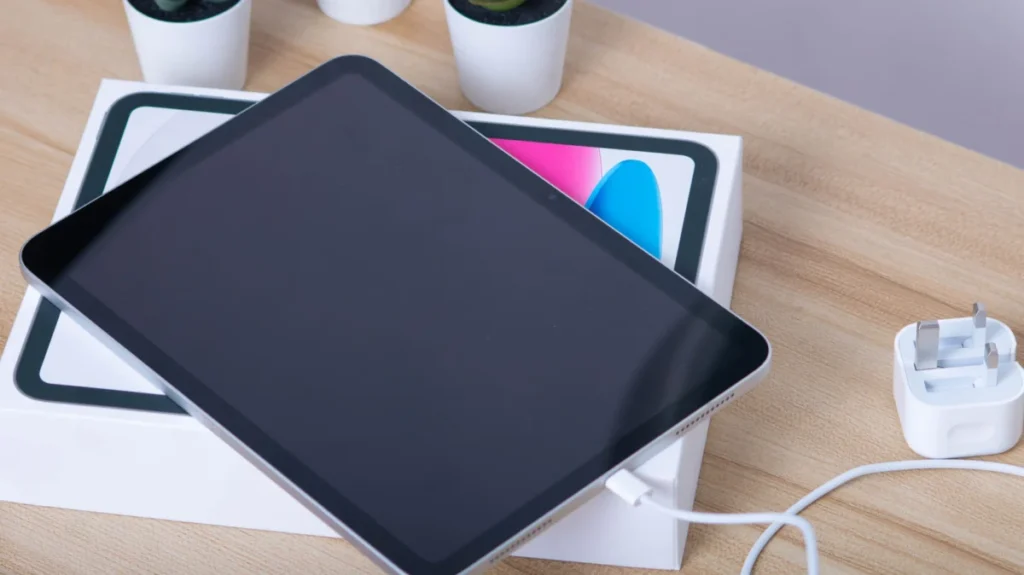

There are few experiences as universally frustrating for a power user as reaching for an iPad to begin a workday or settle in for an evening of media consumption, only to find the screen black and unresponsive to a power source. Whether you are a student relying on your tablet for notes or a creative professional using it as a secondary display, a device that refuses to hold a charge represents a significant disruption.
While it is easy to assume the worst—that your expensive hardware has suffered a catastrophic internal failure—the reality is often far more mundane. From software glitches to physical debris, the reasons behind a non-charging iPad are diverse. This guide explores the systematic approach to diagnosing and resolving these power-related issues, ensuring you can return to productivity without unnecessary panic.
The Anatomy of the Problem: Why iPads Stop Charging
When an iPad fails to charge, it is rarely due to a single "fatal" cause. Instead, the issue usually falls into one of three buckets: Power Delivery, Physical Obstruction, or System Software Logic.
1. Power Delivery and Accessory Incompatibility
The most common culprit is, quite simply, the power delivery chain. Modern iPads are significantly more power-hungry than smartphones. They require higher wattage to effectively charge their larger battery cells. If you are attempting to revive an iPad using a low-output power brick—such as an older 5W wall plug once included with legacy iPhones—the device may register the connection but lack the "juice" to actually increase the battery percentage.

Furthermore, the proliferation of low-quality, third-party lightning or USB-C cables has introduced a new layer of risk. Cables that do not meet Apple’s MFi (Made for iPhone/iPad) certification may lack the necessary internal shielding and power management chips required to communicate with the iPad’s power management integrated circuit (PMIC).
2. Physical Port Degradation
The USB-C or Lightning port is the most vulnerable point on your device. Because it is exposed to the elements, it frequently acts as a vacuum for pocket lint, dust, and debris. Over time, these materials are compressed into the back of the port, preventing the charging cable’s pins from making a clean, consistent electrical connection.
3. Environmental and Thermal Safety
Lithium-ion batteries are sensitive to temperature extremes. Apple’s internal software monitors the battery’s temperature during the charging cycle. If the device is too hot—perhaps left in a sun-drenched car—or too cold, the operating system will throttle or completely halt charging to prevent permanent chemical degradation of the battery.
A Chronology of Troubleshooting: A Step-by-Step Recovery Plan
If you find yourself staring at a "dead" screen, follow this chronological order of operations to isolate the problem.

Phase 1: The Accessory Audit (Minutes 0–10)
Do not assume your current cable is functional.
- Isolate the variables: Swap the cable for one you know works with another device.
- Swap the power brick: If you are using a wall outlet, move the entire charging assembly to a different wall socket to rule out a tripped breaker or faulty outlet.
- Verify Wattage: Ensure you are using at least a 10W or 12W power adapter, though modern iPad Pros and Air models perform best with 20W or higher USB-C power delivery (PD) adapters.
Phase 2: The Physical Inspection (Minutes 10–20)
Once the cables are ruled out, turn your attention to the port.
- Visual Inspection: Using a bright light or your smartphone’s flashlight, peer directly into the charging port. Look for discoloration, bent pins, or compacted debris.
- The Gentle Cleaning: If you spot lint, do not use a metal needle. Use a soft-bristled, clean, dry brush. Gently dislodge debris. If the debris is stubborn, a thin wooden toothpick is the only "tool" you should consider, and even then, use extreme caution. Avoid liquid cleaners, as they can cause short circuits within the port.
Phase 3: The Software Reset (Minutes 20–30)
Sometimes, the iPad’s software "hangs" in a state that refuses to acknowledge the power input. A hard reset clears the temporary memory and forces a hardware re-handshake.
- For iPads without a Home button: Press and quickly release the Volume Up button. Press and quickly release the Volume Down button. Then, press and hold the Power button until the Apple logo appears.
- For iPads with a Home button: Press and hold both the Home button and the Power button simultaneously until the screen goes black and the Apple logo reappears.
Supporting Data: Understanding Battery Chemistry
It is important to understand that your iPad’s battery is a finite resource. Apple designs its batteries to retain up to 80% of their original capacity at 1,000 complete charge cycles. If you have owned your iPad for four or more years and use it heavily, you may be experiencing a "dead" battery that has simply reached the end of its useful lifespan.

If the device is fully depleted, it may not respond instantly when plugged in. If an iPad has been sitting in a drawer for months, it may have entered a "deep discharge" state. In this specific scenario, you must leave the device connected to a high-wattage charger for at least an hour before the screen will show any sign of life. Do not be discouraged if the screen remains black for the first 30 minutes; the system is performing a "trickle charge" to bring the voltage up to a safe level before it can boot the operating system.
Official Apple Guidance and Repair Implications
Apple’s official stance on charging issues is rigorous. The company emphasizes the use of genuine Apple accessories to ensure optimal power flow and device safety.
When to Seek Professional Help
If you have completed the hard reset, tested multiple verified cables, and cleaned the port, and the device still refuses to show the "charging" lightning bolt icon, you are likely facing a hardware failure. This could involve:
- A failed charging port: If the port is physically damaged, the internal solder joints may have broken away from the logic board.
- PMIC Failure: The Power Management Integrated Circuit is the "brain" of the charging process. If this chip is fried, the iPad will not be able to process incoming electricity, regardless of the quality of the cable used.
Warranty and AppleCare
If your iPad is under the standard one-year limited warranty, any non-accidental charging failure is typically covered. However, if the port shows signs of physical damage (bent pins or water damage), this is categorized as "accidental damage," which is only covered if you have an active AppleCare+ plan. Without AppleCare+, an out-of-warranty repair for an internal charging issue can be costly, often approaching the price of a refurbished replacement unit.
Implications of Neglect: Long-Term Maintenance
Preventing future charging issues requires a shift in how we handle our devices.
- Avoid "Deep Drains": Try to avoid letting your iPad drop to 0%. Lithium-ion batteries are healthiest when kept between 20% and 80%.
- Environmental Awareness: Never leave your device in a hot car. High heat causes chemical reactions in the battery that accelerate capacity loss and can trigger permanent hardware protection locks.
- Port Hygiene: If you carry your iPad in a bag, ensure the charging port is covered or that the bag is free of loose debris. A simple port plug can prevent years of lint accumulation.
While a non-responsive iPad is a stressful event, it is rarely the end of the road. By systematically ruling out external factors—cables, outlets, and debris—and employing the force-restart method, the vast majority of users can restore their device to full functionality without ever stepping foot in an Apple Store. Should these steps fail, your next call should be to Apple Support, armed with the knowledge that you have already exhausted the primary troubleshooting steps.