Unleashing the Powerhouse: How to Run Samsung DeX Directly on Your Galaxy Z Fold 8
For years, Samsung DeX has stood as the gold standard for mobile productivity. Since its inception in 2017, this transformative feature has allowed power users to bridge the gap between their pocket-sized smartphones and a traditional desktop computing experience. By simply connecting a Galaxy flagship to an external monitor, keyboard, and mouse, users could transcend the limitations of a standard mobile UI, gaining windowed applications, a taskbar, and a desktop-class browser.
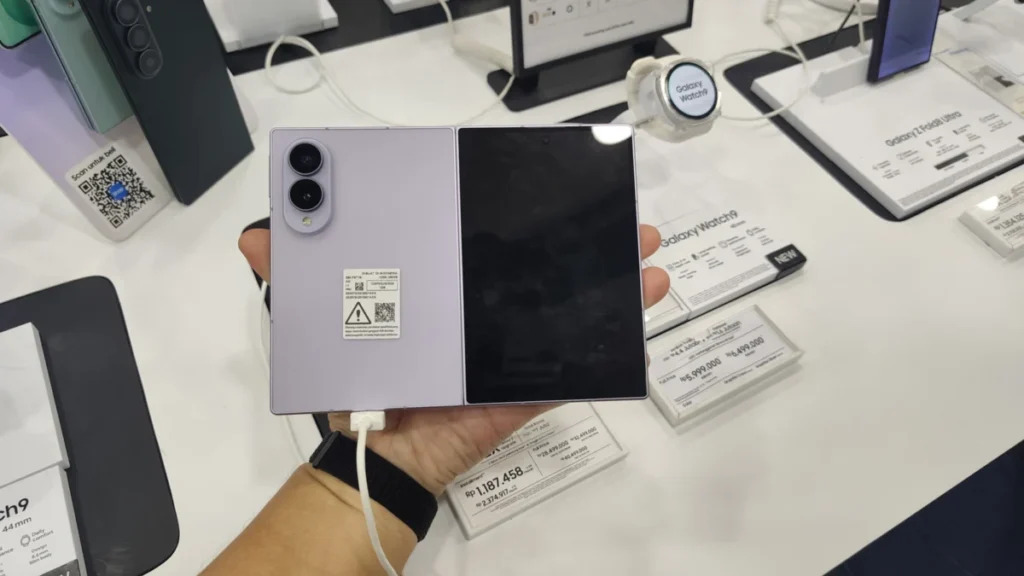
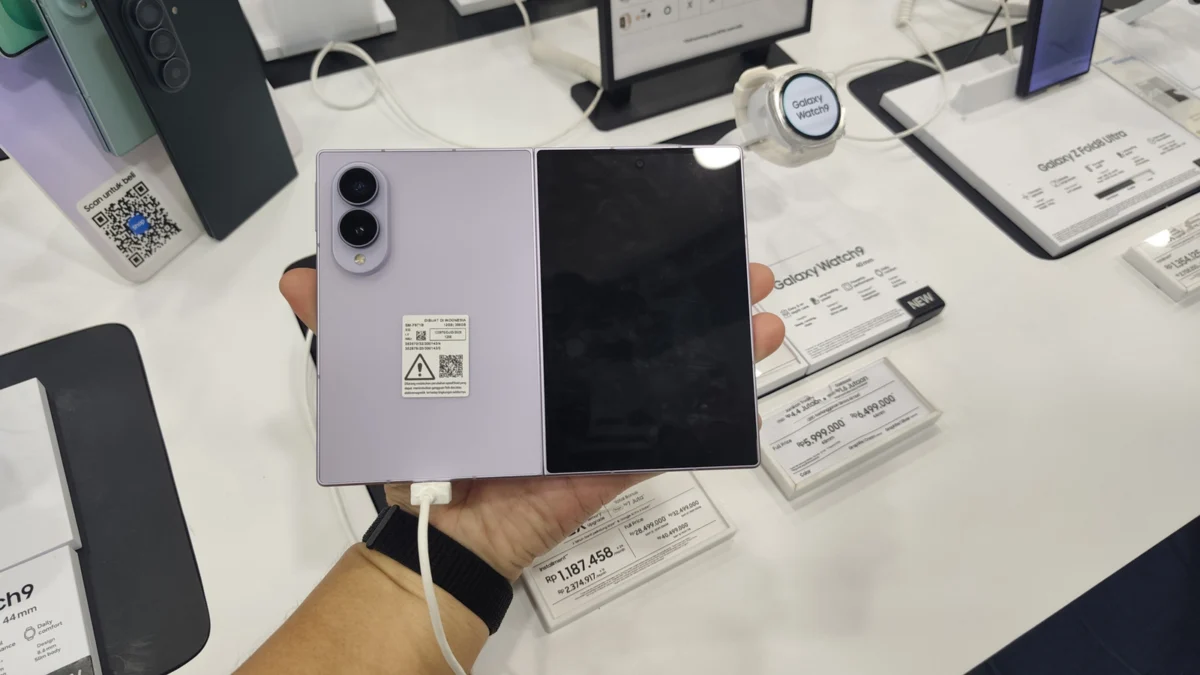
However, the primary constraint of DeX has always been its reliance on external hardware. While portable, the requirement for a monitor, USB hub, or wireless display connection tethered the experience to a desk or a specific environment. That is, until now. With the arrival of the Samsung Galaxy Z Fold 8 and its expansive 7.6-inch inner display, the hardware finally exists to make a desktop interface viable on the device itself. Thanks to a clever piece of software called Gadesk, users can now bypass the need for external screens entirely, bringing the full DeX environment directly to the Z Fold 8’s foldable canvas.
The Evolution of Mobile Desktop Computing
To understand the significance of this development, one must look at the trajectory of the Samsung Galaxy "Fold" line. When the first Fold launched, it was an experimental curiosity. By the time the Z Fold 8 reached the market, it had evolved into a sophisticated, high-performance workstation capable of handling complex multitasking scenarios.
For years, the Android community has clamored for "native" DeX—the ability to launch the desktop environment without an external display. While Google has slowly integrated a desktop-like mode into the core Android OS, Samsung’s DeX implementation remains vastly superior in terms of stability, UI polish, and app compatibility. The Gadesk application represents a bridge between these two worlds, utilizing Android’s hidden "Wireless Debugging" protocols to trick the operating system into rendering the DeX interface directly onto the local display.
Chronology of a Breakthrough: How the Gadesk Trick Works
The journey to running DeX on a phone’s internal screen is a testament to the ingenuity of independent developers. The process does not require "rooting" or "jailbreaking" your device, which preserves the integrity of Samsung’s Knox security suite. Instead, it relies on a sophisticated chain of permissions and system-level commands.
Phase 1: Preparation and Security Configuration
Before the magic happens, the device must be prepared to accept unconventional inputs.
- Disabling Auto Blocker: Samsung’s security feature, Auto Blocker, is designed to prevent unauthorized USB or wireless modifications. This must be toggled off via Settings > Security and privacy.
- Unlocking Developer Options: By navigating to About phone > Software information and tapping the "Build number" seven times, users unlock the administrative Developer Options menu.
- Enabling Wireless Debugging: This is the heart of the operation. This protocol, intended for developers to test apps over a network, provides the "pipe" through which the Gadesk app directs the DeX interface.
Phase 2: The Pairing Process
Once the system is primed, the user must pair the Gadesk app with the internal debug server. This is achieved by:
- Launching the Gadesk app and selecting "First-time pairing."
- Utilizing the "Pair device with pairing code" option within the Wireless Debugging menu.
- Entering the unique pairing code generated by the device to establish a trusted handshake.
Phase 3: Accessibility and Execution
The final hurdle is granting the app permission to "overlay" the DeX environment. By heading to Accessibility > Installed apps, the user grants Gadesk the authority to draw over other windows. Once the "Start Desktop" button is pressed, the Z Fold 8 effectively tricks itself into believing it has been docked to a 1440p monitor, with the internal display acting as that high-resolution window.
Supporting Data: Why the Z Fold 8 is the Ideal Candidate
The Z Fold 8 is uniquely positioned to handle this workload. While other devices can technically run similar desktop modes, the Z Fold 8 offers:
- Aspect Ratio Optimization: The 7.6-inch display, when unfolded, provides an expansive canvas that mimics the traditional "ultra-wide" monitor setup.
- Thermal Headroom: With the latest Snapdragon chipset and an improved cooling vapor chamber, the Z Fold 8 can maintain a desktop environment without significant thermal throttling, even when running multiple browser tabs and office applications simultaneously.
- RAM Management: With 12GB or 16GB of RAM as standard, the Z Fold 8 is one of the few devices capable of keeping the DeX environment "alive" in the background while still managing background system processes.
Official Responses and Security Considerations
It is important to note that Samsung has not officially endorsed Gadesk or any third-party app that "forces" DeX onto the internal screen. In previous iterations of One UI, Samsung has occasionally patched exploits that allowed for similar behavior.
Security experts advise that while Gadesk does not require rooting, it does require high-level permissions. Granting an app "Accessibility" access and "Wireless Debugging" privileges essentially gives that application deep control over your UI. Users should be aware that, as with any third-party tool, there is a theoretical risk involved in providing such elevated access to a non-system application. However, because Gadesk is available on the official Google Play Store, it has passed basic vetting processes, providing a layer of safety that manual APK sideloading lacks.
Implications for the Future of Productivity
The success of this "trick" has profound implications for the mobile industry.
The Death of the Portable Monitor?
For years, the "DeX-on-the-go" kit involved carrying a portable USB-C monitor and a Bluetooth keyboard. If users can comfortably utilize the Z Fold 8’s screen for basic desktop tasks, the reliance on external accessories diminishes. This makes the smartphone a true "all-in-one" device for students, journalists, and remote workers.
A New Standard for Multitasking
Android’s standard split-screen mode is effective, but it is not a desktop. DeX offers true window management, allowing users to resize apps, snap windows to corners, and utilize a traditional taskbar. On a device as powerful as the Z Fold 8, this effectively replaces the need for a lightweight tablet or a secondary laptop for many professional workflows.
Monetization Models for Utility Apps
The Gadesk model—a free-to-use utility with a "pro" upgrade—highlights the demand for specialized power-user tools. The $20 one-time fee for a perpetual license is a significant investment for an app, yet it speaks to the high value users place on unlocking the latent potential of their expensive hardware.
Customization: Making the Experience Your Own
Once you have successfully launched DeX, the Gadesk app provides a suite of tools to refine the experience.
- Orientation Flexibility: While most users default to landscape, the Z Fold 8’s portrait orientation can actually be superior for long-form document editing or coding, as it mimics a vertical monitor setup.
- Virtual Trackpad: For those without a physical mouse, the Gadesk trackpad offers a surprisingly intuitive way to navigate the desktop interface, complete with multi-touch gestures.
- Gesture Mapping: The ability to map three-finger taps to specific system functions (like "Back" or "Home") allows for a highly personalized workflow, reducing the need to constantly reach for physical navigation buttons.
The Cost of Power
The current version of Gadesk is a "freemium" product. While users can test the functionality for free, they are limited to 15-minute sessions interspersed with advertisements. This is designed to allow users to verify compatibility before committing to the full purchase. It is a fair trade-off for software that essentially adds a feature that Samsung has kept behind a hardware-based "lock" for nearly a decade.
Conclusion
The ability to run Samsung DeX on the Galaxy Z Fold 8’s inner screen is perhaps the most exciting development for mobile productivity in recent years. It transforms the foldable from a media consumption device into a legitimate mobile workstation. While the setup process requires a bit of technical tinkering, the result is a seamless, desktop-class experience that fits in your pocket. As mobile hardware continues to outpace software, tools like Gadesk will likely become essential for those who demand more from their devices than a standard mobile interface can provide.
Whether you are a professional looking to draft reports on the go or a tech enthusiast looking to push the boundaries of your Z Fold 8, this solution offers a glimpse into a future where the device in your pocket is the only computer you will ever truly need.