Mastering Android Adaptive UI: The Power of Terminal-Driven Emulator Control
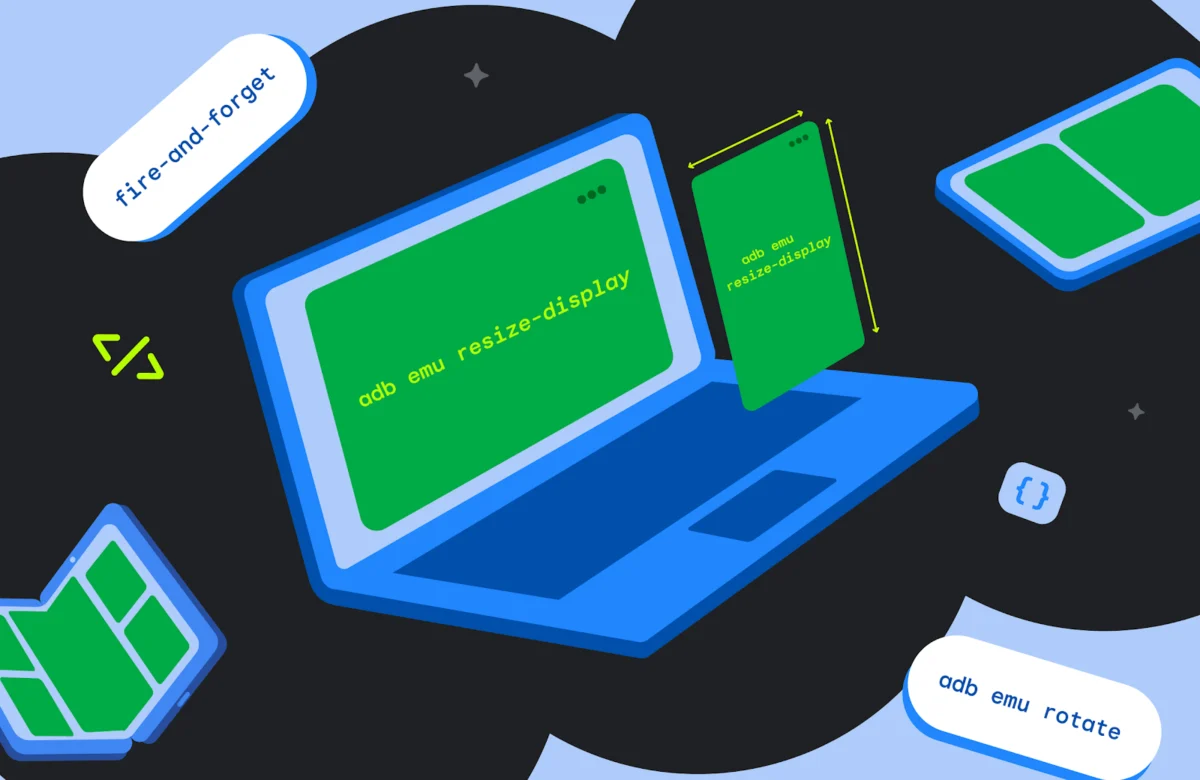
In the modern Android ecosystem, the fragmentation of form factors is no longer a hurdle—it is a design mandate. With the proliferation of foldables, tablets, and desktop-class large-screen devices, the pressure on developers to ensure seamless UI transitions has reached an all-time high. While Android Studio provides an intuitive GUI for managing the Resizable Emulator, professional developers are increasingly shifting toward terminal-based workflows to accelerate their quality assurance cycles.
By utilizing the adb emu command-line interface, developers can transcend manual interaction, enabling automated, rapid-fire testing of adaptive layouts directly from their development environment.
Main Facts: The Shift to Terminal-Based Testing
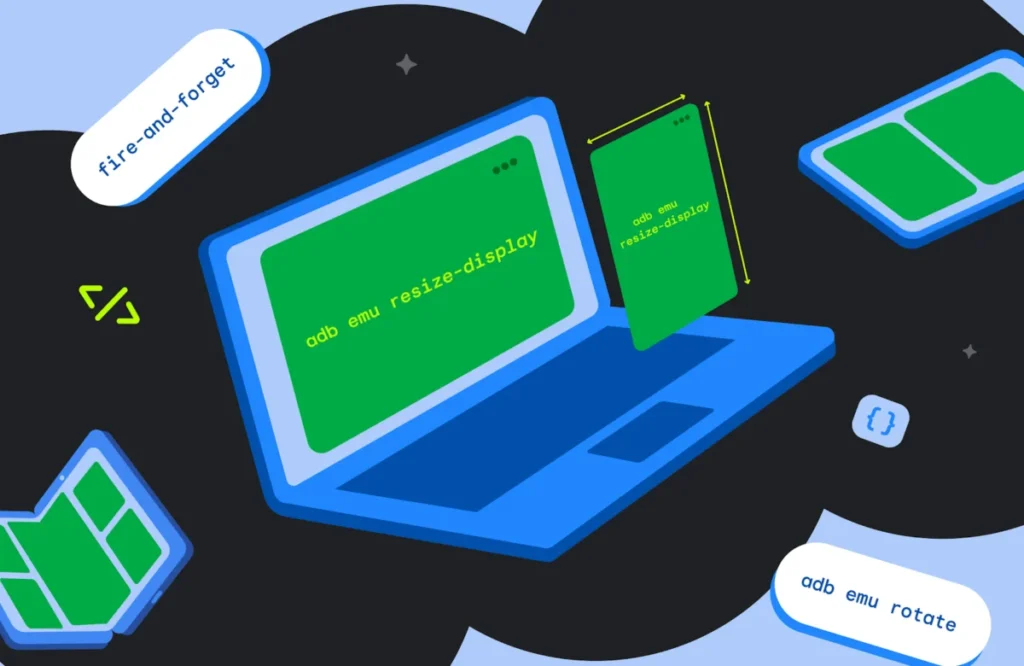
The core philosophy behind efficient Android development is minimizing the "context-switching tax." Every time a developer clicks a button in an emulator UI, they lose focus and consume precious seconds. The adb emu command suite allows for "fire-and-forget" execution, meaning commands are sent to the emulator without locking the terminal session, allowing for continuous integration of UI state changes.
At its simplest level, the adb emu command serves as a bridge to the Emulator Console. Whether you are validating a dynamic layout that needs to respond to a screen fold or checking how a RecyclerView behaves during a orientation flip, these commands provide the granular control necessary for high-fidelity testing.
Targeted Execution
For environments where multiple virtual devices are running—a common scenario for comparative UI testing—the command structure is both robust and flexible:
adb -s <serial> emu <command> <parameter>
By specifying the device serial, developers can orchestrate complex testing scenarios across multiple form factors simultaneously without ever leaving their code editor.
Chronology: The Evolution of Adaptive Testing
The trajectory of Android development has moved from static layouts to fluid, reactive interfaces.
- Early Days: Developers relied heavily on physical hardware to test different resolutions, leading to slow feedback loops and expensive hardware procurement.
- The Emulator Revolution: The introduction of the Resizable Emulator provided a visual tool to simulate various screen sizes, significantly reducing the dependency on physical devices.
- The Command-Line Era: With the latest updates to the Android SDK, the focus has shifted toward programmatic control. The
adb emufunctionality represents the current zenith of this evolution, allowing developers to integrate screen state changes directly into shell scripts, automated test suites, and CI/CD pipelines.
Supporting Data: Enhancing Workflow Efficiency
Why switch from the GUI to the terminal? The metrics speak for themselves. Manual testing of state restoration—the process of ensuring an app remembers its scroll position or data input when a device is folded or rotated—typically takes between 15 to 30 seconds per iteration when using a mouse.
Automating these actions via adb emu reduces this time to milliseconds. Consider the following common testing pillars:
Foldable Dynamics
Testing the transition between the folded (external screen) and unfolded (internal screen) states is critical for foldable-optimized applications.
- Command:
adb emu fold/adb emu unfold - Impact: This allows for instantaneous verification of responsive layouts. If an app fails to resize or experiences a crash during the configuration change, the terminal feedback provides an immediate signal.
Orientation and Posture
Orientation is not just about landscape vs. portrait; it is about how the UI components reorganize themselves.
- Rotation:
adb emu rotatetriggers a 90-degree clockwise turn. - Posture: Using
adb emu postureallows developers to test "tabletop mode" or "half-opened" states (posture ID 2). This is essential for apps that need to move interactive elements to the bottom half of the screen while keeping content in the top half.
The Resizable Emulator Preset
The Resizable Emulator is perhaps the most powerful tool in the arsenal. Instead of dragging the edges of a window, developers can use:
adb emu resize-display <index>
This enables instant switching between phone, tablet, and desktop configurations, providing a programmatic way to cycle through all supported display densities in under a second.

Official Responses and Technical Considerations
Google’s Android development team emphasizes that while these commands are powerful, they are subject to the capabilities of the specific Virtual Device (AVD).
A Note on Compatibility: Not all AVD templates are created equal. The standard Pixel Fold template, for example, is configured to recognize specific posture IDs. Attempting to force an unsupported posture—such as calling an experimental ID 4 or 5 on a standard template—will result in a KO: Failed to set posture error.
Developers are encouraged to query available capabilities before running tests. By using adb emu posture or adb emu resize-display without parameters, the emulator returns a list of valid IDs for that specific device, preventing runtime errors in automated scripts.
Implications: The Future of Android Development
The implications of this command-line control are profound for both individual developers and large-scale engineering teams.
1. Improved CI/CD Integration
By incorporating these commands into shell scripts, teams can create automated "Sanity Tests" that run every time code is pushed. Imagine a script that automatically folds, rotates, and resizes an emulator, takes a screenshot of each state, and compares it against a baseline image. This level of automation ensures that UI regressions are caught before they reach the QA phase.
2. Lowering the Barrier to Adaptive Design
Adaptive design is often seen as "extra work." However, when the tools to test that work are integrated into the command line, the friction decreases. Developers who can toggle screen states in a single keystroke are far more likely to build responsive, robust UIs than those who must manually adjust window dimensions.
3. Debugging Configuration Changes
Android’s activity lifecycle is notorious for being difficult to debug. When a configuration change occurs (like a fold or rotation), the Activity is destroyed and recreated. Using adb emu allows developers to trigger this lifecycle event repeatedly, making it significantly easier to isolate bugs related to onSaveInstanceState or ViewModel persistence.
Conclusion: Take Command of Your Workflow
The Android ecosystem is moving toward a future where "one size fits all" is a relic of the past. To succeed, developers must embrace the fluidity of the platform. The adb emu suite is more than just a convenience feature; it is an essential component of a modern, professional Android development workflow.
By moving beyond the visual constraints of the emulator’s GUI and tapping into the underlying console commands, you unlock a level of precision and speed that is simply impossible to achieve with a mouse and keyboard.
If you are ready to streamline your development, start by exploring the full documentation on the Android Emulator Console. Create a simple bash script to cycle your emulator through all three major postures, rotate it, and resize it. You will find that the time saved adds up to hours of reclaimed productivity every week.
In the world of Android development, those who master the terminal are the ones who build the most resilient, adaptive, and high-quality applications. Start testing smarter today, and let your code—not your manual labor—drive the quality of your user experience.