Mastering TestLink (Part 2): Advanced Test Management, Execution, and Reporting
Introduction: Taking Your QA Processes to the Next Level
In the fast-paced ecosystem of modern software development, maintaining absolute rigor in quality assurance (QA) is no longer optional—it is a critical business imperative. Building upon the foundational elements introduced in Part 1 of the "Learning TestLink Test Management Tool" series—which covered system installation, test plan creation, and initial test case writing—this installment dives deep into the platform’s advanced functionalities.

As teams scale and projects grow more complex, managing user permissions, tracing requirements to verify comprehensive test coverage, executing meticulous test runs, and generating stakeholder-ready reports become paramount. This comprehensive guide explores the core advanced features of TestLink, offering a definitive roadmap for QA professionals aiming to streamline their test management workflows.

User Management and Role-Based Access Control
In any enterprise-grade QA environment, security, accountability, and controlled access are vital. TestLink addresses this by implementing a robust role-based access control (RBAC) mechanism. This ensures that team members—ranging from manual testers and automation engineers to project managers and stakeholders—only interact with the modules and permissions relevant to their responsibilities.

Understanding Default and Custom Roles
TestLink features several pre-defined system roles that govern user capabilities out-of-the-box. However, organizations often require granular security policies. TestLink accommodates this by allowing administrators to create custom roles with tailored permission sets. Whether restricting test case deletion rights or granting read-only access to executive stakeholders, custom roles ensure compliance with internal security frameworks.

Step-by-Step: Creating Users and Assigning Roles
To provision a new user and assign precise permissions within TestLink, administrators should follow this standardized workflow:

- Access the Administration Panel: Navigate to the main menu bar and click on the Users/Roles link to open the user management interface.
- Initiate User Creation: Click the Create button located on the interface dashboard.
- Input User Credentials: Fill out the mandatory fields in the user creation form, including the username, personal details, and baseline role assignments. Click Save to register the user in the system database.
- Assign Project-Level Roles: To grant a user access to specific testing environments, navigate to the Assign Test Project Roles tab.
- Map Projects and Roles: Select the target Project Name and the corresponding Role from the dropdown menus to establish precise project boundaries.
Note: Administrators can similarly utilize the Assign Test Plan Roles tab to dictate user permissions at the individual Test Plan level, ensuring hyper-targeted operational control.

Requirements Management: Bridging the Gap Between Design and Testing
Requirements management is the bedrock of traceable software development. A requirement defines a specific condition, constraint, or functional need that the software must satisfy. By integrating requirements directly into TestLink, quality assurance teams can evaluate test coverage objectively, identifying untested features before code reaches production environments.

Crafting Requirements in TestLink
Writing and structuring requirements within TestLink establishes a clear hierarchy that binds business logic to technical verification.

- Navigate to Requirements: Click the Requirements link on the primary navigation bar to access the requirements dashboard.
- Create a Document Shell: Click the Create button to establish a new requirements document.
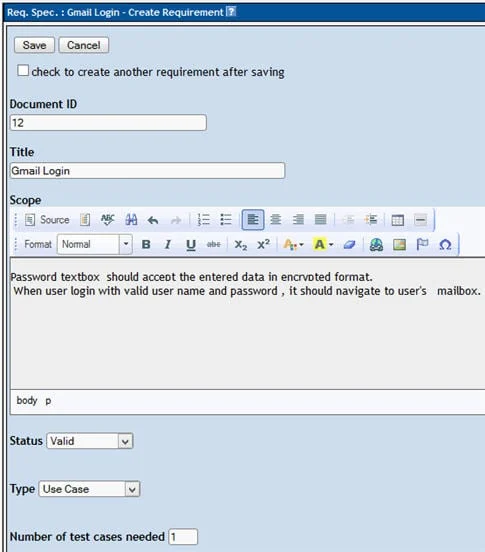
- Define Document Metadata: Input the unique Document ID, descriptive Title, and comprehensive Description of the requirement, then click Save.
- Establish Specification Hierarchy: Once saved, the requirement specification will appear in the left-hand navigation panel.
- Add Individual Requirements: Select the specification, click the Requirements Operations “Create” button, input the granular requirement details, and save.
Assigning Requirements to Test Cases
One of TestLink’s most powerful analytical features is the ability to map requirements directly to individual test cases. This linkage provides real-time visibility into test coverage metrics.

- Select a Test Case: Open the desired test case via the Test Specification module.
- Open the Requirements Dialog: Click the Requirements icon associated with the test case.
- Select Specification and Target: Choose the appropriate requirements specification from the dropdown menu and check the boxes next to the relevant requirements.
- Finalize Assignment: Click the Assign button. The selected requirements will now populate the assigned requirements section, officially linking business logic to the testing artifact.
Executing Test Cases and Recording Results
Once test plans are designed and requirements are mapped, execution is the next logical phase. TestLink provides a centralized hub for running test cases, tracking their real-time statuses, and logging vital execution notes.

The Execution State Machine
In TestLink, test cases generally begin in a "Not Run" state. During execution, testers can update this status to "Passed", "Failed", or "Blocked".
Crucial Operator Note: Once a test case execution status has been updated from "Not Run" to a conclusive state, TestLink locks that initial state; you cannot manually revert a tested case back to the "Not Run" status, preserving audit trail integrity.

Execution Workflow
- Access the Execution Panel: Click the Test Execution link in the navigation header.
- Select the Target: From the left-hand panel, browse the directory tree and select the specific test case you wish to execute.
- Record Outcome and Notes: Choose the appropriate execution status (Pass, Fail, or Blocked) and input detailed execution notes, observations, or defect identifiers.
- Commit Execution Data: Click the Save Execution button to permanently log the results in the system repository.
Generating Comprehensive Test Reports
Stakeholders, project managers, and auditors require empirical evidence of testing activities. TestLink features a robust, built-in reporting engine capable of formatting data into industry-standard formats including HTML, MS Word, MS Excel, OpenOffice Writer, and OpenOffice Calc.

Report Generation Steps
- Navigate to Reports: Click the Test Reports link on the navigation bar.
- Select Report Type: Choose the specific report module (such as Test Report) from the left-hand panel.
- Customize Content: Use the provided checkboxes to select the precise datasets, metrics, and summaries you want included in the output.
- Choose Output Format: Modify the report format by adjusting the highlighted dropdown menu to match your desired file type.
- Compile Report: Click on the corresponding Test Project folder structure in the right-hand panel to compile and download the generated report.
Exporting and Importing Test Cases and Test Suites
In enterprise environments, infrastructure migrations, server updates, and multi-team collaboration often necessitate the movement of test assets between distinct TestLink instances. Re-authoring entire test suites manually is inefficient and prone to human error; TestLink’s XML export/import mechanism eliminates this overhead.

Exporting Test Suites
- Locate the Asset: Select the target test case or test suite within the Test Specification page.
- Access Operations: Click the settings icon on the right-hand panel to reveal available test case operations.
- Initiate Export: Click the Export button.
- Configure Parameters: Check all four configuration checkboxes and click Export to package the selection into an XML file saved directly to your local drive.
Importing Test Suites
- Select Destination Folder: Navigate to the specific test suite folder where the imported assets should reside.
- Open Import Menu: Click the settings icon in the right-hand panel and select the Import option.
- Upload Artifact: Browse your local drive, attach the previously exported XML file, and click Upload File. The imported test cases will instantly populate the left-hand folder hierarchy.
Conclusion and Future Outlook
This comprehensive exploration of TestLink highlights its capacity as a flexible, feature-rich test management tool. By mastering user roles, requirements traceability, rigorous execution workflows, and versatile reporting, QA teams can significantly elevate their operational maturity.

However, modern testing demands speed, and manual execution of repetitive tasks can create bottlenecks. While TestLink supports manual tracking out-of-the-box, it also exposes a powerful API designed to bridge the gap between human oversight and automated testing pipelines.

In the final installment of this tutorial series, we will explore advanced automation concepts—specifically, how to programmatically update test case execution statuses in TestLink remotely using Selenium WebDriver code integrated with the TestLink API. Automating these repetitive administrative tasks is the ultimate key to maximizing engineering efficiency.

Prev Tutorial: 15 Best Test Management Tools for Software Testers | Next Tutorial: HP Quality Center Tutorial 4