Modernizing the Classic: Raspberry Pi Introduces Optional Dock, Performance Tweaks, and Interface Upgrades to Its Desktop
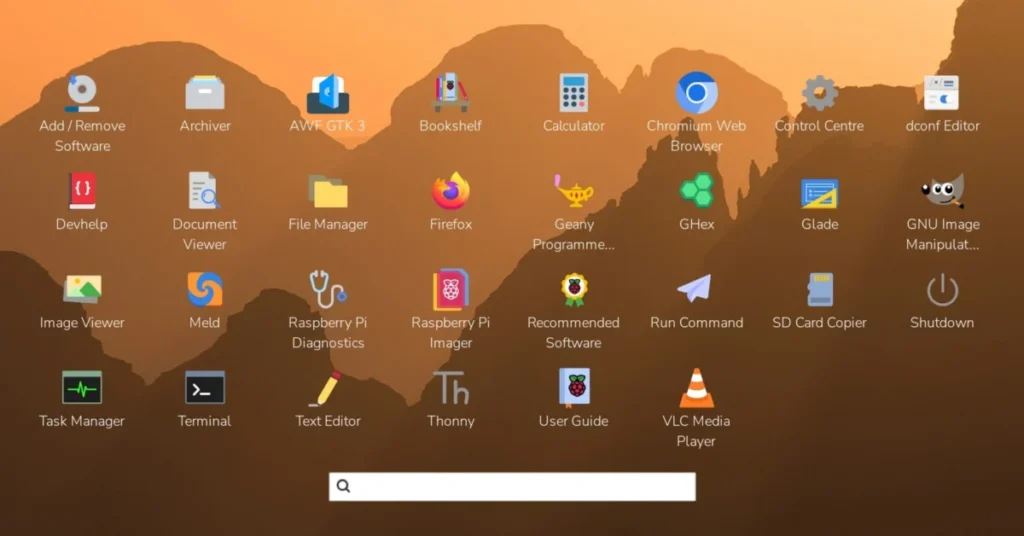
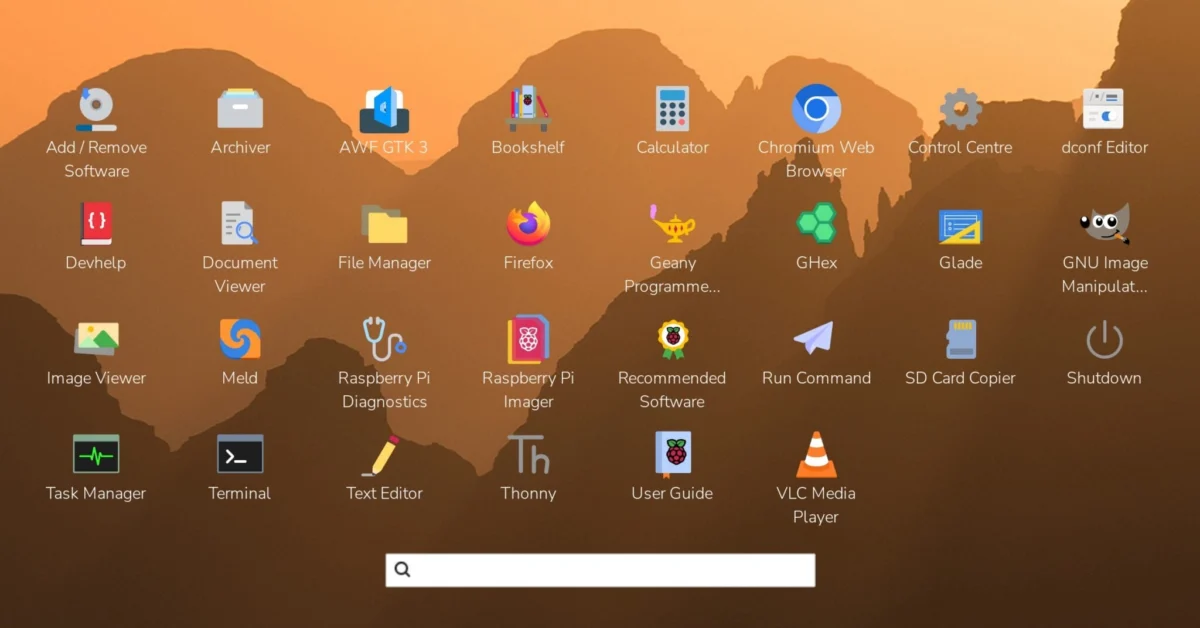
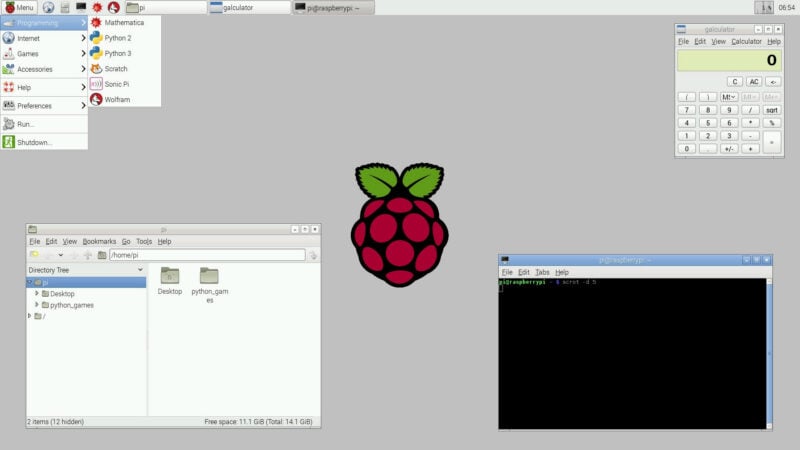
CAMBRIDGE, UK — For over a decade, the Raspberry Pi Desktop has maintained an unmistakable visual identity. Rooted in the reliable simplicity of traditional desktop environments inspired by 1990s paradigms like Windows 95 and Apple System 7, its taskbar, status icons, and bottom-left menu launcher have offered millions of users an intuitive computing space free of steep learning curves.
Yet, beneath the surface, the platform has undergone a radical transformation. Moving far away from its early days as a customized LXDE interface, the modern Raspberry Pi Desktop operates on contemporary underpinnings powered by Wayland and the labwc compositor.
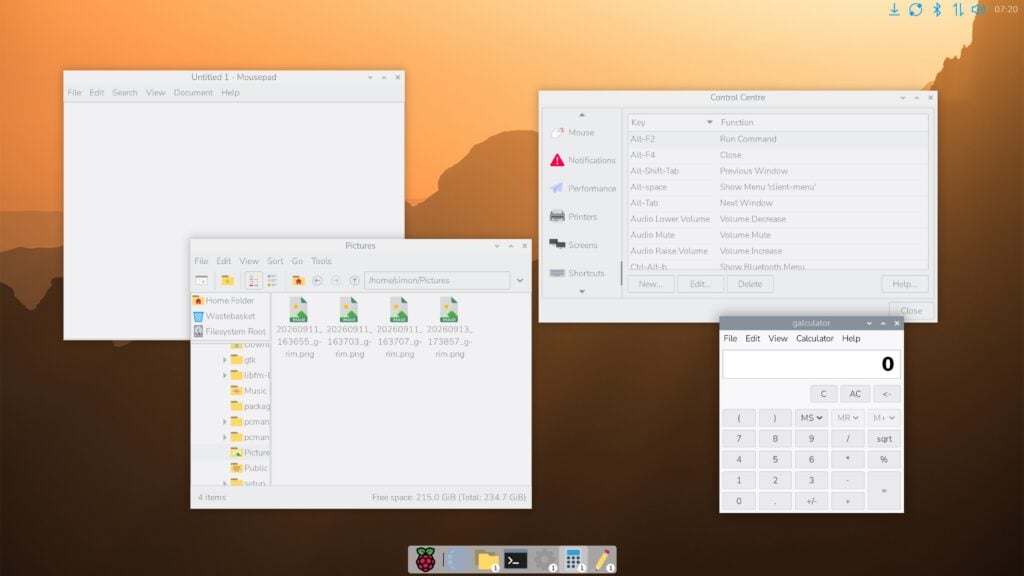
Now, the Raspberry Pi Foundation is bridging the gap between its classic feel and modern desktop standards. A comprehensive set of optional updates has been released, introducing contemporary layout features—including a modern icon dock, streamlined application launchers, performance optimizations for low-memory hardware, and enhanced utility widgets—while strictly preserving the classic layout for users who prefer the traditional look and feel.
Main Facts: What’s New in the Raspberry Pi Desktop
The latest software release brings a wave of modernization to the Raspberry Pi ecosystem, balancing aesthetic flexibility with performance gains:
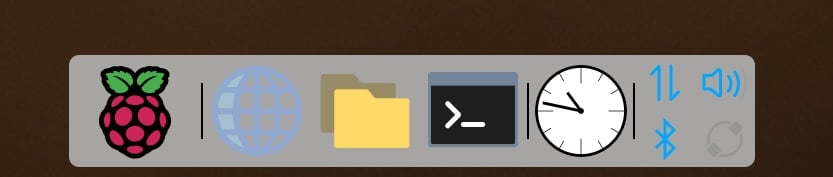
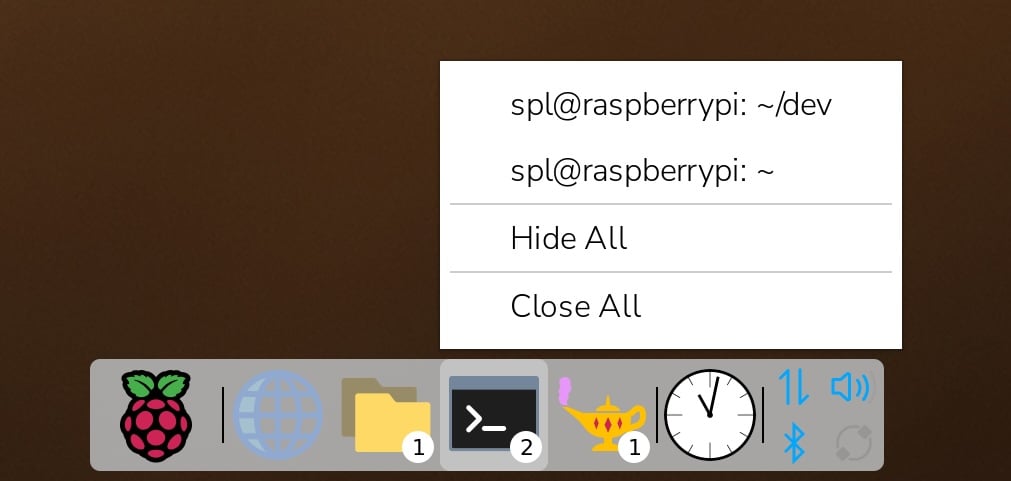
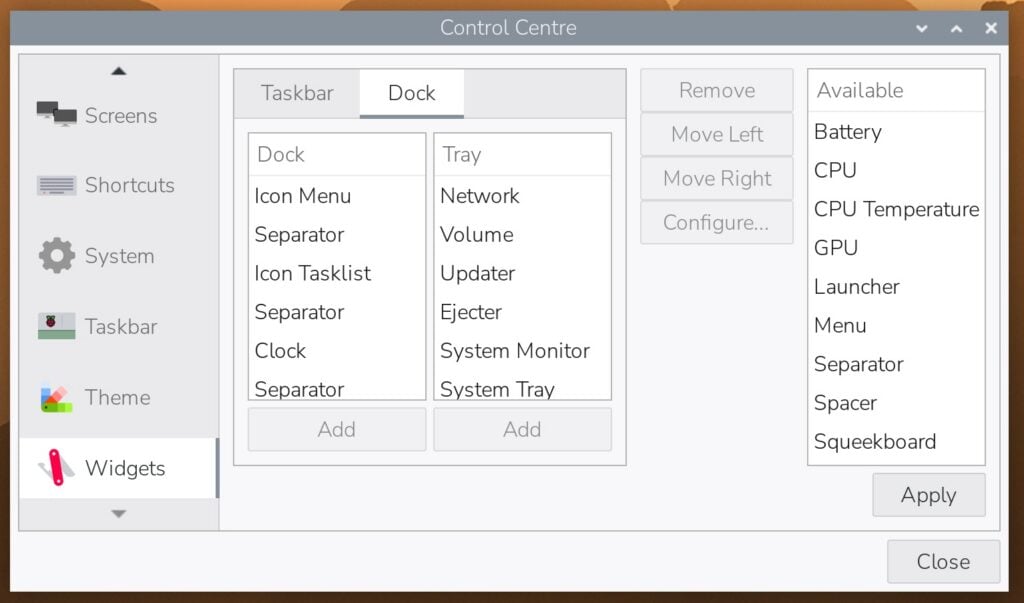
- Optional Icon Dock & New Widgets: Users can now deploy a modern icon dock that acts as a quick launcher, application switcher, and task list. Two primary widgets—a graphical application launcher and a combined quick-launch/task list—have been introduced.
- Performance Boost via Swaybg: To optimize memory usage, the system now features an option to offload desktop background rendering from the PCManFM file manager to swaybg, a lightweight utility. This is automatically recommended for hardware configurations with less than 2GB of RAM.
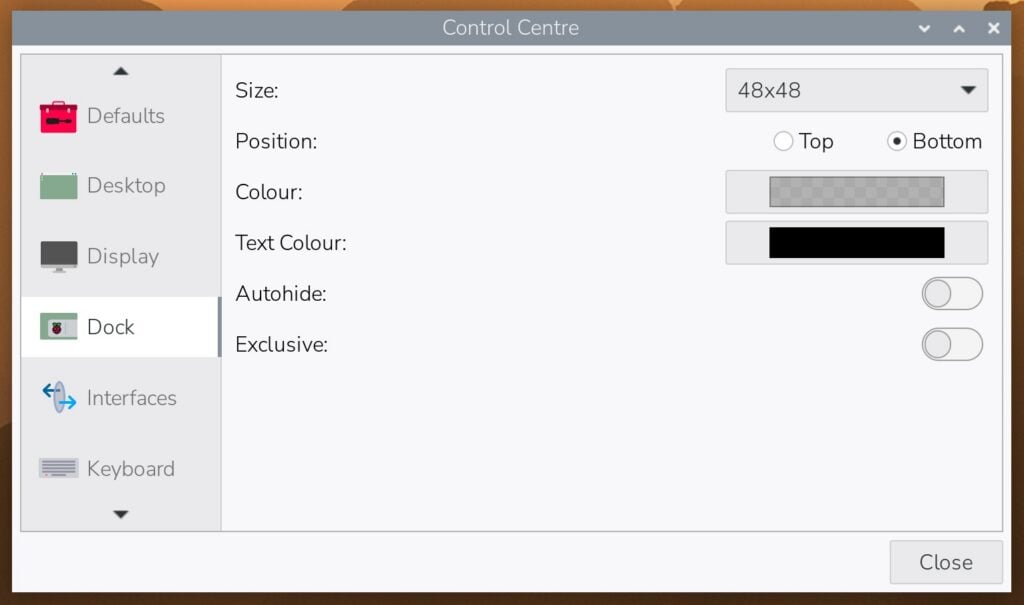
- Control Centre Integration: A completely overhauled Control Centre now features dedicated pages for managing the Dock, Widgets, Defaults, Shortcuts, and Desktop settings.
- Enhanced Utilities: Upgrades include an analogue clock face option, an interactive screenshot utility with region-selection and clipboard capabilities, and a centralized system keyboard shortcuts manager.
- Complete Backward Compatibility: All new features are entirely optional. Upgrading the system preserves the traditional layout by default, ensuring existing workflows remain uninterrupted unless manually altered.
Chronology of Evolution: From LXDE to Modern Compositors
To understand the significance of this update, it is helpful to trace the architectural evolution of the Raspberry Pi Desktop over the past ten years:
The Early Era
When the Raspberry Pi Foundation first sought to provide a native graphical environment for its single-board computers, it adopted a mildly customized iteration of the Lightweight X11 Desktop Environment (LXDE). The goal was straightforward: deliver a familiar, low-overhead interface that allowed users to browse the web, write code, and execute educational software without taxing the modest hardware of early Raspberry Pi models.
The Wayland Transition
As hardware capabilities grew and display server technologies evolved, the desktop ecosystem outgrew X11. Over successive years, the underlying architecture shifted toward Wayland, leveraging modern compositors like labwc to deliver smoother rendering, better security isolation, and improved hardware-accelerated graphics performance. Visually, the desktop received periodic refreshes—incorporating new icon sets, themes, and backdrops—though the fundamental user experience remained anchored to a traditional taskbar and menu setup.
The 2026 Interface Pivot
Recognizing that desktop paradigms in the broader operating system landscape had continued to shift, development on optional modern layout features began in earnest. Rather than forcing a disruptive redesign on a user base accustomed to a fixed layout, developers spent months engineering a modular framework. This work culminated in today’s release, which delivers contemporary features—such as application docks and hierarchical menus—as opt-in configurations managed directly through the Control Centre.
Supporting Data: Architectural and Performance Breakdown
The update introduces deep structural enhancements designed to give users granular control over resource allocation and interface organization.
The Icon Dock and Graphical Launcher
The centerpiece of the visual update is the icon dock. Users can choose to run the dock alongside the traditional taskbar, replace the taskbar entirely, or use a hybrid approach.
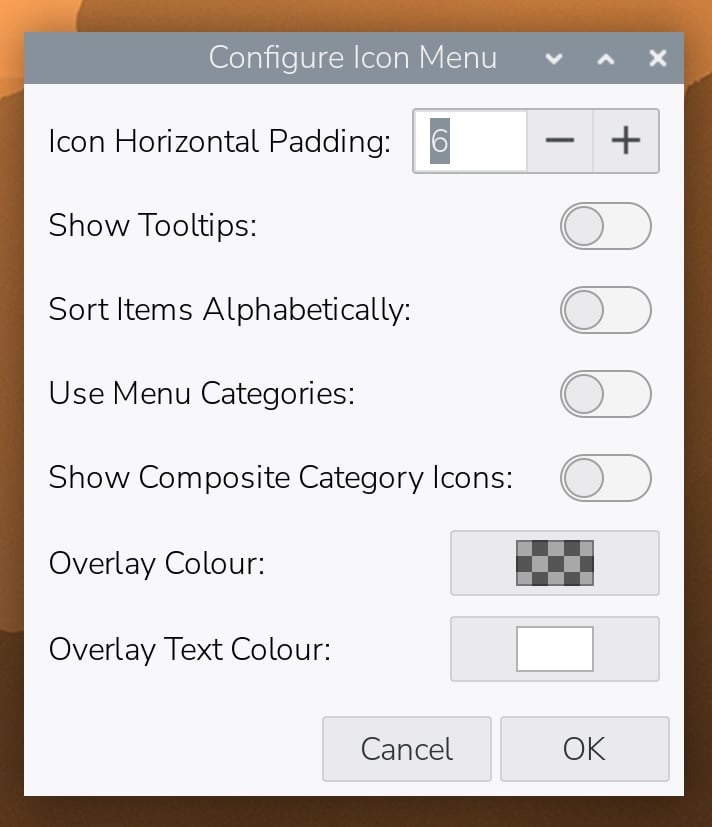
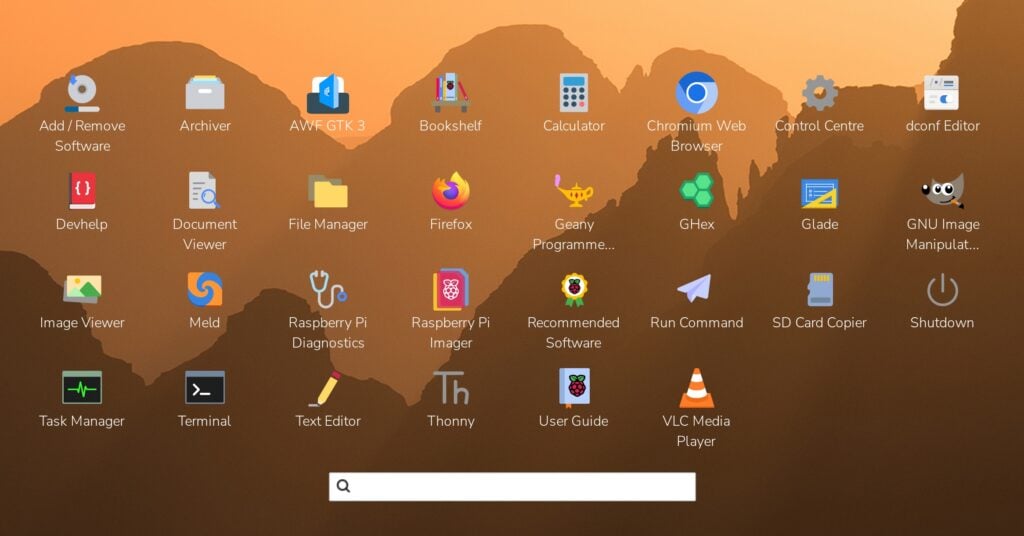
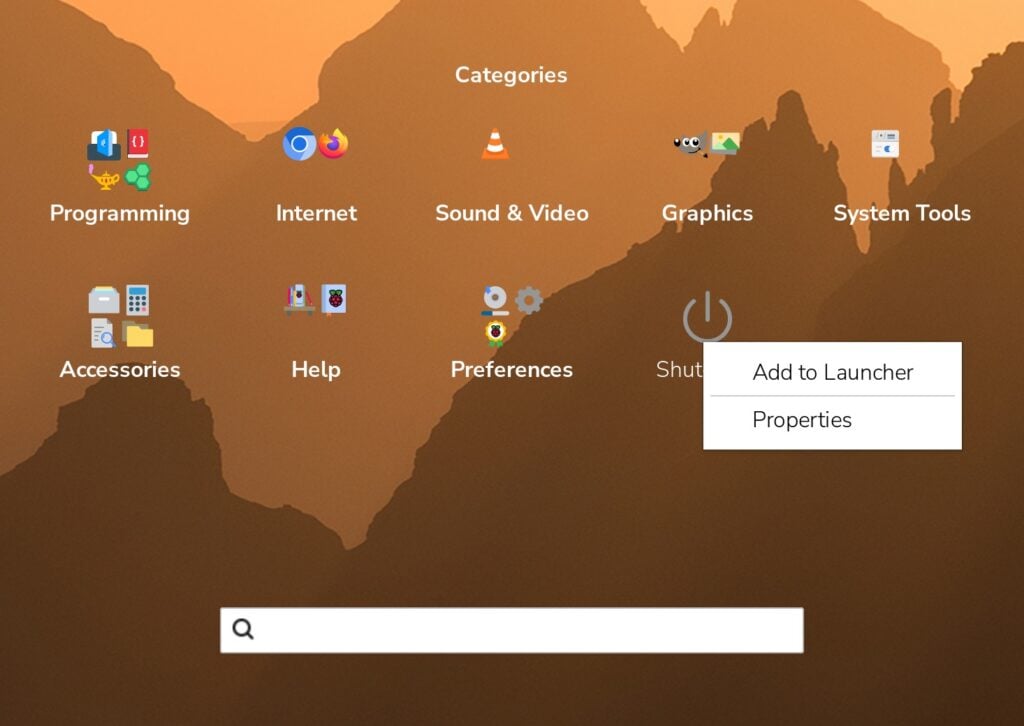
The new graphical application launcher replaces the classic main menu. By default, it presents applications in alphabetical order within a clean grid, supporting drag-and-drop rearrangement. For systems housing extensive software libraries, the launcher supports menu categories and composite category icons—the latter of which displays miniature representations of the first four applications within a folder directly on the top-level category icon.
+-------------------------------------------------------+
|                 CONTROL CENTRE PRESETS                |
+-------------------+-----------------------------------+
| Preset Style      | Configuration Layout              |
+-------------------+-----------------------------------+
| Taskbar (Classic) | Original menu/taskbar on left;    |
|                   | status icons on right.            |
+-------------------+-----------------------------------+
| Taskbar / Dock    | Status icons on taskbar; new dock |
|                   | hosting launcher & task list.     |
+-------------------+-----------------------------------+
| Dock (Modern)     | Taskbar removed; full dock setup  |
|                   | with integrated tray & launcher.  |
+-------------------+-----------------------------------+
Memory Optimization for Resource-Constrained Boards
Historically, the PCManFM file manager handled both file management duties and desktop background rendering. While functional, this required keeping the file manager active to display desktop icons and the system wastebasket.
By separating these tasks and introducing swaybg as an alternative background renderer (termed disabling the "Active Desktop"), the system achieves notable memory savings. Because of this efficiency gain, the Raspberry Pi OS boot routine now actively checks available system memory; any platform boasting less than 2GB of RAM receives an automated prompt recommending the activation of lightweight background rendering. Removable drive automounting—previously tied to the file manager loop—has been successfully migrated to the ejecter plugin, ensuring seamless drive notifications even under low-resource configurations.
Advanced Customization Features
- Autohide and Exclusive Windows: Docks and taskbars can now be set to automatically hide when not in use, sliding into view only when the cursor approaches the edge of the screen. The "Exclusive" property dictates whether maximized windows cover the bar, ensuring critical data like the system clock remain perpetually visible.
- Interactive Screenshots: Pressing the
PrtScrnkey now triggers an intuitive post-capture dialog box, letting users instantly copy the image to the clipboard, direct it to an image editor, or remember the preference for future captures. HoldingAltconcurrently isolates the capture to a user-defined selection rectangle. - Unified Shortcuts Management: A dedicated Shortcuts page within the Control Centre permits users to review, edit, and establish system-wide keyboard shortcuts from a centralized interface.
Official Responses and Developer Philosophy
Addressing the community ahead of the release, lead developers emphasized that change would not be imposed on long-term users. The ethos of the project remains rooted in user autonomy and hardware accessibility.
"I do have to stress here, before the anticipated deluge of complaints, that these new features are entirely optional; unless you choose to enable them, your desktop will continue to look and feel exactly the way it always has," developers noted in the official release documentation. "These are purely intended to give users who want a more up-to-date desktop experience the option to have one if they want it."
The development team structured the upgrade path so that deploying the latest image—or executing a full system upgrade via terminal commands—leaves the default interface untouched. Transitioning to a modern dock setup requires a deliberate choice within the newly expanded Control Centre defaults panel.
Implications: The Future of Lightweight Computing
This release marks a maturation point for the Raspberry Pi Desktop. By decoupling aesthetic preferences from foundational performance, the Raspberry Pi Foundation is addressing two distinct user segments simultaneously:
- The Traditionalist Educator and Maker: Users deploying Raspberry Pi hardware in classrooms, industrial settings, or embedded projects where stability, predictability, and low resource overhead are paramount can continue utilizing the classic taskbar paradigm without learning a new interface.
- The Modern Desktop Enthusiast: Hobbyists and desktop workstation users seeking a polished, contemporary aesthetic comparable to modern Linux distributions or proprietary operating systems can leverage the new icon docks, hierarchical application launchers, and flexible widget placements.
Ultimately, these updates demonstrate that single-board computer software can evolve to meet modern expectations without abandoning the minimalist, user-first philosophy that defined its success.
How to Access the Update
Users can experience the new features immediately by flashing the latest OS image or by updating existing installations via the terminal:
sudo apt update
sudo apt full-upgrade
Once updated, users can access the Control Centre, navigate to the Defaults page, and select either the Taskbar / Dock or Dock style presets to explore the modernized interface.