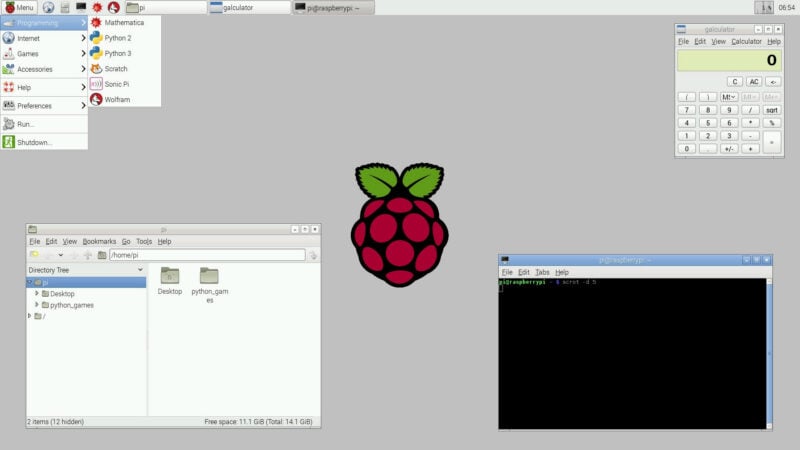
CAMBRIDGE, UK — For over ten years, the Raspberry Pi Desktop has maintained a steadfast and recognizable identity. Evolving from a modest customization of the lightweight LXDE desktop environment into a modern, Wayland- and labwc-backed architecture, it has routinely updated its visual aesthetics—incorporating fresh icon packs, modern themes, and vibrant new wallpapers. Yet, beneath the hood, its user-experience philosophy remained virtually unchanged. Its taskbar, status notification areas, and primary application launcher heavily mirrored the design language established in the mid-1990s by platforms like Windows 95 and Apple System 7.
This design choice was never accidental. By modeling its interface on universally understood paradigms, the Raspberry Pi Foundation ensured that millions of hobbyists, students, and educators could pick up a Pi and navigate its operating system with virtually zero learning curve.
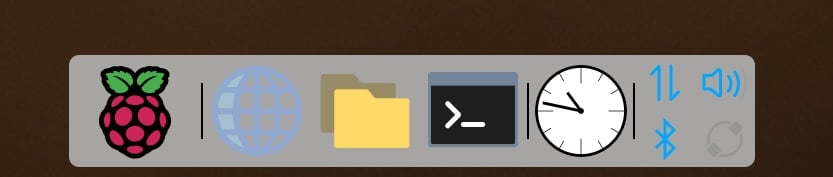
Today, however, the Foundation is rolling out a sweeping, optional update package for the Raspberry Pi Desktop. While retaining the classic simplicity and backward-compatible layouts users have relied on for years, this new release introduces contemporary desktop mechanics—such as customizable icon docks, advanced window management, hierarchical application launchers, and deep performance optimizations designed to make low-RAM hardware run smoother than ever before.
Main Facts: What’s New in the Raspberry Pi Desktop Update
The latest software update introduces several foundational changes to the user interface and system architecture, all of which remain strictly optional to prevent disrupting long-standing user habits.
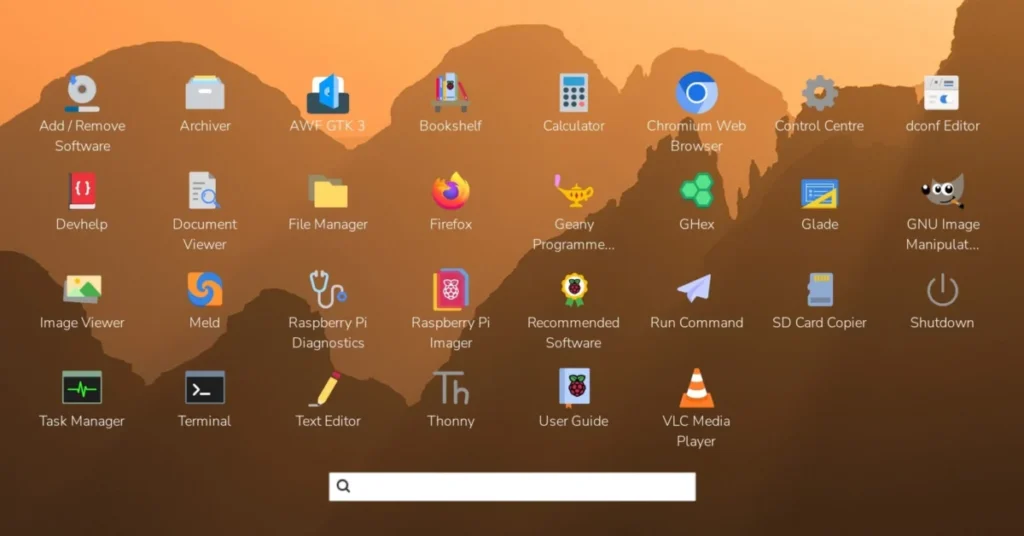
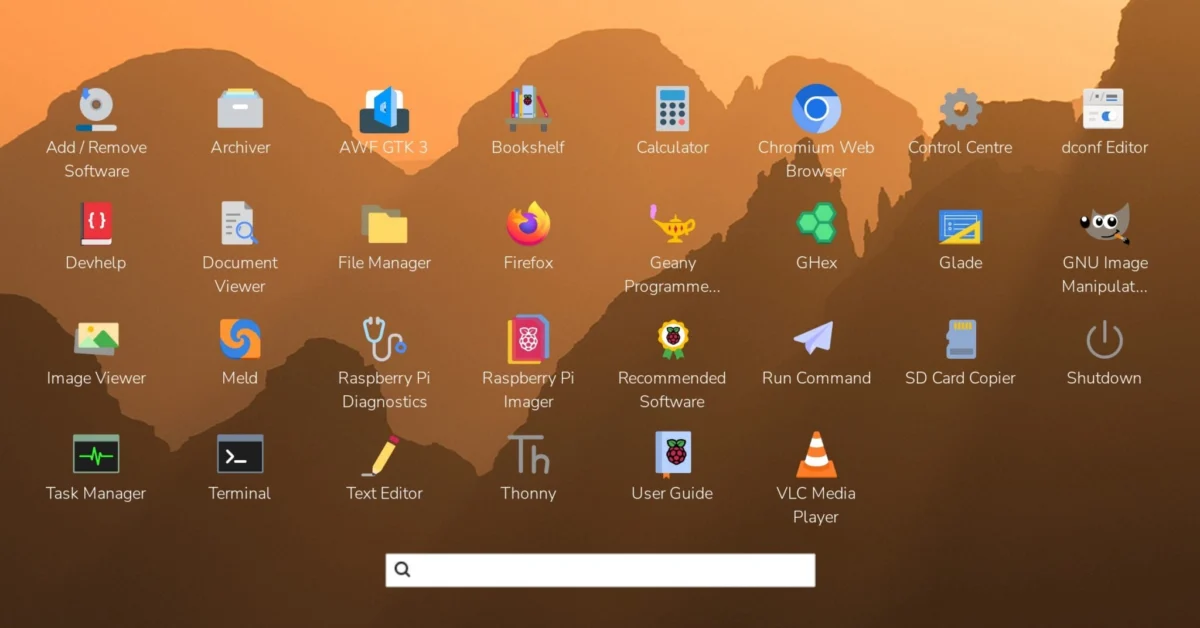
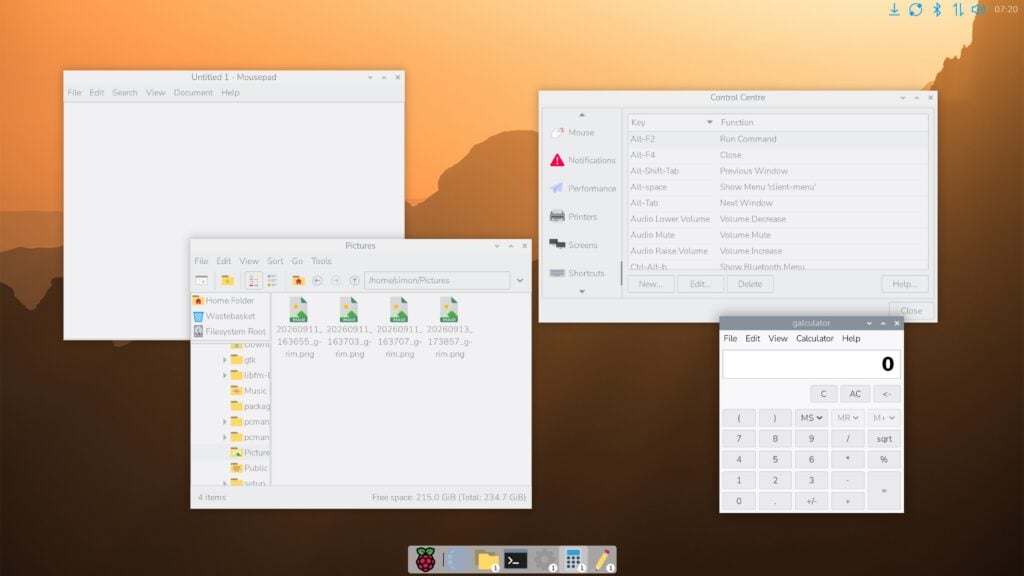
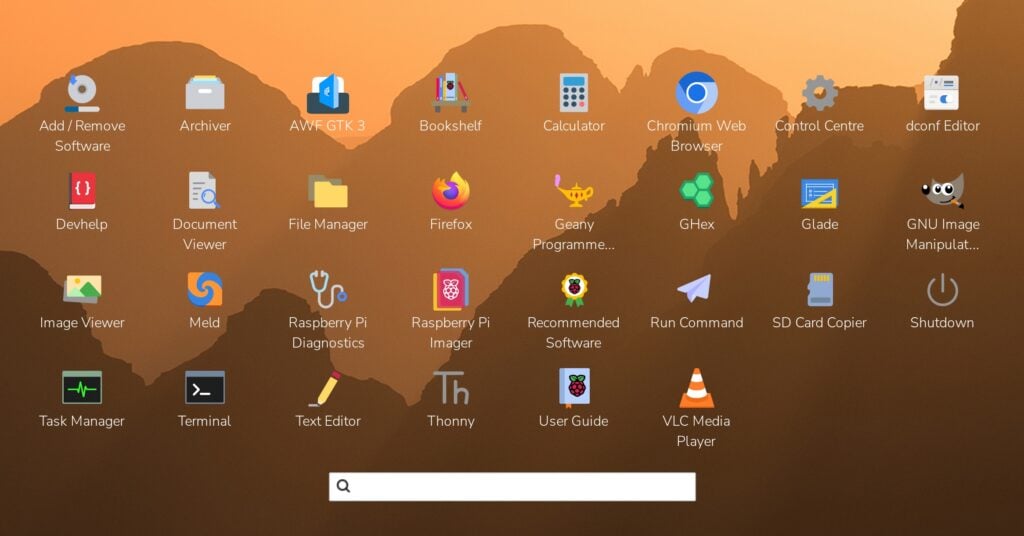
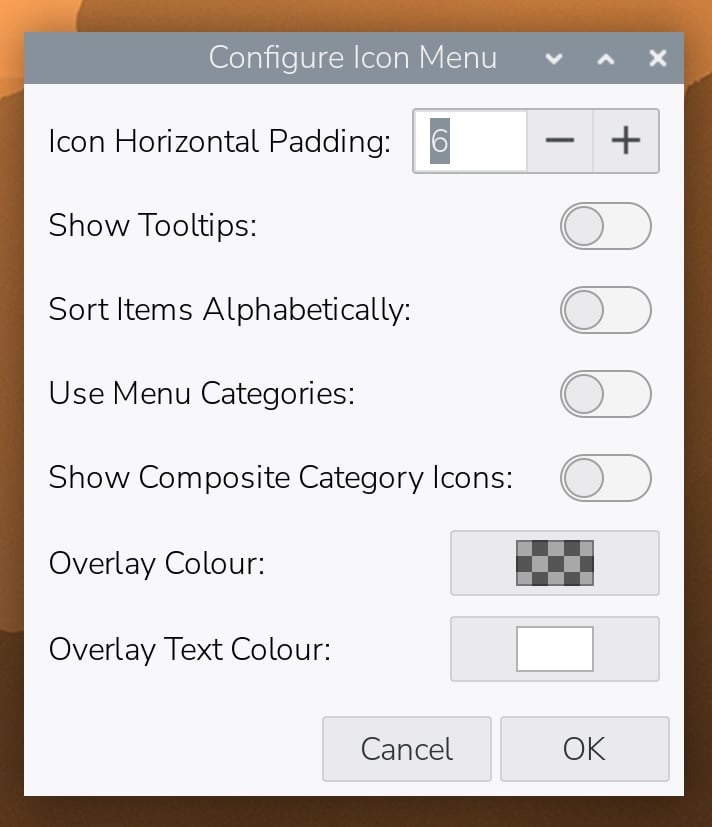
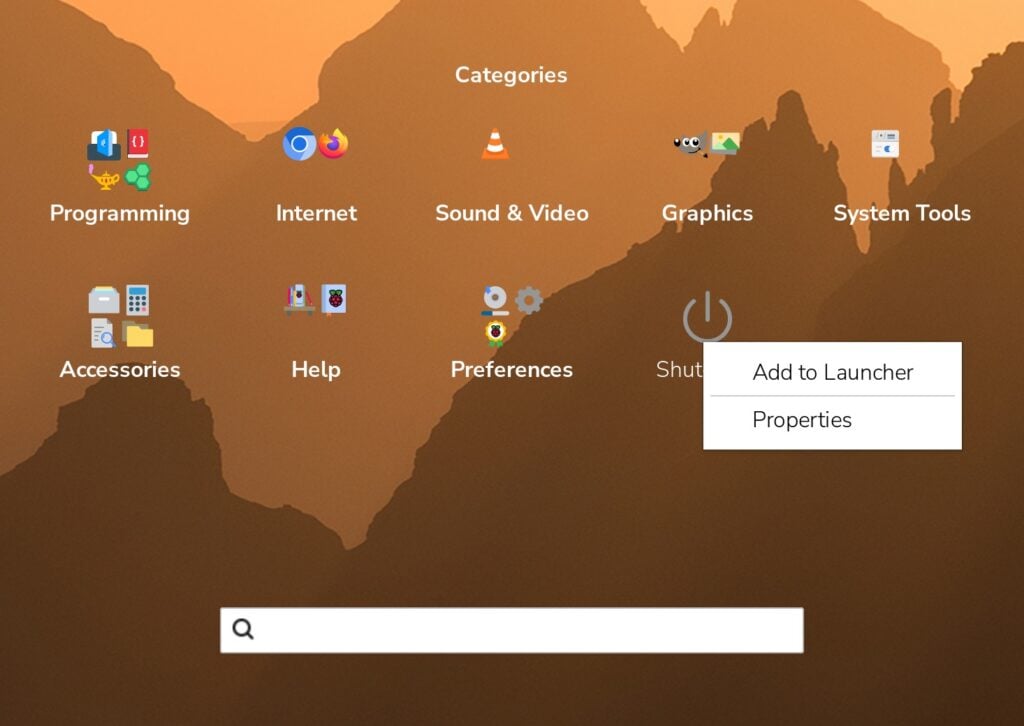
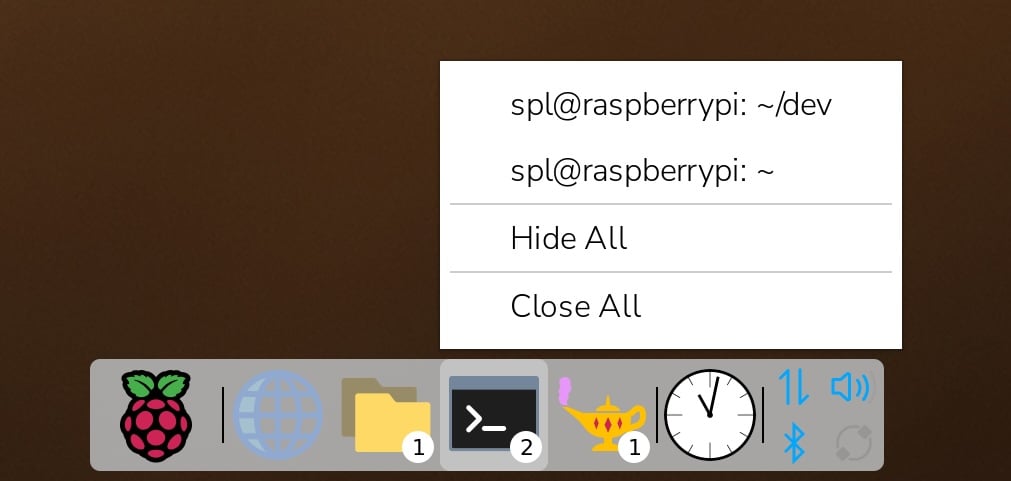
The Optional Icon Dock & Advanced Launcher: Users can now deploy a modern icon dock alongside or completely in place of the traditional taskbar. It features a graphical application launcher that supports grid views, alphabetical sorting, drag-and-drop customization, and searchable menus.
Intelligent Task Lists: A combined quick-launcher and task list displays frequently used programs alongside live badges indicating the number of open windows per application.
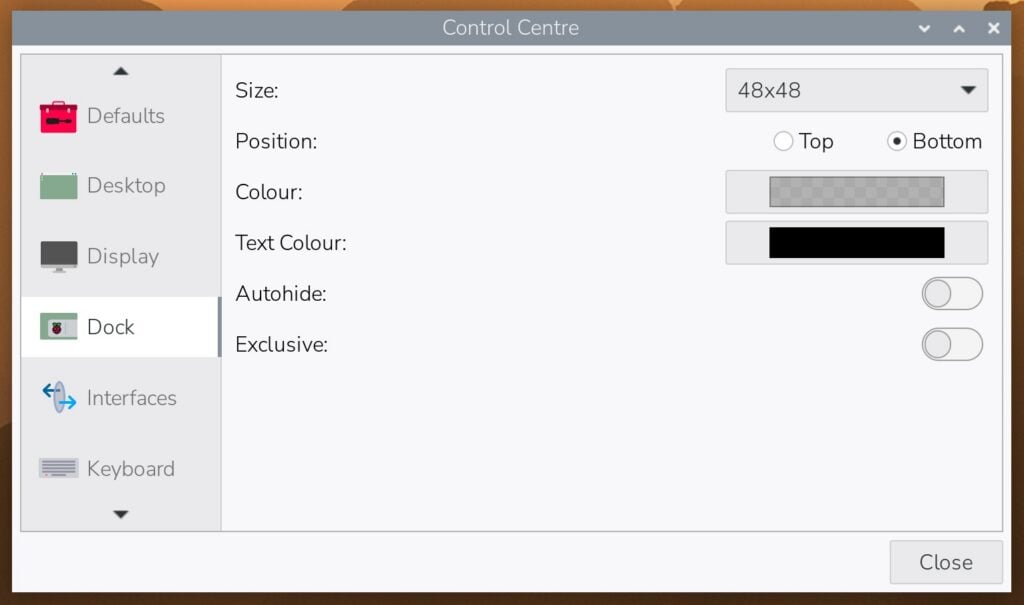
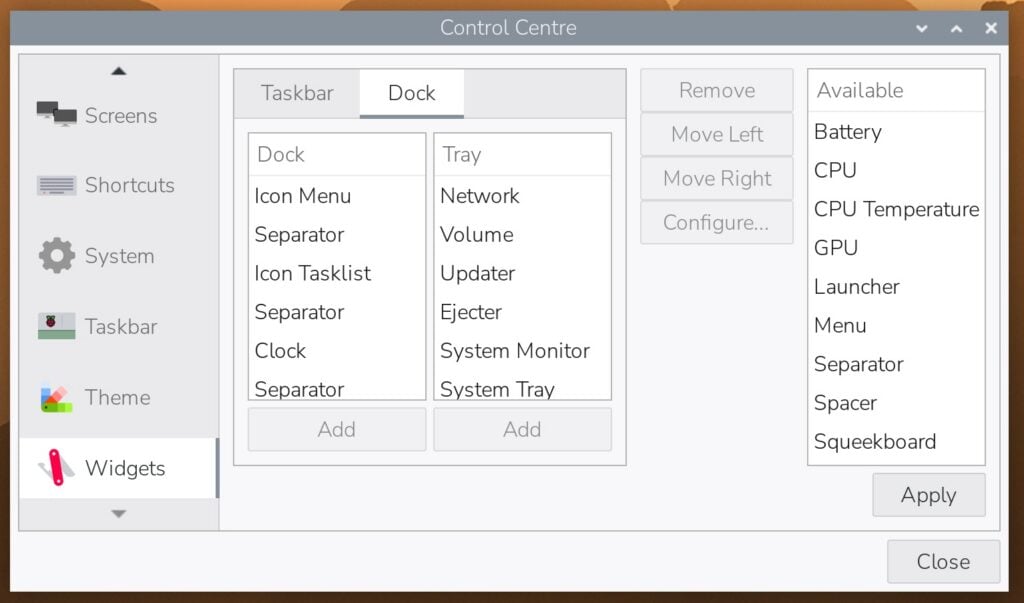
Control Centre Expansion: Dedicated configuration pages have been added to the system Control Centre for managing the new dock, desktop widgets, keyboard shortcuts, and system-wide default layouts.
Performance-Driven "Active Desktop" Toggle: Users can now offload desktop wallpaper rendering from the resource-heavy file manager (pcmanfm) to the lightweight swaybg utility, yielding significant memory savings. This is now recommended by default on hardware with less than 2GB of RAM.
Enhanced Screenshots & Clocks: Pressing the PrtScrn key now triggers an interactive post-capture dialog box with options to copy to the clipboard or open directly in an image editor, while the digital clock widget gains a fully customizable analog face.
Chronology: A Decade of Evolution to the Modern Dock
To understand the significance of this update, it helps to examine how the Raspberry Pi Foundation brought its desktop environment from its humble beginnings to the cutting-edge Wayland display server.
The LXDE Era and Early Customization
When the Raspberry Pi first launched, performance was at an absolute premium. To deliver a responsive desktop experience on severely constrained hardware, developers utilized LXDE (Lightweight X11 Desktop Environment). Over the subsequent years, developers gently tweaked the panel layouts, introduced unified icon themes, and made the environment approachable for classroom use.
The Migration to Wayland and Labwc
As hardware became more capable and display technologies progressed, the underlying architecture required a total overhaul. The desktop migrated away from legacy X11 infrastructure toward Wayland, eventually standardizing on labwc, a stacking Wayland compositor inspired by Openbox. This transition dramatically improved rendering performance, smoothness, and touch-screen compatibility, laying the groundwork for the more complex interface elements seen today.
The 2025–2026 Shift Toward Modern UX
By late 2025, developers began conceptualizing ways to incorporate modern interface trends—such as application docks and cleaner launcher menus—without alienating the community. Throughout 2026, these ideas were refined into modular widgets. Rather than forcing a disruptive, unannounced aesthetic shift, the engineering team designed these features to be opt-in, allowing users to transition at their own pace.
Supporting Data & Architectural Analysis
The introduction of the dock and the lightweight background rendering engine are backed by deliberate architectural choices aimed at resource conservation and flexibility.
Memory Optimization via swaybg
Historically, desktop file managers like pcmanfm handle both file management and desktop wallpaper drawing. While convenient for placing icons directly on the workspace, keeping the file manager active solely to draw a background consumes unnecessary RAM.
By introducing the "Active Desktop" toggle, users can disable file manager-driven background rendering. When deactivated, the system utilizes swaybg, a specialized, ultra-lightweight background drawing utility for Wayland compositors.
The 2GB Threshold: Internal testing revealed that low-memory Raspberry Pi models (such as 1GB or 2GB variants) benefit noticeably from this offloading.
Automated Safety Checks: The operating system now checks available system memory at boot time. If a device possesses less than 2GB of RAM, a notification appears suggesting that the active desktop be disabled to free up vital resources for applications like web browsers and office suites.
Drive Management Adjustment: Because disabling the active desktop means the file manager is no longer persistently running in the background, automounting logic for removable USB drives has been safely transitioned into the system’s ejector plugin, ensuring users still receive instant desktop notifications when external storage is attached.
Widget Architecture and Flexibility
The new dock and task lists are built as modular widgets. Users are not locked into a rigid template; they can mix and match components between the classic taskbar and the new dock.
The Tray Splitter: For users utilizing the status tray on the dock, icons automatically organize themselves across two balanced rows. For precise layout control, a "tray split" widget can be inserted to enforce a strict visual line break.
Exclusive vs. Autohide Behavior: The Control Centre introduces granular control over panel behavior. The "Autohide" setting allows docks and taskbars to slide off-screen until summoned by the mouse cursor, while the "Exclusive" toggle prevents maximized windows from overlapping the panels—ensuring elements like the clock remain perpetually visible.
Official Responses and Developer Philosophy
Anticipating pushback from a community deeply fond of the traditional Windows 95-style interface, the development team explicitly emphasized that the update is entirely optional.
"I do have to stress here, before the anticipated deluge of complaints, that these new features are entirely optional; unless you choose to enable them, your desktop will continue to look and feel exactly the way it always has," noted the lead developer behind the update. "These are purely intended to give users who want a more up-to-date desktop experience the option to have one if they want it."
To streamline adoption for curious users without requiring manual widget configuration, the Control Centre’s Defaults page now includes three distinct preset styles:
Taskbar: Reverts to the classic layout with the original main menu and window list on the left and status icons on the right.
Taskbar / Dock: A hybrid setup that places the new application launcher and task list inside the dock while keeping traditional status icons anchored to the right side of the taskbar.
Dock: A complete transformation that removes all widgets from the taskbar, populates the new dock with the modern launcher and task list, and relocates status icons to a compact tray.
Implications for the Raspberry Pi Ecosystem
This optional desktop refresh carries several noteworthy implications for developers, educators, and enterprise users alike.
Bridging the Gap for Switchers
Many users migrating to Raspberry Pi hardware from modern operating systems like macOS, Windows 11, or desktop Linux distributions (such as GNOME or KDE Plasma) are accustomed to icon docks and grid-based application menus. By offering a native dock layout out-of-the-box, the Raspberry Pi Desktop lowers the psychological barrier to entry for newcomers, making the hardware even more attractive for home automation dashboards, media centers, and general-purpose desktop computing.
Extending the Lifespan of Legacy Hardware
With the memory optimizations introduced via swaybg and active desktop toggles, older Raspberry Pi boards with limited RAM retain high responsiveness under modern workloads. Educational institutions operating older hardware fleets can extend the functional lifespan of their devices without sacrificing desktop fluidity.
How to Access the Update
The updated operating system image is available immediately via the official Raspberry Pi website. Existing users can access all new features without a clean installation by running a standard system update through the terminal:
sudo apt update
sudo apt full-upgrade
Once updated, users can open the Control Centre, navigate to the Defaults page, and explore the new Dock or Taskbar / Dock profiles at their leisure. The Raspberry Pi Foundation encourages community members to share their customized desktop layouts and feedback via the official Raspberry Pi forums.