The Shield on Your Status Bar: Demystifying Samsung’s Battery Protection Icon
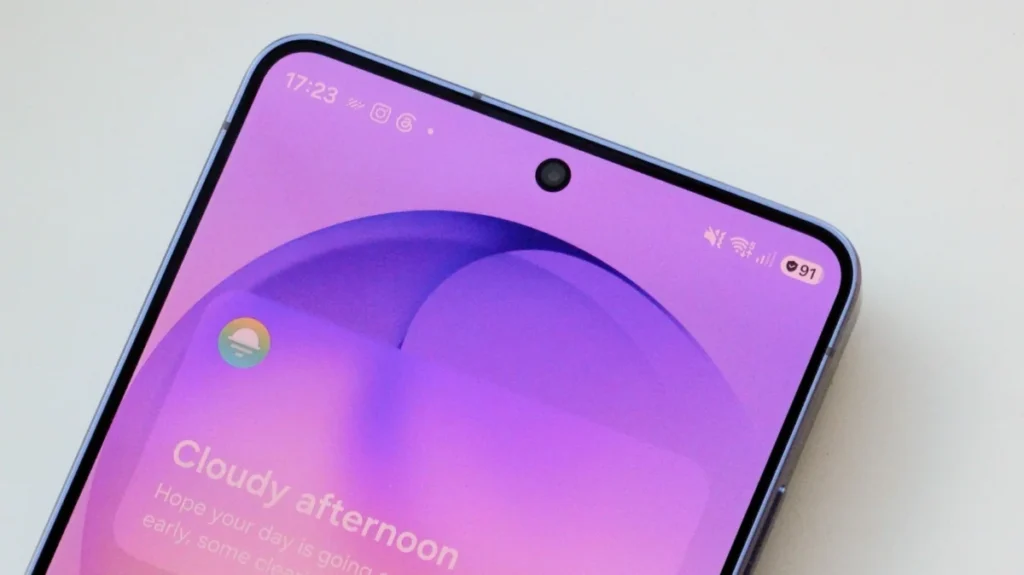
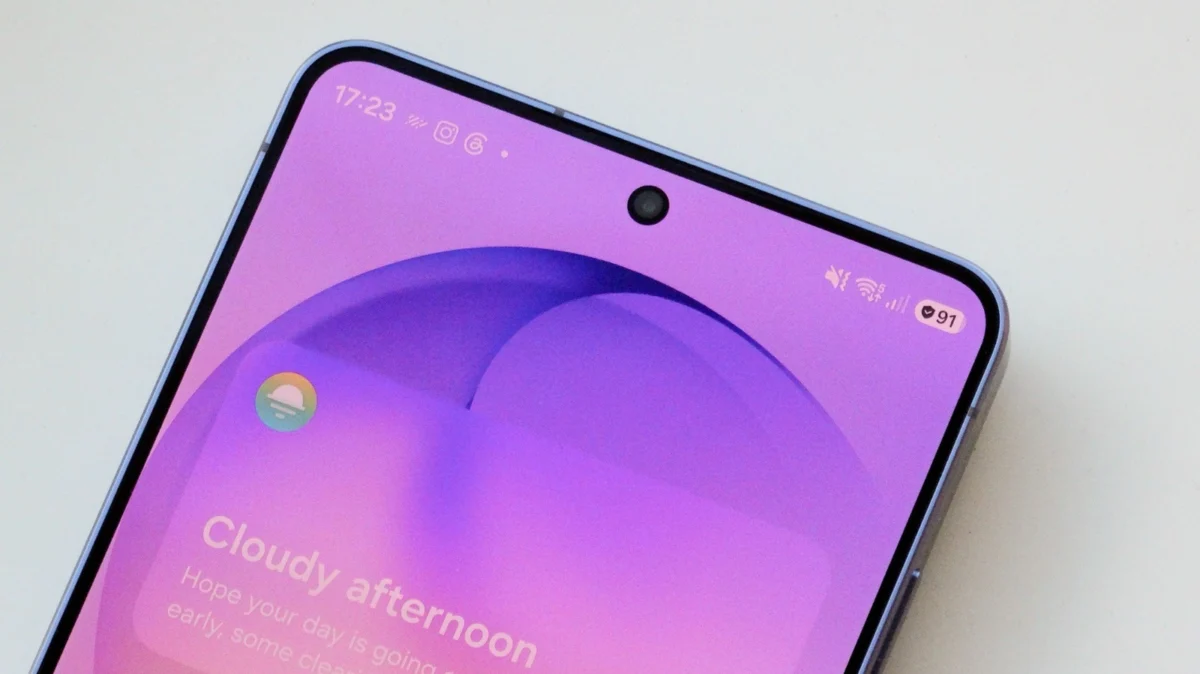
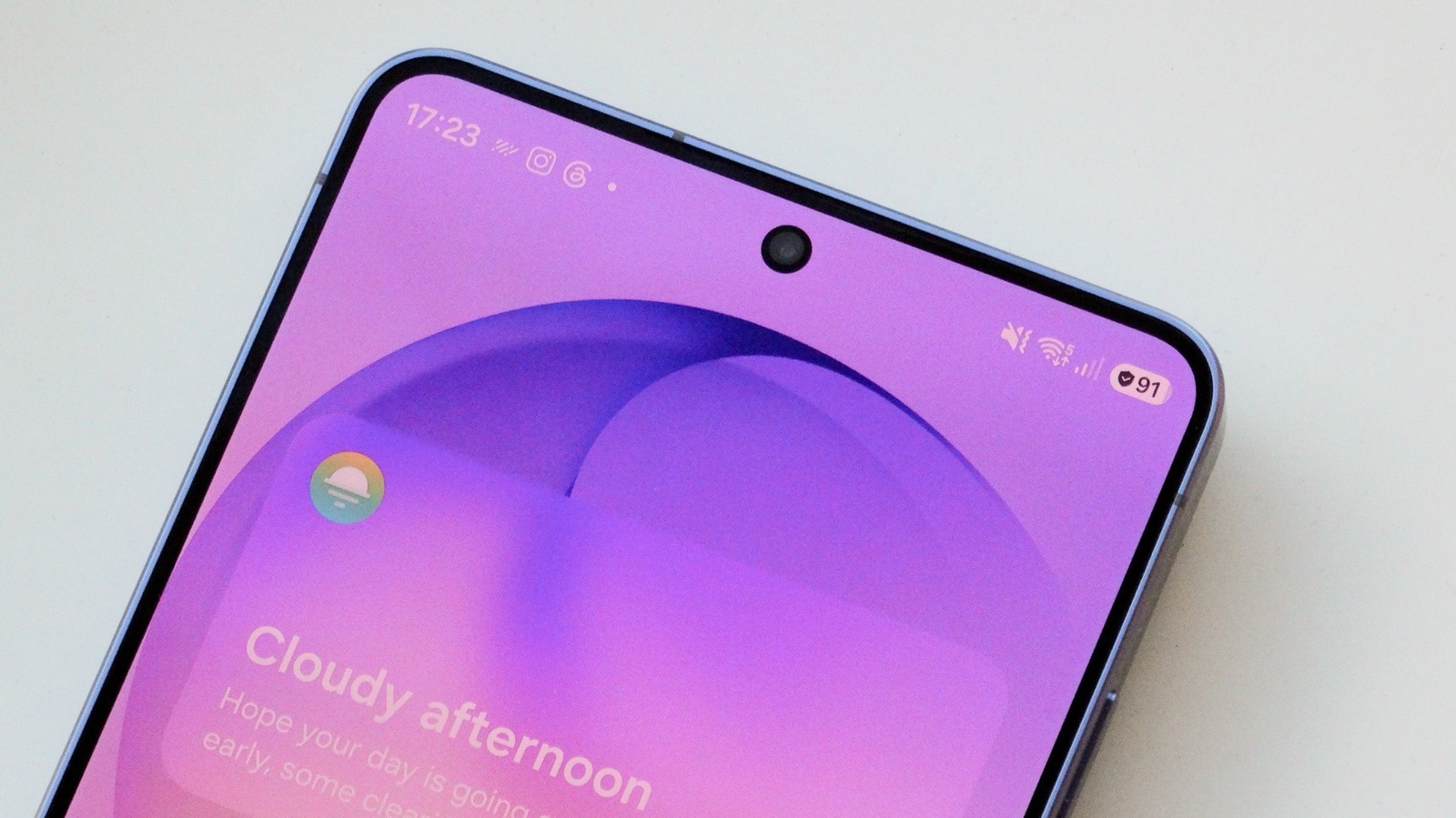
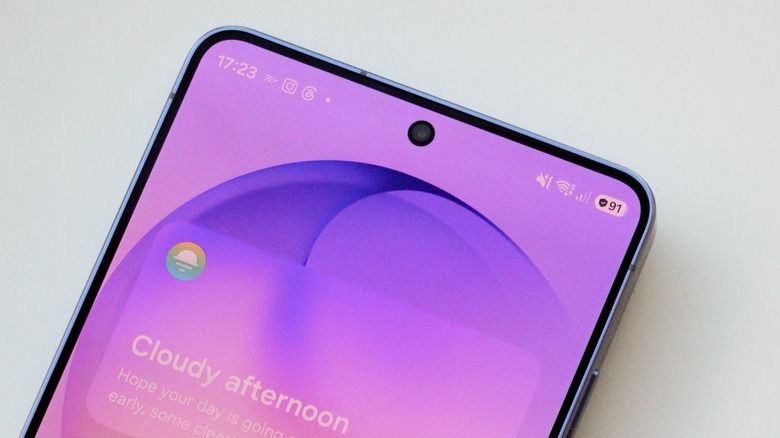
For many Samsung Galaxy users, the appearance of a small shield icon nestled next to the battery percentage in the status bar has been a source of quiet confusion. Often mistaken for a notification regarding Knox security, biometric encryption, or a firewall status, the icon is, in reality, a benign indicator of a much more practical feature: Battery Protection. As smartphone longevity becomes a primary concern for consumers holding onto their devices for longer cycles, understanding this icon is essential for managing the long-term health of your device.
The Core Reality: What the Shield Represents
The shield icon is not a warning of a digital threat; it is a status indicator for Samsung’s sophisticated battery management suite. When this icon appears, your device is actively participating in a preservation strategy designed to combat the chemical aging of lithium-ion batteries.
Modern smartphones are powered by lithium-ion (Li-ion) technology. While these batteries are marvels of energy density and portability, they are chemically fragile. They are most stable when kept between 20% and 80% charge. When a battery is forced to sit at 100% charge for extended periods—such as when left on a charger overnight—it experiences high-voltage stress, which accelerates the degradation of the electrolyte and the cathode. Over months and years, this leads to a permanent loss in maximum capacity, meaning your phone will eventually hold less charge than it did when it was new. The shield icon is simply Samsung’s way of signaling that it is actively managing that stress to keep your battery chemistry as healthy as possible for as long as possible.
A Chronology of Battery Management Evolution
The journey to the current "Shield" interface was not immediate. In the early days of smartphones, battery management was largely left to the user. Users were told to avoid "overcharging," a concept that was technically mitigated by internal charging controllers but still resulted in heat and capacity loss.
- Early Android Iterations: Battery management was rudimentary. Charging controllers simply cut off current when the voltage reached 4.2V or 4.35V. Users were left to their own devices to monitor charging cycles.
- The Rise of Adaptive Charging: As phone screens grew larger and processors more power-hungry, manufacturers began introducing software-level features. Google and Samsung began experimenting with "Adaptive Charging," which slowed down charging speeds during overnight hours to minimize the duration the battery spent at the 100% threshold.
- The Introduction of Hard Caps: Samsung eventually moved toward more rigid protection tiers. Early versions of "Protect Battery" simply capped charging at 85%.
- The Current Era: With the latest iterations of One UI, Samsung has introduced a more granular, three-tiered system: Basic, Maximum, and Adaptive (Sleep Time) protection. The shield icon now serves as a universal signifier that one of these active measures is engaged.
Supporting Data: Why Your Battery Degrades
To understand why Samsung includes these features, one must look at the mechanics of lithium-ion cells. Each time you charge your phone, lithium ions move from the cathode to the anode. When you push the battery to 100%, you are essentially forcing the ions into a tightly packed state that creates high internal pressure and temperature.
Research from battery scientists indicates that:
- High-Voltage Stress: Keeping a battery at 4.3V+ (the typical voltage for 100% capacity) causes structural degradation in the cathode material.
- Heat Accumulation: The final stage of charging (the "trickle" phase) generates more heat than the bulk charging phase. Heat is the primary enemy of chemical longevity.
- Cycle Depth: Batteries have a finite number of "cycles" (a full 0% to 100% charge). Using a battery between 20% and 80% effectively doubles the life cycle count compared to frequent 0% to 100% swings.
Samsung’s current "Maximum" setting, which stops charging at 80%, is essentially designed to keep the battery in that "sweet spot" of voltage, drastically reducing the chemical wear per charge cycle.
Deep Dive: The Three Tiers of Protection
Samsung’s current software suite offers users a choice in how they balance daily convenience with long-term longevity.
1. Basic Protection
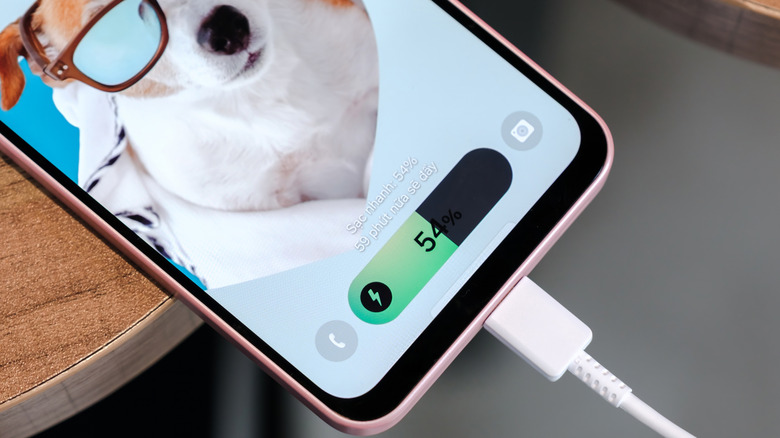
This is the default setting for most users. It acts as a safety buffer. When the battery reaches 100%, the phone stops drawing power from the wall. It will not begin drawing power again until the battery naturally drains to 95%. This prevents the "micro-cycling" that occurs when a phone is left plugged in and constantly fluctuates between 99% and 100%.
2. Maximum Protection
This is the most aggressive mode. It imposes a hard stop at a user-defined percentage (typically 80% to 95%). For users who work at a desk or have access to chargers throughout the day, this is the gold standard for battery health. By never allowing the battery to reach its "high-stress" full capacity, you can theoretically keep the battery in "like-new" condition for years longer than a standard device.
3. Adaptive (Sleep Time) Protection
This is the most intelligent implementation. Utilizing machine learning, the phone tracks your sleep patterns. If you plug your phone in at 11:00 PM and wake up at 7:00 AM, the phone will charge to 80% quickly, then pause. It will sit at that stable level throughout the night, only finishing the final 20% of the charge in the hour or two before your alarm goes off. This ensures you wake up with a full battery, but the phone avoids spending seven hours in a state of high-voltage stress.
Manufacturer Perspective and Official Stance
Samsung has emphasized that these features are about "user agency." In their documentation, they note that the Battery Protection suite is not intended to limit the phone’s utility, but to extend its lifespan.
"Our goal is to ensure the device performs as well in year three as it does in year one," a spokesperson for Samsung’s software division recently hinted. They maintain that for the average consumer, the "Basic" mode is sufficient, but for "power users" who upgrade their devices every three to four years, the "Maximum" mode is a significant value-add that maintains the resale or trade-in value of the hardware.
Implications for the User: Is It Worth It?
The decision to use these features depends entirely on your lifestyle.
When to keep it on:
- If you work in an office or home environment where a charger is always accessible.
- If you tend to charge your phone overnight.
- If you plan on keeping your phone for three years or more.
When to keep it off:
- If you are a frequent traveler or have long commutes where access to power is limited.
- If you engage in power-intensive tasks like mobile gaming, video editing, or navigation, where every percentage point of battery capacity is vital.
- If you trade in your phone annually. If you only keep the device for 12 months, the long-term degradation of the battery will be negligible, and the convenience of a 100% charge will likely outweigh the theoretical benefits of battery preservation.
Conclusion
The shield icon on your Samsung Galaxy is a sophisticated, user-friendly tool that demystifies battery management. It signals that your device is working behind the scenes to preserve its most vulnerable component. Whether you choose to prioritize "Maximum" protection to extend the life of your device for years, or you disable it to ensure you have every last drop of power for a long day of travel, the choice is yours.
Ultimately, Samsung has provided a menu of options that acknowledges one simple truth: the best battery is the one that lasts as long as you need it to. By understanding what the shield means, you are no longer just a passive user, but an active manager of your device’s hardware longevity.