The Universal Productivity Hack: How to Effortlessly Extract Images from Any Document
In the modern digital workspace, documents serve as the backbone of communication. From academic research papers and corporate reports to creative portfolios, these files are often packed with high-resolution imagery, diagrams, and illustrative charts. Yet, a surprisingly common technical hurdle remains: the ability to efficiently extract these assets once they are embedded.
For many users, the instinctual response is a tedious, manual process: right-clicking every single image, selecting "Save as Picture," and repeating the operation dozens—or even hundreds—of times. This method is not only prone to human error, such as accidental file overwrites or missed images, but it is also an immense drain on productivity. Fortunately, there is a "universal" workaround that transforms a time-consuming chore into a matter of seconds.
The Core Mechanism: Leveraging HTML Conversion
The most effective, platform-agnostic method to batch-extract images from a word-processing document involves a clever utilization of file formats. By changing the export format of a document to HTML (HyperText Markup Language), you force the software to deconstruct the document into its constituent parts.
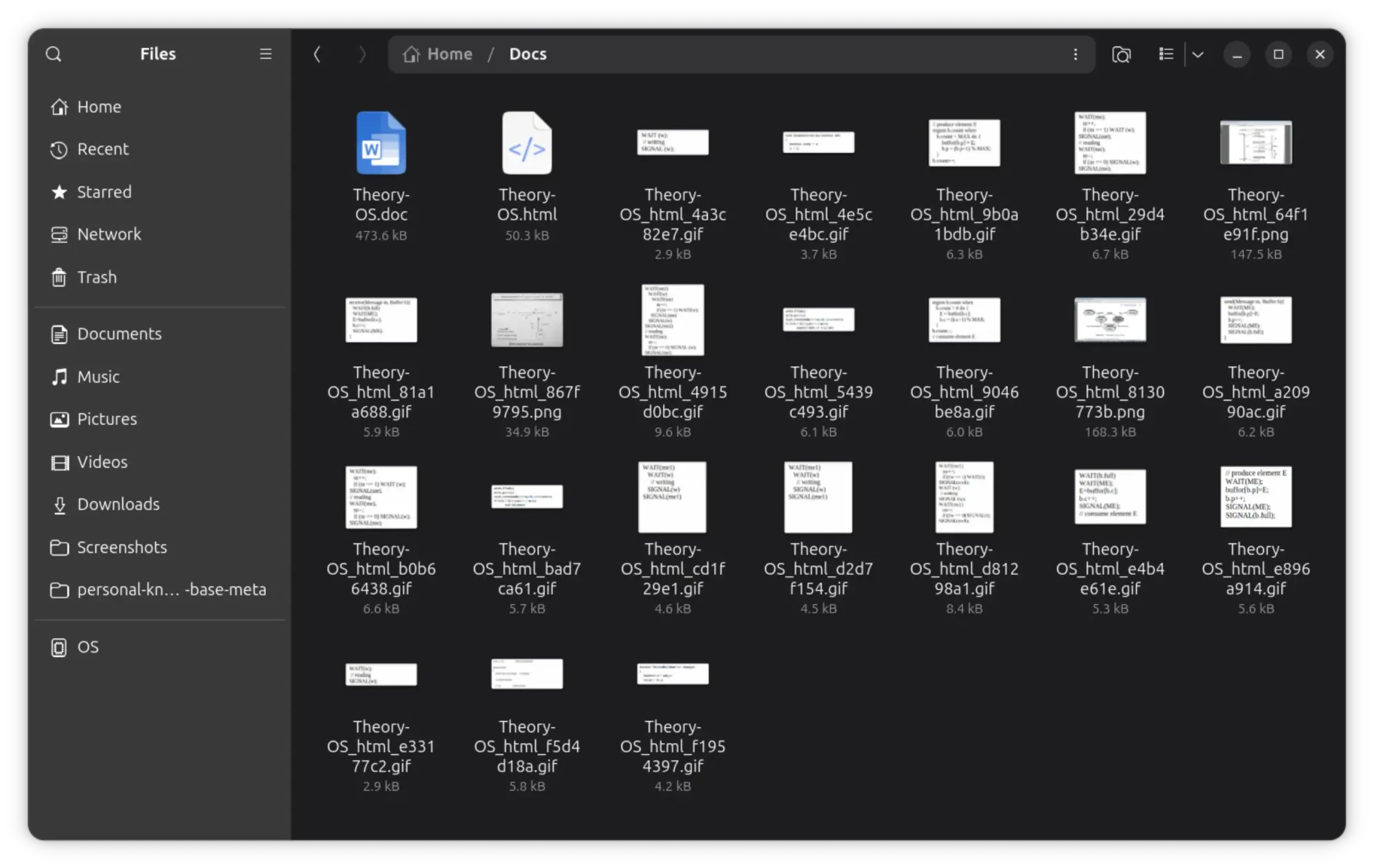
When a word processor saves a file as HTML, it cannot maintain the document as a single, encapsulated binary blob. Instead, it must separate the text from the visual media to satisfy web standards. Consequently, the software automatically generates a directory containing all the original image assets in their native formats—whether they be PNG, JPEG, GIF, or SVG—while simultaneously creating the HTML file that references them.
A Step-by-Step Guide for LibreOffice Users
While this technique is widely applicable, it is particularly streamlined in open-source suites like LibreOffice. If you are looking to reclaim your time, follow this systematic workflow:
1. Preparation and Workspace Organization
Before initiating the conversion, organization is paramount. Because the "Save as HTML" command generates multiple files, it is poor practice to run it in a directory that already contains other documents.

- Create a Dedicated Directory: Create a new, empty folder.
- Isolate the File: Move the source document into this new folder. This ensures that the extracted images do not clutter your existing file structure, keeping your digital workspace tidy and manageable.
2. The Conversion Process
Once your document is safely isolated, open it within your LibreOffice suite:
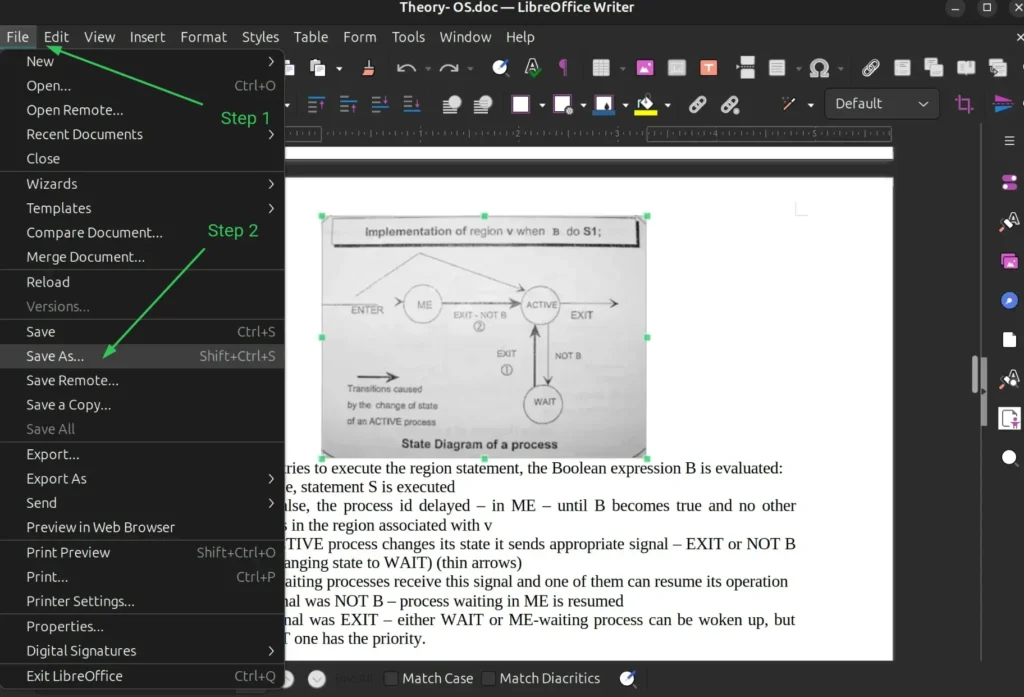
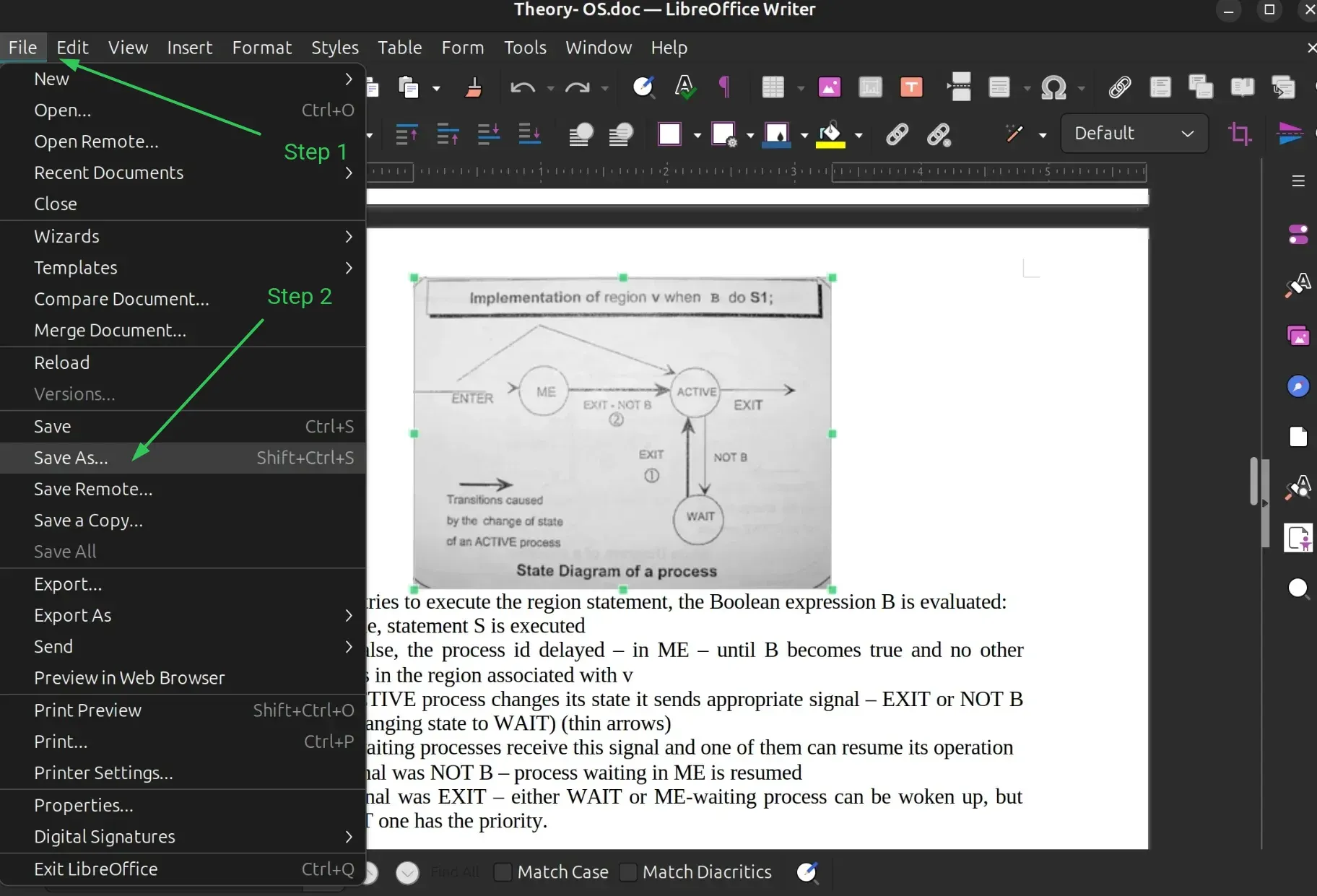
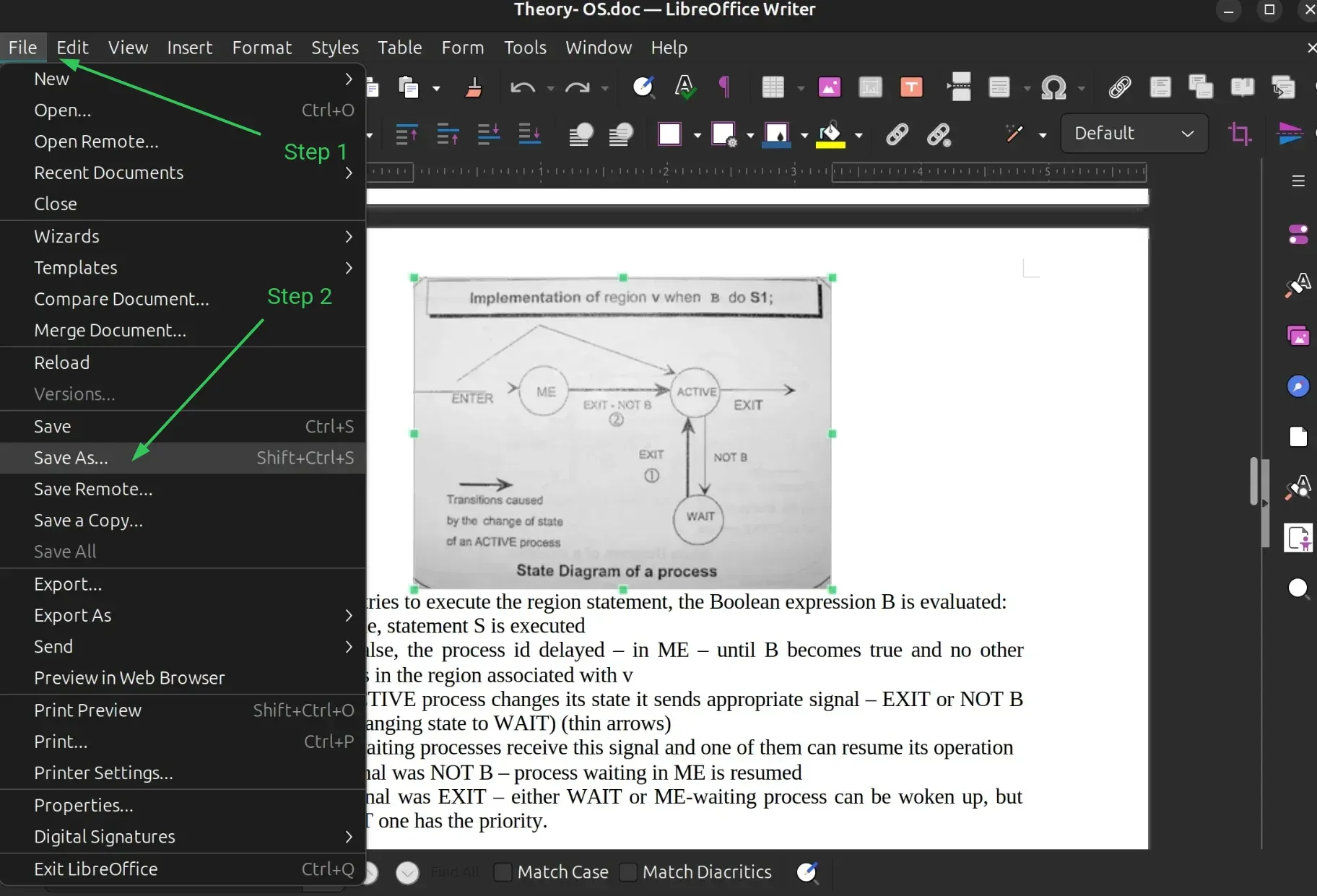
- Navigate the Menu: Click the "File" menu in the top-left corner.
- The Save As Command: Select "Save As." Alternatively, use the industry-standard keyboard shortcut
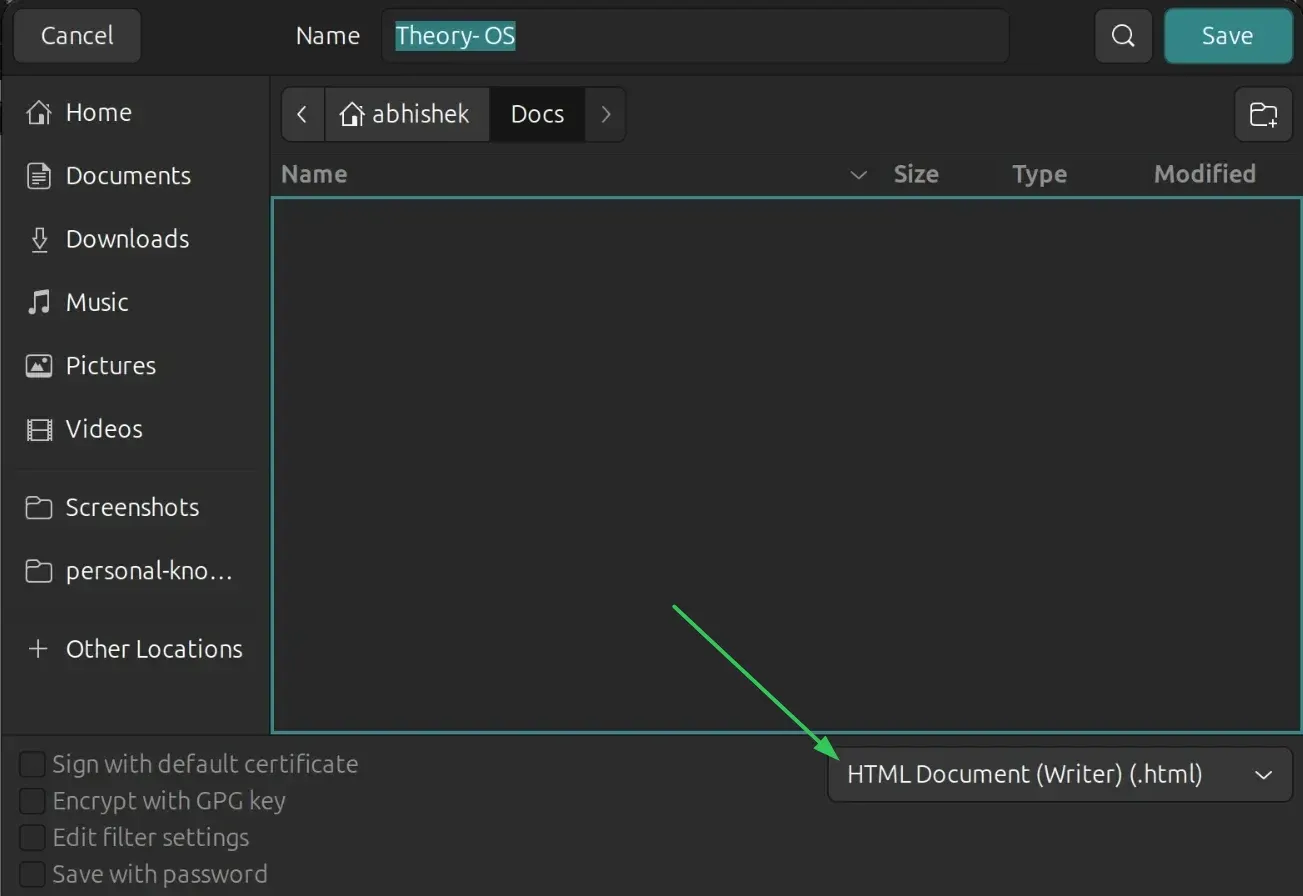
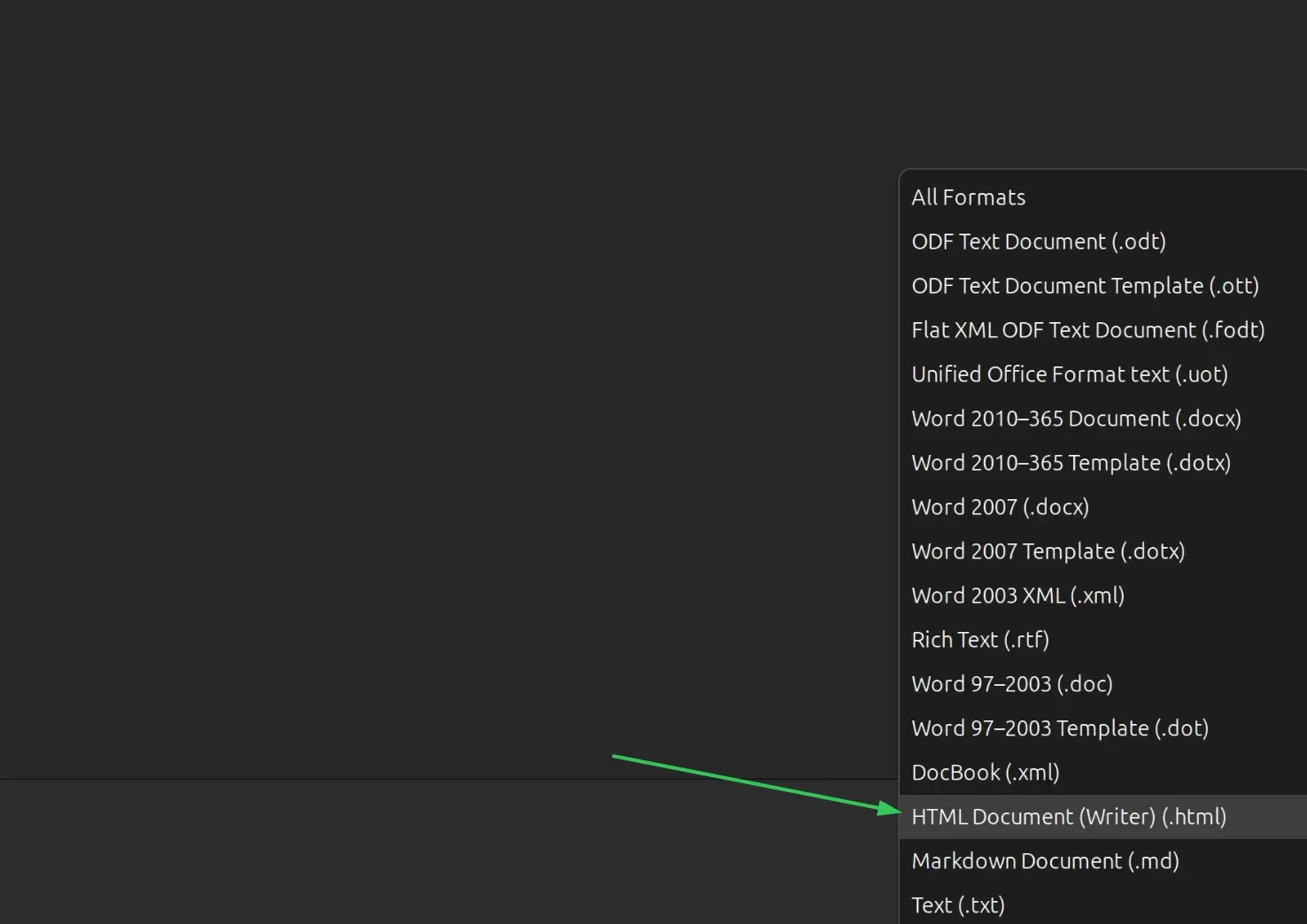
Ctrl + Shift + S. - Selecting the Format: In the file-save dialog box, you will see a dropdown menu labeled "Save as type." Do not leave this at the default
.odtor.docxsetting. Instead, scroll through the list and select "HTML Document (Writer) (.html)." - Finalizing the Export: Click "Save."
Upon completion, you will find that the folder now contains your original file, a new HTML file, and a sub-folder (or a series of files) containing every image that was embedded in the document.
Chronology of Evolution: From Proprietary Blobs to Open Standards
Historically, the inability to easily extract images was a byproduct of the "walled garden" approach taken by early proprietary word processors. Files were saved in complex, proprietary binary formats designed to keep users tethered to a specific software ecosystem. Extracting an image required either the original software’s specific export tools or deep-level binary reverse engineering.
As the industry shifted toward Open Document Formats (ODF) and XML-based architectures (like .docx), file structures became more transparent. However, the UI/UX design of these applications often prioritized "editing" over "asset management." The "Save as HTML" trick gained popularity among power users as a "hacker’s shortcut"—a way to bypass the restricted GUI menus of office suites to access the raw data underneath.
Supporting Data: Why Efficiency Matters
The impact of this method on workflow efficiency is quantifiable. Consider a standard technical report containing 50 images.
- The Manual Approach: If it takes an average of 10 seconds to right-click, select "Save as," name the file, and navigate the save dialog for each image, the total time spent is approximately 500 seconds, or roughly 8.5 minutes.
- The HTML Batch Method: The extraction process takes less than 10 seconds total, regardless of the number of images.
This represents a time savings of over 98%. When extrapolated across a team of 50 employees performing this task once a week, the cumulative time saved amounts to over 350 hours per year—a significant gain in operational productivity that allows human capital to focus on creative or analytical tasks rather than file management.
Cross-Platform Compatibility
One of the most compelling aspects of this "Save as HTML" trick is its universality. It is not limited to the LibreOffice ecosystem.
- Microsoft Office: Microsoft Word has supported this functionality for decades. The logic remains the same: the software treats the HTML conversion as a web-publishing task, requiring all assets to be externalized.
- ONLYOFFICE: Being a highly compatible alternative, ONLYOFFICE mirrors the file-handling capabilities of its peers, making this trick fully functional within its interface.
- Google Docs: While Google Docs is a cloud-native platform, the principle holds. By downloading a Google Doc as a "Web Page (.html, zipped)," Google automatically compresses the document and all its images into a single ZIP file, which can then be unzipped to reveal the isolated image assets.
This cross-platform nature makes it a reliable skill for any professional, regardless of whether they are working on a Linux workstation, a Windows machine, or a browser-based environment.
Implications for Digital Content Creators
The implications of this workflow extend beyond simple convenience; they influence how we handle intellectual property and document archival.
Improving Version Control
When images are buried inside a proprietary document, they are often difficult to track in version control systems like Git. By extracting images into a standard folder structure, users can treat the images as individual assets, allowing for better tracking, optimization, and collaboration.
Managing Large Documents
For writers and researchers dealing with long-form content, the ability to "deconstruct" a massive file is vital. If a document has grown too large or corrupted, extracting the text and images separately allows for a "clean rebuild." You can import the text into a fresh document and re-insert the high-resolution assets, effectively troubleshooting performance issues within the software.
Selective Extraction
While the "Save as HTML" method is a "batch-all" solution, it also provides a foundation for selective extraction. If you only need a specific chapter’s worth of images, the best practice is to:
- Create a copy of your document.
- Delete all content except the section you are interested in.
- Perform the "Save as HTML" operation on this trimmed-down version.
This minimizes the clutter and prevents the need to sort through hundreds of files when you only require a handful.
Conclusion: Embracing the "Hacker" Mindset
The "Save as HTML" technique is more than just a quick fix; it represents a fundamental understanding of how digital files are structured. By looking past the user interface and understanding how software processes data, users can bypass the limitations of standard menus and reclaim control over their digital assets.
Whether you are a Linux enthusiast utilizing LibreOffice, a corporate professional in the Microsoft ecosystem, or a student working in Google Docs, this universal trick is a testament to the power of open standards and logical problem-solving. By implementing these workflows, you reduce friction, save time, and ensure that your creative and intellectual assets remain accessible, portable, and ready for use in any context.
As we continue to navigate a digital landscape defined by the rapid exchange of information, these small, efficiency-focused habits are what separate the average user from the true power user. So, the next time you find yourself staring at a document filled with images you need to extract, don’t reach for the right-click menu. Reach for the "Save As" menu, select HTML, and watch the software do the heavy lifting for you.